

Navigating SignalRGB
SignalRGB’s interface is designed around a single canvas that runs one effect across all your devices at once. This guide covers every section of the app and what it does.
What Is the SignalRGB Interface?
Section titled “What Is the SignalRGB Interface?”SignalRGB is organized into three persistent areas: the left navigation menu for switching between pages, the top bar for notifications and support tools, and the Effect Player at the bottom for controlling lighting playback from anywhere in the app. Your active effect always keeps running in the background as you navigate.
How the Interface Works
Section titled “How the Interface Works”Every section in SignalRGB is accessible from the left navigation menu. Click an icon to switch between pages. Your active effect keeps running in the background no matter which page you’re on, and the Effect Player at the bottom stays visible so you can adjust playback at any time.
Navigation Menu
Section titled “Navigation Menu”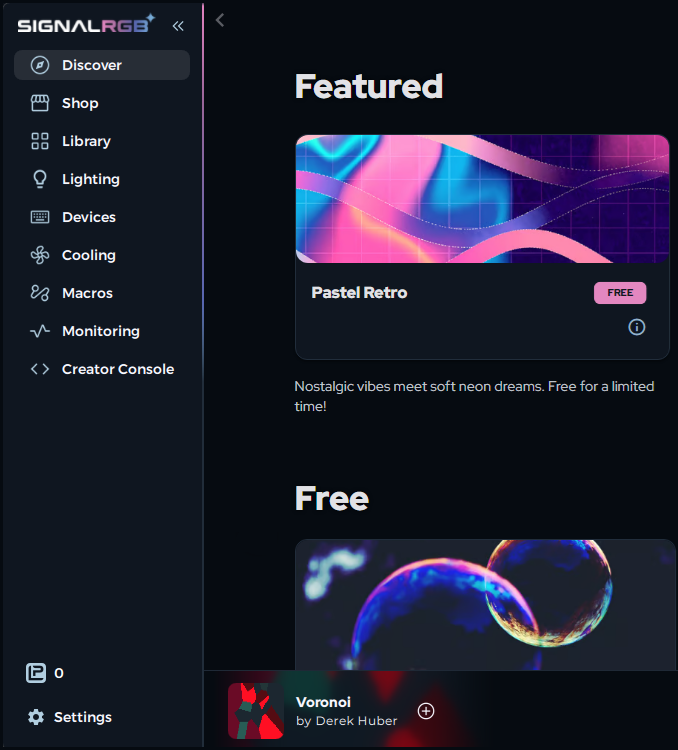
Discover
Section titled “Discover”The Discover page is where you browse, search, and download lighting effects. Find free effects, Pro-exclusive content, game integrations, and more. Click any effect to learn more and install it.
See About the Discover Page for a full breakdown.
The Shop is where you browse and purchase Pro effects. If you have a Pro subscription, you can download effects here. Light Points let you unlock individual game integrations and premium effects without a subscription.
Library
Section titled “Library”The Library is your personal collection of installed effects. Launch any effect you’ve already downloaded, manage your playlists, and switch between effects quickly.
Lighting
Section titled “Lighting”The Lighting page is where you customize the active effect. Adjust colors, speed, scale, brightness, and other parameters specific to the effect you’ve applied. Changes appear on your devices in real time.
See How to Customize Effects for a full walkthrough.
Devices
Section titled “Devices”The Devices page shows every RGB device SignalRGB has detected on your system. Devices that need configuration or have issues appear at the top of the list.
See How to Configure RGB Controllers and About Device Detection for more.
Cooling
Section titled “Cooling”The Cooling page lets you control fan speeds on supported RGB controllers and cooling hardware. Create custom fan curves or set fixed speeds.
Cooling requires a SignalRGB Pro subscription. See Fan Control for more information.
Macros
Section titled “Macros”The Macros page lets you create and manage keyboard macros. Record sequences of keystrokes or actions and bind them to a key on a supported device.
See About Macros for more information.
Monitoring
Section titled “Monitoring”The Monitoring page displays live sensor data from your system, including CPU temperature, GPU temperature, usage percentages, and other hardware metrics.
Monitoring requires a SignalRGB Pro subscription. See About System Monitoring for more information.
Settings
Section titled “Settings”The Settings page is where you manage application preferences, update options, account details, and device permissions.
Top Bar Tools
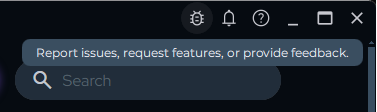
Section titled “Top Bar Tools”The top bar in the upper-right corner of the app gives you quick access to issue reporting, notifications, and help resources.

Report Issues and Request Features
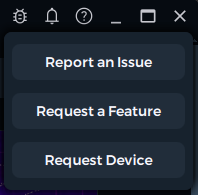
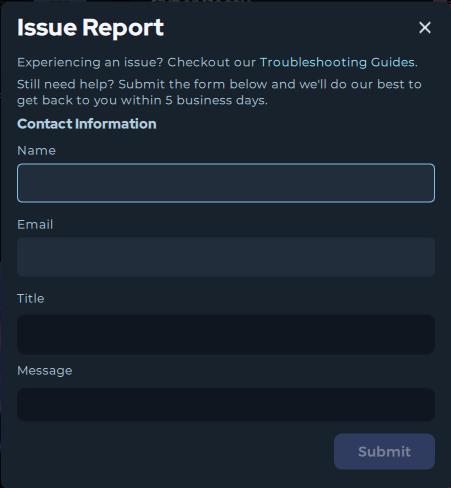
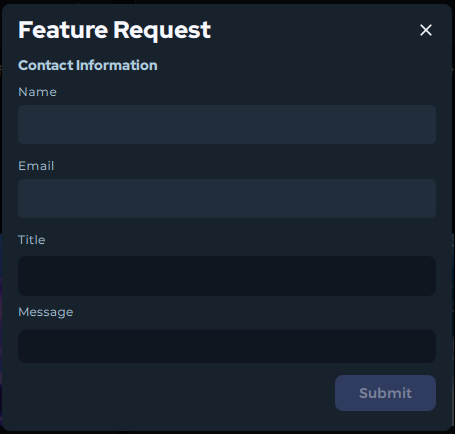
Section titled “Report Issues and Request Features”Click the Report Issues button to open a menu with options to submit a bug report or request a new feature directly to the SignalRGB team.
Notifications
Section titled “Notifications”The bell icon shows in-app notifications for updates, announcements, and warnings.
In-App Help
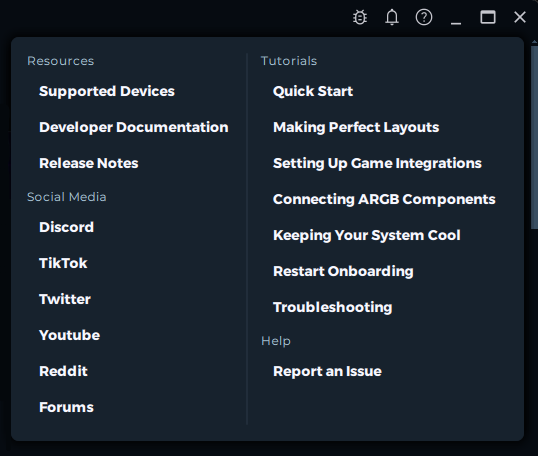
Section titled “In-App Help”The help button opens a panel with links to tutorial documentation, issue reporting, social media channels, developer release notes, and developer documentation.
The Effect Player
Section titled “The Effect Player”The Effect Player is the control bar at the bottom of the SignalRGB window. It lets you manage playback of your lighting effects without leaving any page.

Left Side: Current Effect and Playlist
Section titled “Left Side: Current Effect and Playlist”The left side shows the currently active effect. Click the effect name to go directly to the Lighting page and customize it.
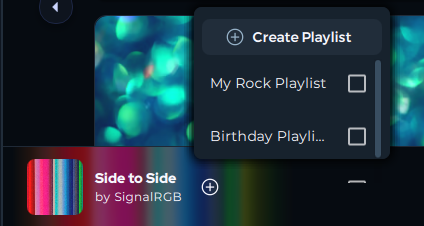
The + button lets you select or create a playlist. Playlists automatically cycle through multiple effects on a timer. See About Playlists for more information.
Center: Playback Controls
Section titled “Center: Playback Controls”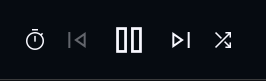
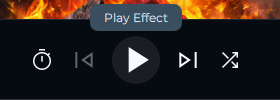
The center contains the main playback controls:
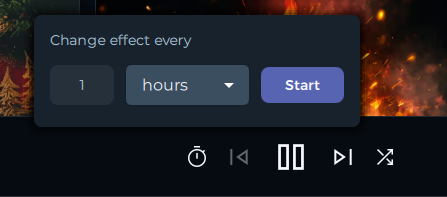
- Clock / Timer: Sets how long each effect plays before switching to the next one in the playlist
- Previous Effect: Switches to the previous effect in the active playlist, or picks a random effect if no playlist is selected
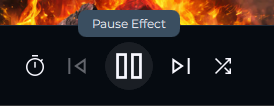
- Pause / Play: Pausing turns off your RGB lighting entirely. Press Play to resume
- Next Effect: Switches to the next effect in the active playlist, or picks a random effect if no playlist is selected
- Shuffle: Randomizes the order effects play in the active playlist
Right Side: Additional Controls
Section titled “Right Side: Additional Controls”The right side contains extra tools:
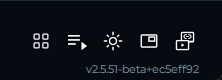
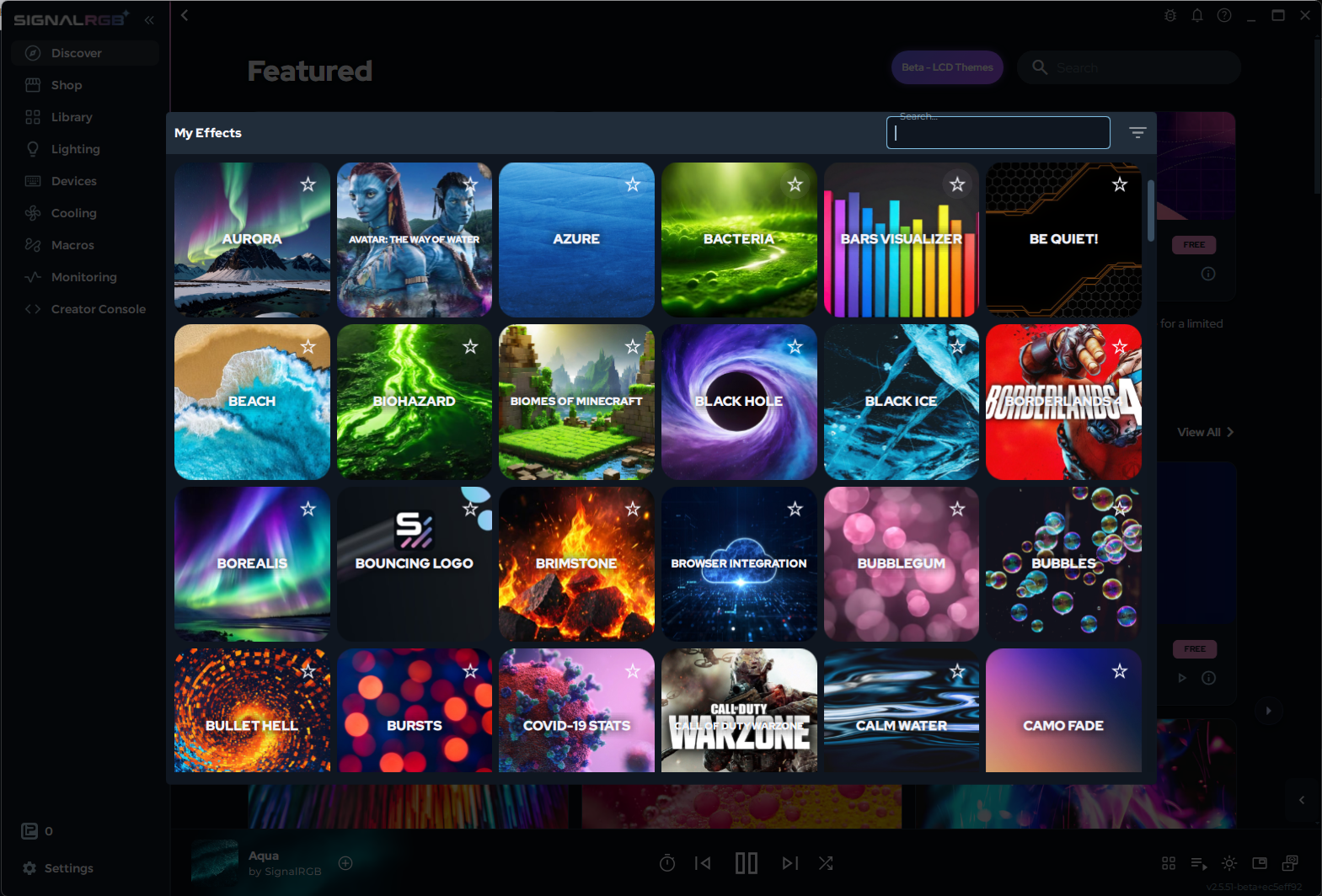
- Select Effect: Opens a quick-pick menu of all installed effects so you can switch without going to the Library
- Queue: View and manage the upcoming effects queue
- Brightness: Adjusts global brightness directly from the player bar
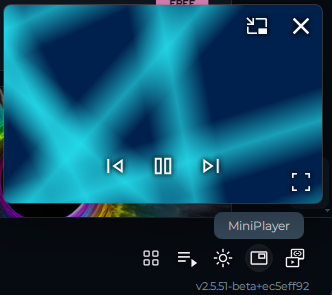
- Mini Player (Pro only): Opens a floating mini player that can go full screen and plays the canvas as an overlay on your display
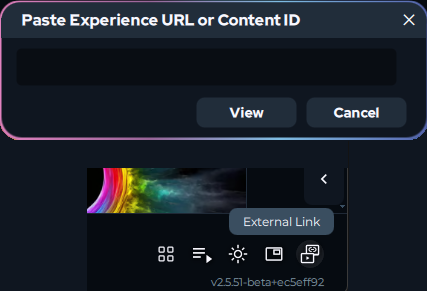
- External Link: Enter any URL (such as a YouTube video) and play it on the canvas as a lighting source
Pro Features in the Interface
Section titled “Pro Features in the Interface”Some controls require a SignalRGB Pro subscription:
- Cooling: Fan speed control and custom fan curves
- Monitoring: Live system sensor data
- Mini Player: Floating canvas overlay in the Effect Player
See About Pro Features for full details on what’s included.
Getting Started
Section titled “Getting Started”If you’re new to SignalRGB, the best path is:
- Follow First-Time Setup to configure your devices
- Use the Discover page to find and install an effect
- Use the Lighting page to customize it
- Use the Layout tab to position your devices
Troubleshooting
Section titled “Troubleshooting”- A page is missing or grayed out — some sections (Cooling, Monitoring, Mini Player) require Pro. See About Pro Features.
- Effect Player not responding — try restarting SignalRGB from the system tray
- Devices not showing on the Devices page — see Device Not Detected
Related Articles
Section titled “Related Articles”- About the Discover Page
- How to Customize Effects
- How to Configure RGB Controllers
- About Playlists
- Fan Control
- About Pro Features
Need more help? Contact Customer Support.