

Gigabyte
GPU supported but not showing-up
Section titled “GPU supported but not showing-up”This probably means the GPU is on a soft-lock state, check possible ways to get out of that state:
Power-cycle
Section titled “Power-cycle”- Shut down your PC
- Switch off your PSU (if it does not have a switch, remove the cord)
- Press your power button several times to get rid of any left over power
- Wait at least 60 seconds
- Switch on your PSU (or plug in the cord again respectively)
- Boot up your PC
RGBFusion
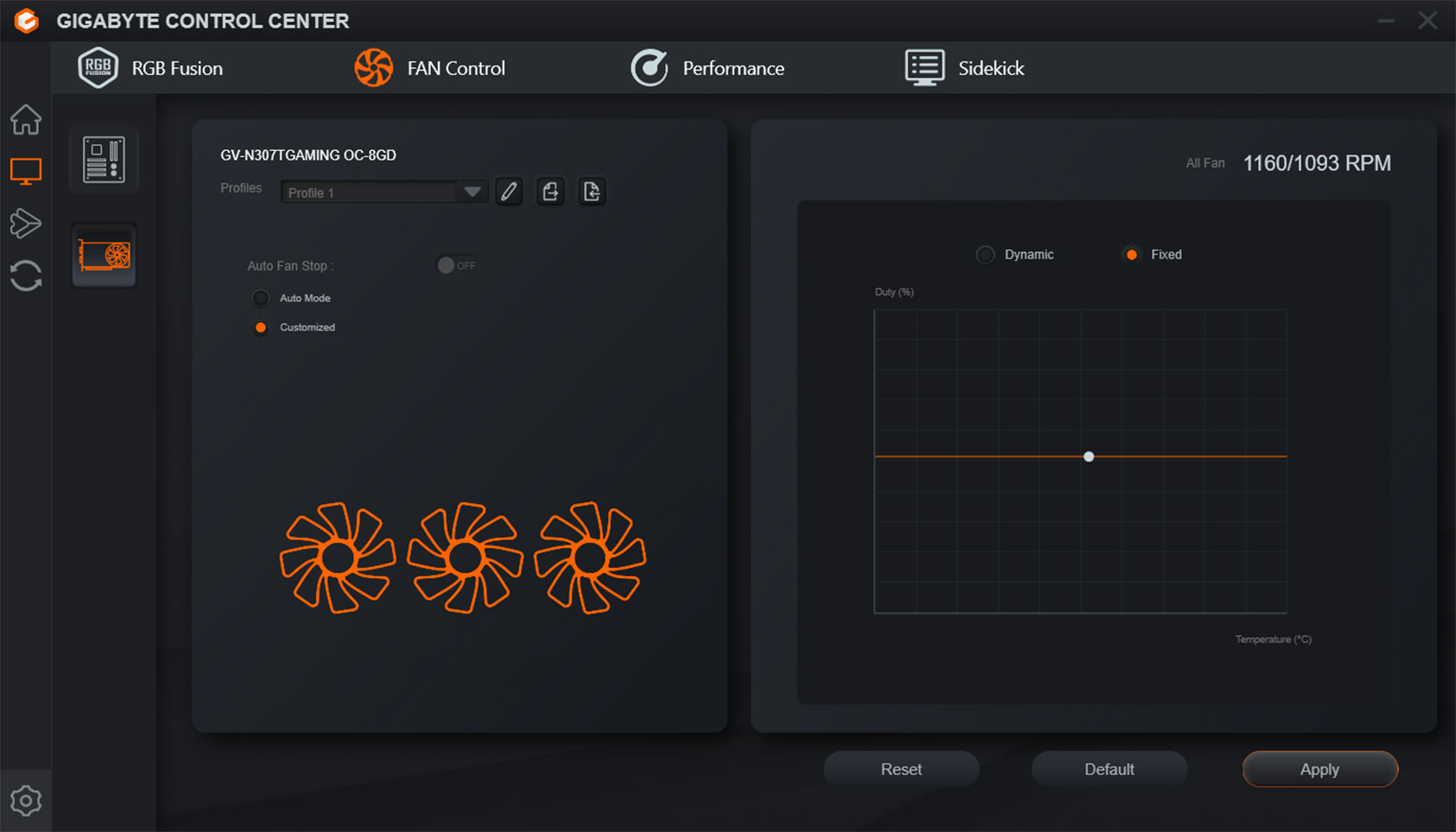
Section titled “RGBFusion”Make sure your GPU is being detected in the Gigabyte Control Center app, if it shows there, go to the next step, if it doesn’t show there, check with Gigabyte support team.
LED Firmware
Section titled “LED Firmware”Some GPUs needs a firmware update to have LED control, looks like some GPU were shipped without LED control support, check your GPU page at Gigabyte website and go to Firmware download:

Driver
Section titled “Driver”We have reports that sometimes after updating the Nvidia GPU Driver, the RGB control it’s lost, you could try updating or downgrading a version to confirm it’s something related to the new driver.
- Download DDU: https://www.guru3d.com/download/display-driver-uninstaller-download/
- Restart in Safe mode
- Run DDU
- Select the “Clean and restart” option
- Install your Drivers again
Tip: If Windows is installing a generic driver after DDU, you may want to disable your internet adapter so Windows can’t fetch a new driver, make sure to download the driver installer prior to this step.
Updating BIOS
Section titled “Updating BIOS”Gigabyte Provides a written guide on how to update BIOS on their motherboards:
https://global.aorus.com/blog/How-to-Update-Your-BIOS-Part-1.php
B600+ Chipset model not working/showing up
Section titled “B600+ Chipset model not working/showing up”For some B600 chipset boards, Gigabyte has released them without the RGB firmware controller.
-
You need to go into your motherboard product page on the Gigabyte website.
-
Then in the Support section, check under the Utility category for the “GIGABYTE IT5701/5702 RGB lighting controller firmware upgrade package” (also referred to as IT5701 or IT5711 firmware).
-
Extract the downloaded package. Inside you will find ITESHFU.exe — this is the flashing utility.
-
Run ITESHFU.exe as administrator.
-
The utility detects your board’s RGB controller. Click Update to flash the firmware.
-
Wait for the flash to complete — do not close the utility or restart your PC during this process.
-
Run the flash.bat by double-clicking it,
-
If you have issues with drivers missing, install the “GIGABYTE Control Center Full Installation Package” to install them. Repeat step 3 after.
-
Then power-cycle.
