

How to Adjust Device Brightness
SignalRGB gives you three independent levels of brightness control. This guide walks you through adjusting each one to get the right look across your entire setup.
Before You Start
Section titled “Before You Start”Make sure you have:
- SignalRGB installed and running
- At least one device detected and visible on the Devices page
Adjust Global Brightness
Section titled “Adjust Global Brightness”Global Brightness is the master control for your entire setup. Changing it affects all devices at once.
- Locate the brightness slider in the bottom-right corner of the app window
- Drag the slider left to decrease brightness or right to increase it
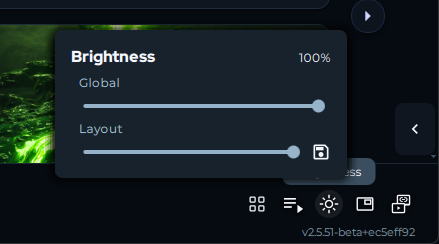
All connected devices update immediately to reflect the new brightness level.
Adjust Layout Brightness
Section titled “Adjust Layout Brightness”Layout Brightness is saved with your layout. Each layout can have its own brightness level, loaded automatically when that layout is active.
Layout Brightness can be adjusted in two places:
From the Lighting tab:
- Open the Lighting tab
- Click Layout in the top-right corner (next to Effect)
- Adjust the Layout Brightness underneath the canvas
From the Global Brightness slider:
- Locate the brightness slider in the bottom-right corner of the app window
- Adjust the Layout Brightness slider directly below it
The brightness updates for all devices in the current layout.
Adjust Device Brightness
Section titled “Adjust Device Brightness”Device Brightness lets you fine-tune individual devices relative to each other. Use this when one device is noticeably brighter or dimmer than the rest of your setup.
- Click the Devices tab in the left sidebar
- Select the device you want to adjust
- Locate the brightness control for that device
- Adjust the slider to your preferred level
Only the selected device updates. All other devices remain unchanged.
Tips and Best Practices
Section titled “Tips and Best Practices”- Brightness settings are multiplicative. A Global Brightness of 50% and a Layout Brightness of 50% results in 25% effective brightness on your devices. If your setup looks dimmer than expected, check all three levels.
- Use Layout Brightness to create purpose-built layouts, such as a bright layout for gaming and a dimmed layout for movies, without touching your device settings.
- Use Device Brightness to balance devices that use different LED types, which can appear at different intensities even at the same brightness setting.
Troubleshooting
Section titled “Troubleshooting”Devices look dimmer than expected: Check all three brightness levels. If any one is set low, it reduces the effective brightness of your entire setup.
One device is much brighter than the rest: Adjust that device’s individual Device Brightness from the Devices page.
Changing Global Brightness has no effect: Verify that Layout Brightness and Device Brightness are not set to 0%.
Related Articles
Section titled “Related Articles”Need more help? Contact Customer Support