

How to Update SignalRGB
SignalRGB keeps itself up to date automatically. You can also check for updates manually at any time.
Update Automatically
Section titled “Update Automatically”SignalRGB checks for updates every time it launches. When an update is available, a notification appears in the top bar. Click the notification to begin the update.
Check for Updates Manually
Section titled “Check for Updates Manually”You can check for updates without restarting the app.
From Settings
Section titled “From Settings”- Open SignalRGB and go to Settings
- Navigate to Application > Updates
- Click Check for Updates
SignalRGB checks the update server and downloads any available update.
From the System Tray
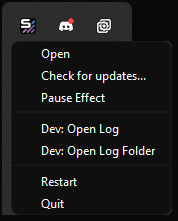
Section titled “From the System Tray”- Right-click the SignalRGB icon in the system tray
- Select Check for Updates
Enroll in Preview Updates
Section titled “Enroll in Preview Updates”Preview Updates give you early access to new features, supported devices, and bug fixes before they reach the stable release. Preview updates may be unstable.
- Go to Settings > User > Updates
- Enable the Enroll in Preview Updates toggle
Revert to Stable After a Preview Update
Section titled “Revert to Stable After a Preview Update”If a Preview build is causing problems and you want to go back to the stable release, uninstall SignalRGB and reinstall the latest stable version from signalrgb.com. Your settings and device configurations are stored separately and are preserved through uninstall and reinstall.
Troubleshooting
Section titled “Troubleshooting”- Update fails to complete: Close SignalRGB completely and relaunch it. The update notification reappears if an update is still available. Click it to try again.
- Update fails repeatedly: Download the latest installer from signalrgb.com and run it over your existing installation. Your settings and configurations are preserved.
- Update fails due to network error: Check your internet connection. If you’re behind a firewall or VPN, try disabling it temporarily. You can also download the latest installer directly from signalrgb.com and run it manually.
Related Articles
Section titled “Related Articles”Need more help? Contact Customer Support.