

How to Configure RGB Controllers
Components are any devices connected to RGB controllers or motherboard headers — including RGB fans, LED strips, water blocks, CPU coolers, and case lighting. SignalRGB cannot detect what specific product is physically connected to each channel (except for smart controllers such as Corsair’s Link Controllers). You must configure every component manually.
Before You Start
Section titled “Before You Start”Gather the following information:
- Which devices are connected to each controller channel
- The LED count for any custom strips
- The physical position of each device in your case
For background on how components work, see About Device Detection.
Open the Devices Page
Section titled “Open the Devices Page”Unconfigured devices appear at the top of the Devices page. Any controller or motherboard that needs setup is listed there.
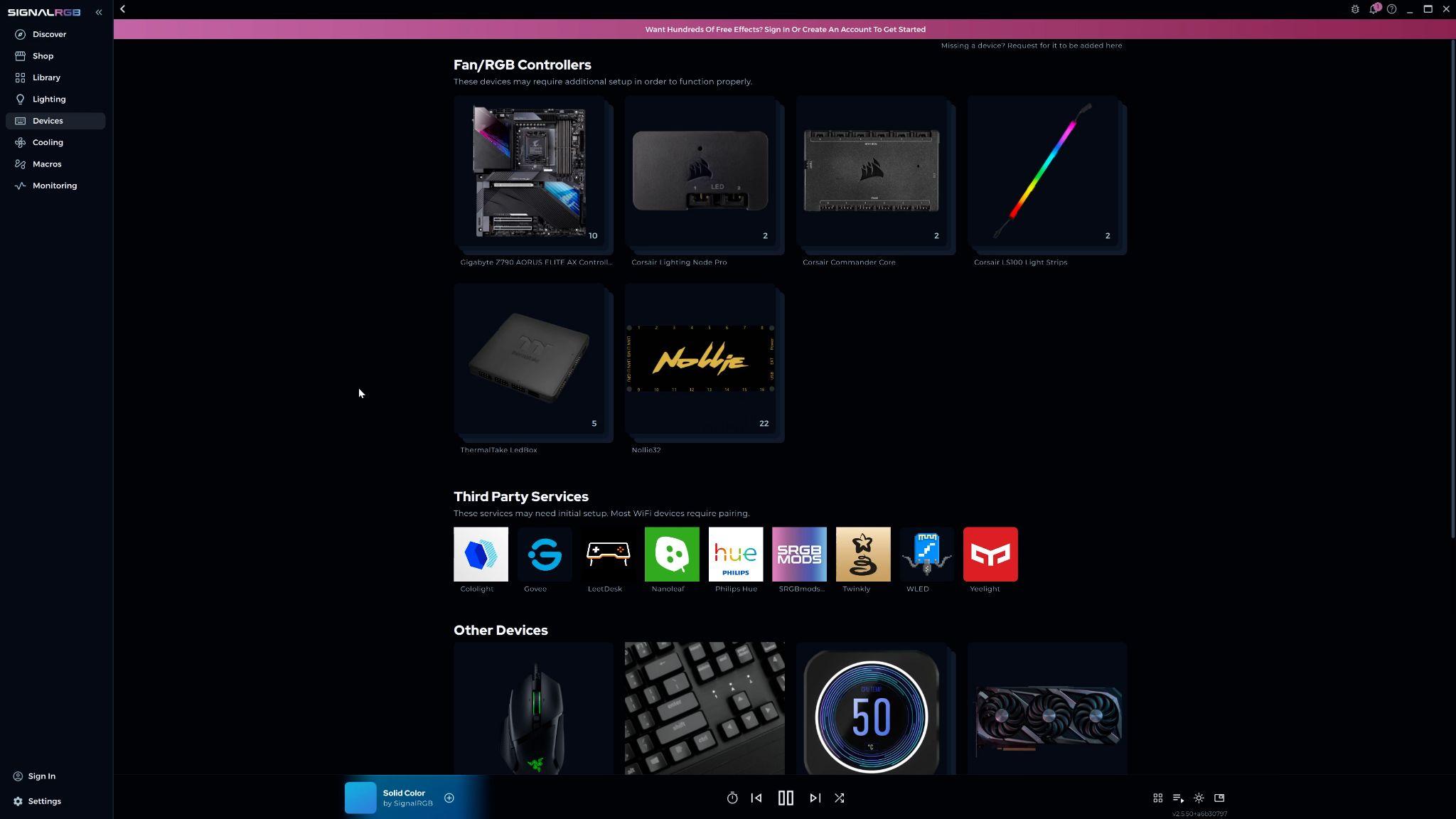
Click a device to open its configuration page. From here you can manage components and other settings for that controller.
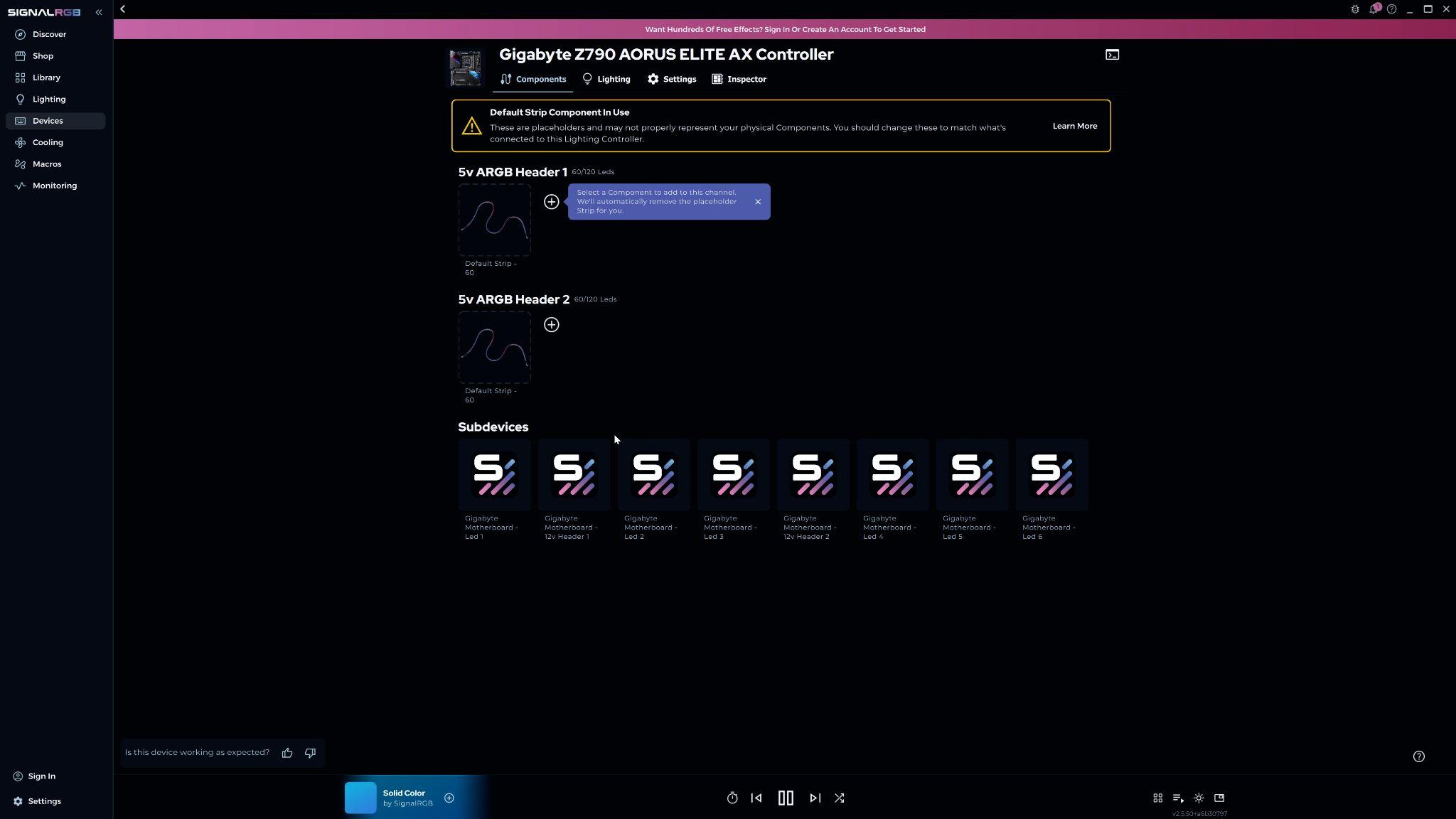
Identify Each Channel
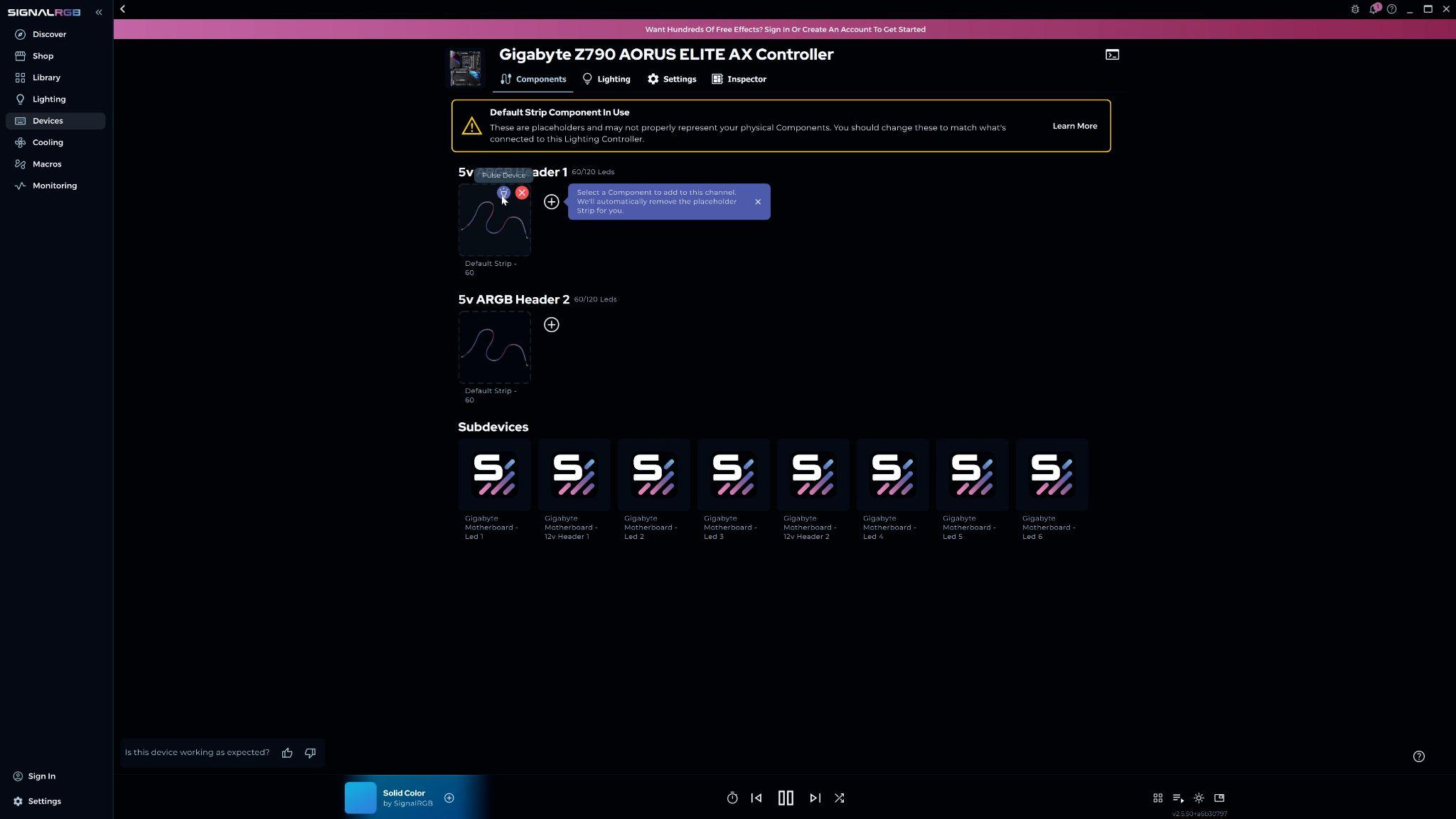
Section titled “Identify Each Channel”Use the Pulse Device function to confirm which physical component corresponds to each channel before making changes.
- Hover over a placeholder strip
- Click Pulse Device
The component connected to that channel pulses inside your case.
Remove the Placeholder Strip
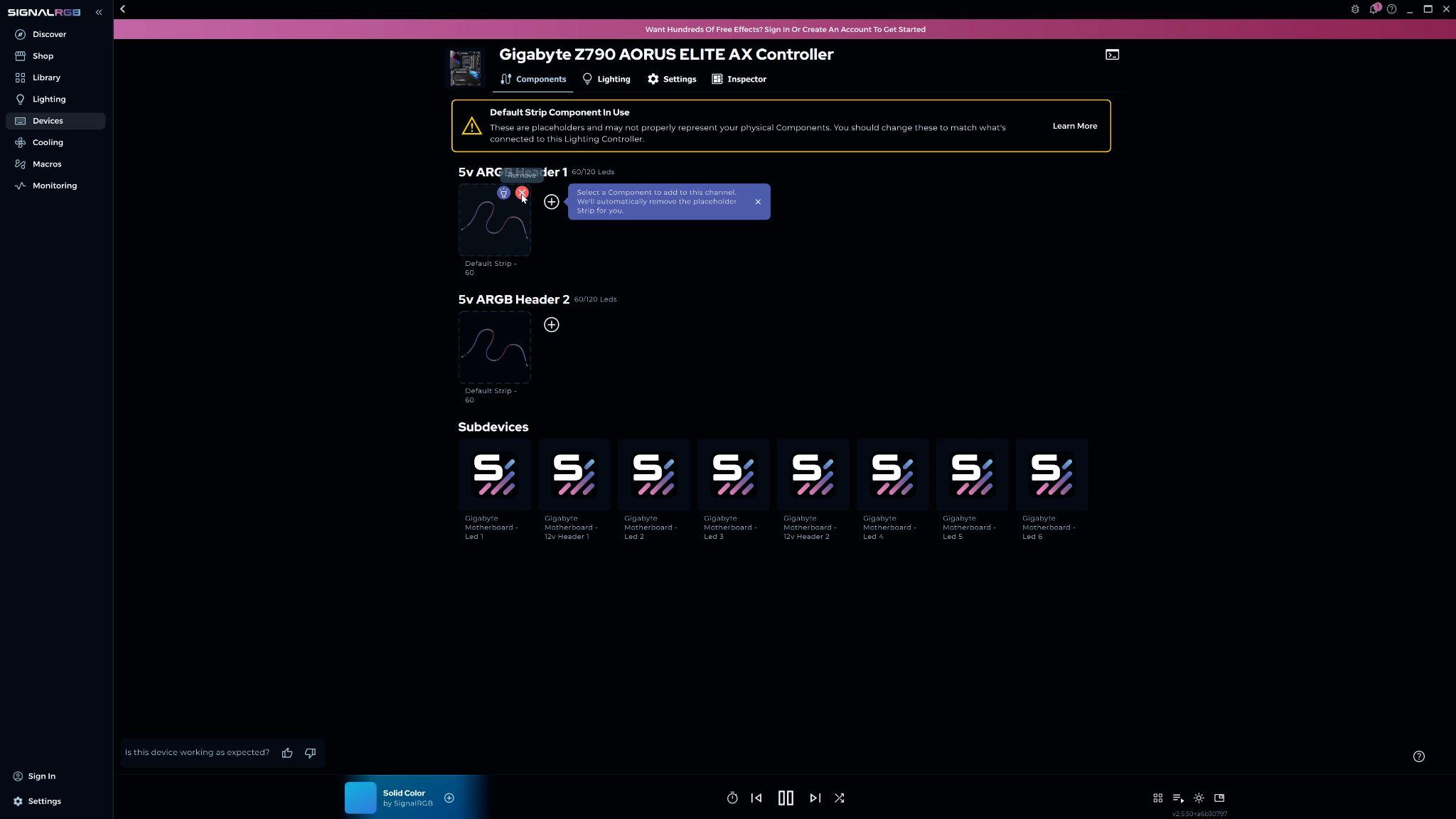
Section titled “Remove the Placeholder Strip”- Hover over the placeholder strip on the identified channel
- Click Remove
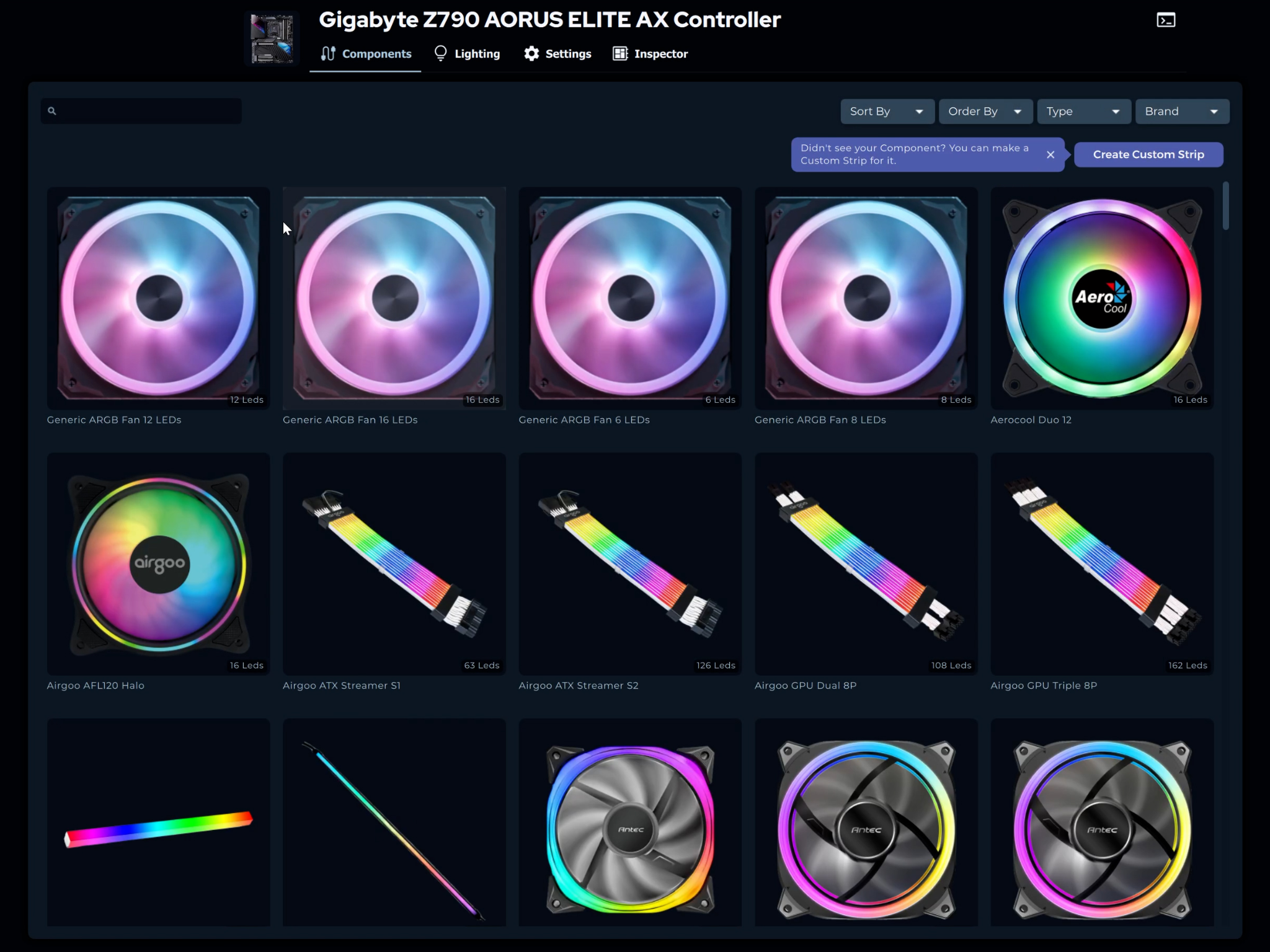
Add a Component to the Channel
Section titled “Add a Component to the Channel”-
Click Add Component to Chain
-
Find your component in the list and click it
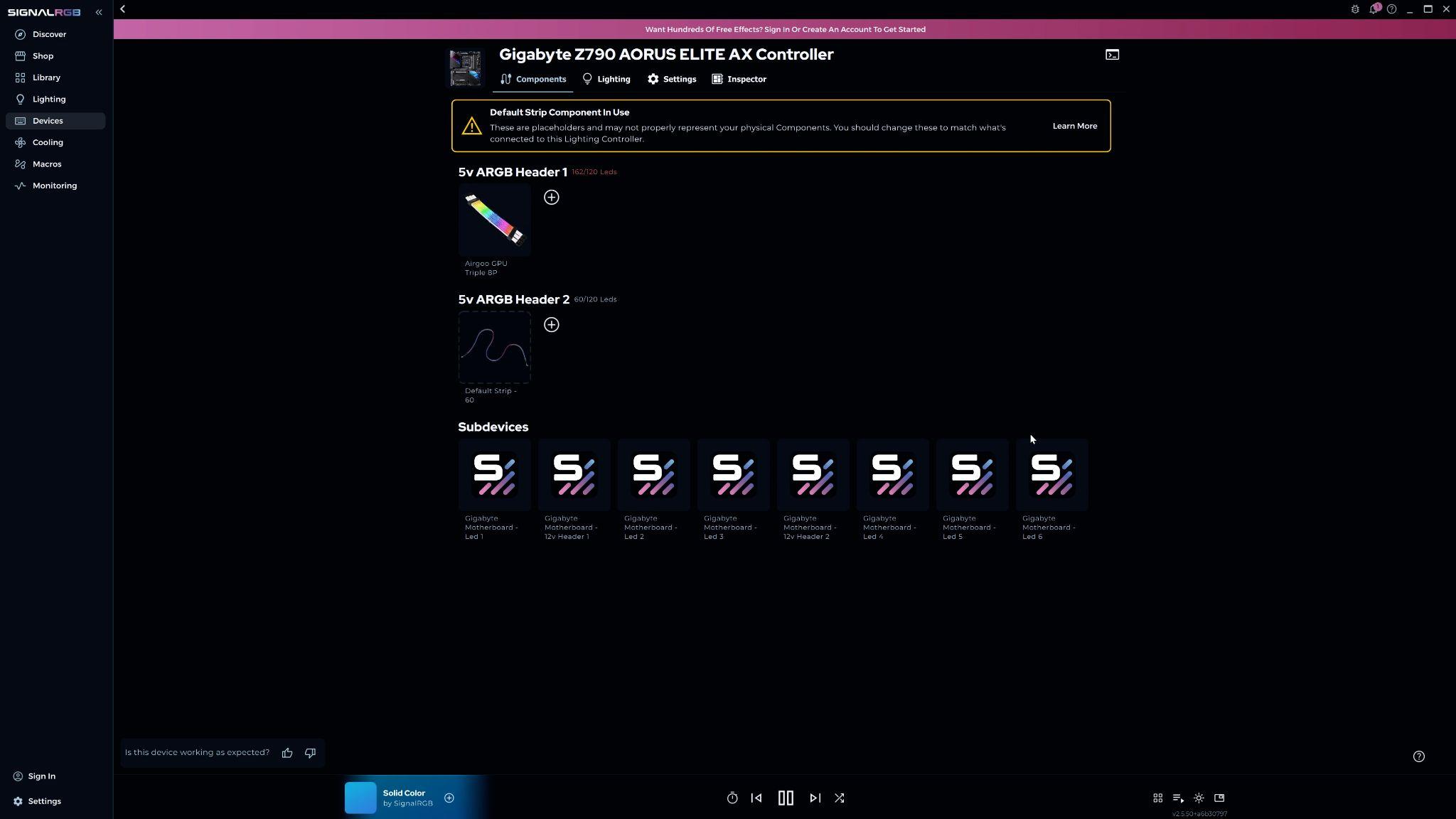
The configuration page reopens with your selected component occupying the channel.

Create a Custom Strip (If Your Component Isn’t Listed)
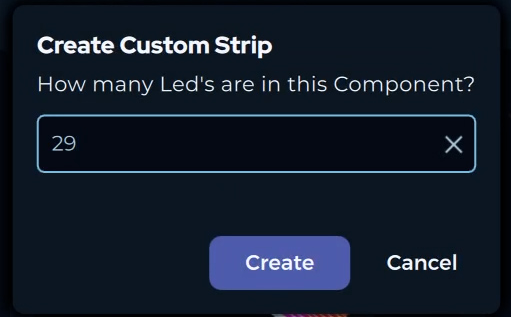
Section titled “Create a Custom Strip (If Your Component Isn’t Listed)”If your component doesn’t appear in the list, create a custom strip with the correct LED count.
- Select the custom strip option in the component menu
- Enter the number of LEDs in your strip
- Click Create

Repeat for All Channels and Controllers
Section titled “Repeat for All Channels and Controllers”Repeat the steps above for every channel on every controller until all components are configured.
All channels show their correct components rather than placeholder strips. SignalRGB now controls each component individually.
Troubleshooting
Section titled “Troubleshooting”Component not in the list: Create a custom strip with the correct LED count, or select a Generic ARGB fan.
Pulsing the wrong color or not pulsing at all: Check that the channel matches the physical connection on your controller.
Lighting looks wrong after configuration: Verify that the LED count matches your component’s actual LED count.
Next Steps
Section titled “Next Steps”With your components configured, you’re ready to arrange them on the canvas. See How to Create a Layout to position your devices so lighting effects flow naturally across your entire setup.
Related Articles
Section titled “Related Articles”Need more help? Contact Customer Support