

System Stuttering Issues
Stuttering in the middle of a game is frustrating. This guide walks you through the most common causes and how to fix each one.
Before You Start
Section titled “Before You Start ”Before troubleshooting, check that these requirements are met:
- SignalRGB is updated to the latest version
- Windows is fully updated
- Your graphics card drivers are up to date
- Other RGB software (like iCUE, Armoury Crate, or MSI Center) is closed
- Windows Game Mode is turned off
- Open Windows Settings, click Gaming, then click Game Mode and turn it off
Some fixes in this guide change how SignalRGB controls your lighting. Each section explains the trade-off before you make the change.
For recommended settings, see Performance Issues.
If all requirements are met and your games still stutter, continue to the solutions below.
Common Issues and Solutions
Section titled “Common Issues and Solutions ”Games Stutter on Computers With an NVIDIA Graphics Card
Section titled “Games Stutter on Computers With an NVIDIA Graphics Card ”Symptoms: Games stutter or drop frames while SignalRGB controls your NVIDIA GPU lighting.
Solution: Disable your GPU in SignalRGB.
- Open SignalRGB and click the Devices tab.
- Click your GPU in the device list.
- Click Settings, then turn off the Device Enabled toggle.
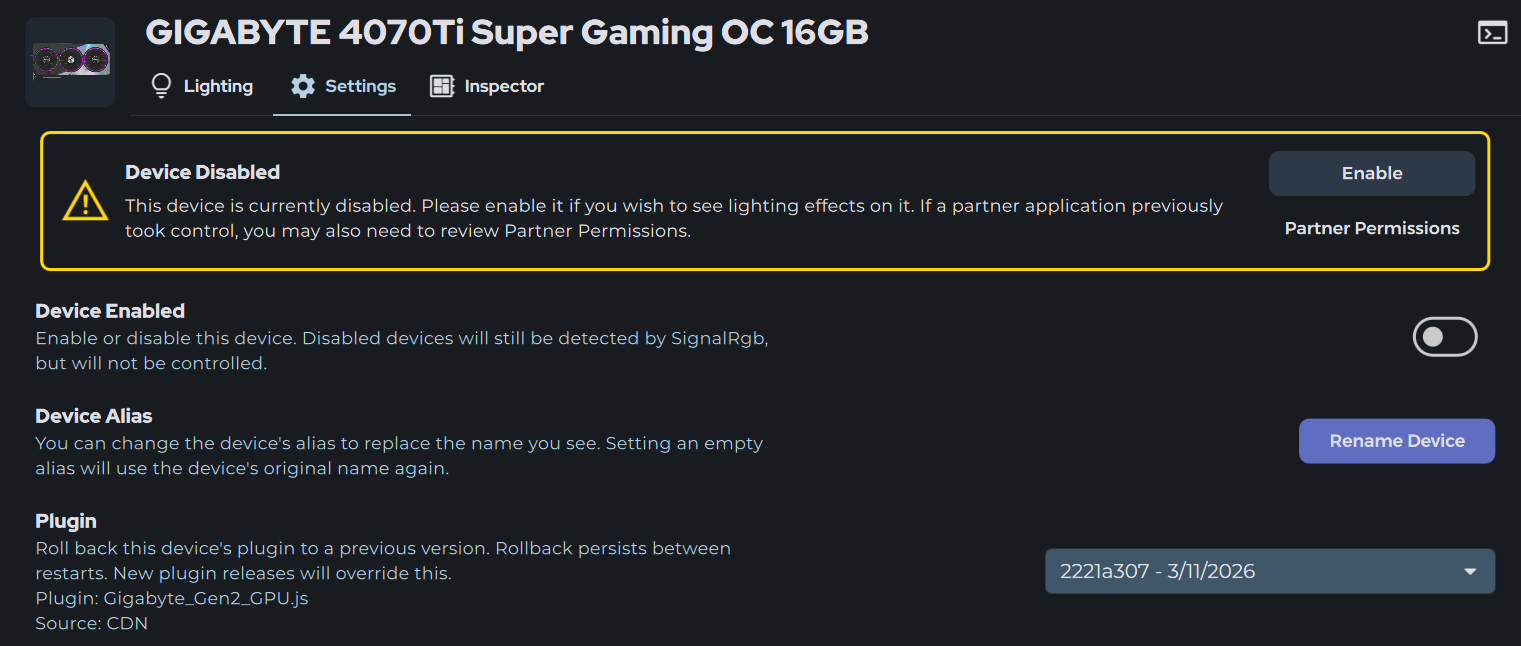
Disabling your GPU in SignalRGB stops the application from controlling your graphics card lighting. To turn it back on, toggle Device Enabled back on.
Why this happens: SignalRGB uses NVIDIA’s API to control graphics card lighting. These tools have a known bug that causes stuttering on some computers when multiple sources attempt to communicate with the GPU. NVIDIA has not released a fix for this behavior yet.
Games Stutter While Screen Capture Is in Use
Section titled “Games Stutter While Screen Capture Is in Use ”Symptoms: Stuttering happens only while an effect that captures your screen is running, like Screen Ambience or Game Effect Integrations.
Solution: Lower the capture framerate.
- Open SignalRGB and click Settings.
- Click Video, then move the Capture Framerate slider to a lower value.
- Launch your game and check if the stuttering improves.
A lower capture framerate uses fewer resources, but your lighting may react to on-screen changes a little more slowly.
Performance Issues
Section titled “Performance Issues ”Symptoms: Games run slower or stutter while SignalRGB is open, no matter which effect is running.
Solution: Try lowering the thread priority. This tells Windows to give your game more processing time than SignalRGB.
- Click Settings, then click Audio Settings.
- Set Thread Priority to Normal or Idle.
- Restart your computer.
Advanced Troubleshooting
Section titled “Advanced Troubleshooting ”Clean Install Your Graphics Drivers
Section titled “Clean Install Your Graphics Drivers ”Use this fix if stuttering continues after trying the steps above. A clean install removes old driver files that can cause conflicts.
Steps:
- Download the latest driver for your graphics card from NVIDIA or AMD. Save it for later.
- Download Display Driver Uninstaller (DDU).
- Run DDU and follow its instructions to remove your current graphics driver.
- Restart your computer.
- Install the driver you downloaded in step 1.
Update Your BIOS and Chipset Drivers
Section titled “Update Your BIOS and Chipset Drivers ”Use this fix if stuttering continues after a clean driver install. The BIOS is the built-in software that starts your motherboard. Chipset drivers help your motherboard work with Windows and your other hardware.
Download these updates from official websites, not from manufacturer apps. MSI Center, ASUS Armoury Crate, and Gigabyte App Center sometimes report an older version as the latest one.
Steps:
- Find your motherboard model.
- Press
WIN + R, typemsinfo32, and look for BaseBoard Product.
- Press
- Visit your motherboard maker’s support website and download the latest BIOS.
- Follow the maker’s instructions to install the BIOS update.
- Don’t turn off your computer during a BIOS update.
- Download the latest chipset drivers:
- Intel: Your motherboard maker’s support website
- AMD: AMD’s support website
- Install the chipset drivers and restart your computer.
Still Not Working?
Section titled “Still Not Working? ”If you’ve tried these steps and your games still stutter, please contact our support team.
What to include when reporting:
- The game you’re playing
- Your graphics card model
- Your SignalRGB version
- The effect running when the stuttering happens
- Whether the stuttering stops when SignalRGB is closed
- What you’ve already tried
How to get help:
- Use the bug report button in the app (upper-right corner)
- Submit through this link
- Contact Customer Support
Our support team will follow up and work with you to resolve the issue.
Related Articles
Section titled “Related Articles ”Need more help? Contact Customer Support