

Roll Back a Plugin Version
If a recent plugin update broke your device’s lighting, Plugin Rollback lets you switch back to an earlier version directly inside SignalRGB. No manual file swapping, no restart required. This guide covers how to use it and what to do when something goes wrong.
Quick Checklist
Section titled “Quick Checklist”Before troubleshooting, verify these requirements are met:
- SignalRGB is up to date. Plugin Rollback was introduced in 2.5.74. Restart the application to run the auto-updater service, and check the changelogs for the latest version.
- Your device is detected. The device must appear in your device list. If it isn’t showing up at all, see Device Not Detected before continuing here.
- Your device uses a CDN-backed plugin. Rollback is only available for plugins delivered through SignalRGB’s plugin network. Built-in, addon, and manually installed user plugins show plugin information in settings but do not support version selection.
- SignalRGB has an active internet connection. The app fetches available versions from its servers when you open the version list. A network issue can prevent versions from loading.
If all the above requirements are met and issues persist, continue to the solutions below.
How to Use Plugin Rollback
Section titled “How to Use Plugin Rollback”- Open SignalRGB and go to the Devices tab.
- Click your device, then open its Settings tab.
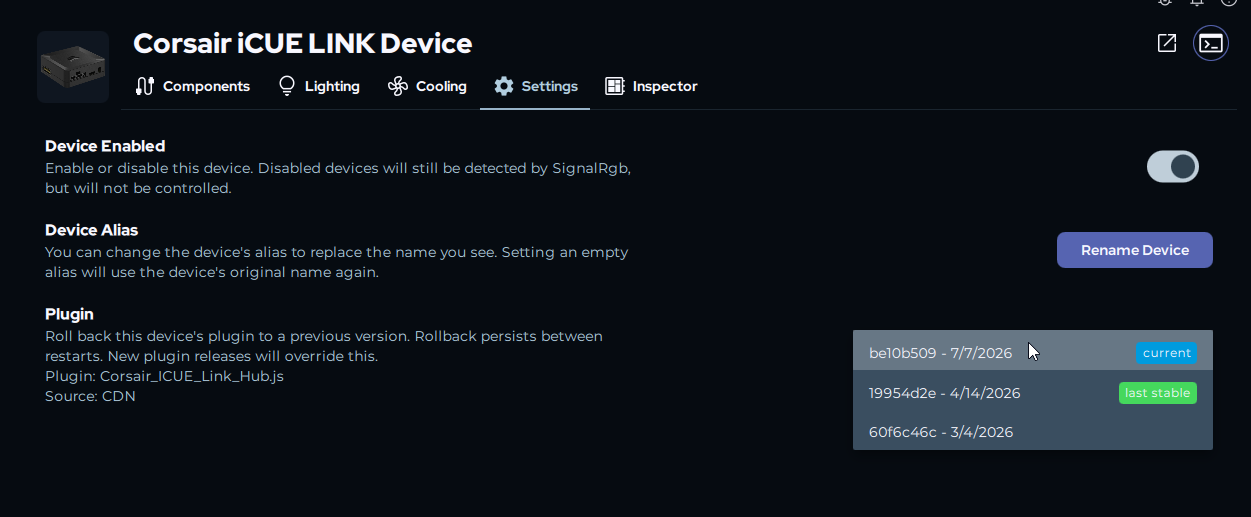
- Scroll down to the Plugin section. You’ll see the plugin name, its source type (Built-in, Addon, CDN, or User Plugin), and, if rollback is available, a version dropdown.
- Click the dropdown to load the version list.
- Select any version to apply it immediately. The plugin reloads, no restart needed.
Common Issues and Solutions
Section titled “Common Issues and Solutions”The Rollback Option Doesn’t Appear in Device Settings
Section titled “The Rollback Option Doesn’t Appear in Device Settings”Symptoms: You can see the Plugin section in device settings, but there’s no version dropdown, only a single plugin option is available, the dropdown menu is greyed out, or the source label is shown but no selector appears beneath it.
Solutions:
- Check the source label. If it reads Built-in, Addon, or User Plugin, rollback isn’t available for that plugin. Only plugins labeled Source: CDN support version selection.

- Only one version exists for this plugin. If SignalRGB has published just one version since the feature launched, there’s nothing to roll back to.
- The version list is still loading. Open the dropdown and wait a moment. If it shows “Loading versions…” for more than 30 seconds, check your internet connection and try again.
Rolling Back Didn’t Fix the Issue
Section titled “Rolling Back Didn’t Fix the Issue”Symptoms: You selected an earlier version, the plugin reloaded, but the device is still showing the same problem: wrong colors, no lighting, flickering, or no response.
Solutions:
- Unplug and replug your device after rolling back. In some cases the device doesn’t fully reinitialize during a plugin reload. Disconnecting and reconnecting it can clear the state.
- The problem may not be plugin-related. Flickering, stuck colors, and no-response issues can also come from USB connectivity, conflicting RGB software, or driver problems. See Device Not Detected and Conflicting Programs to rule these out.
- The problem may predate the newer versions. If every version behaves the same way, the issue wasn’t introduced by a plugin update. Submit a bug report, or see When and How to Contact Support for more options.
The Rollback Reset After a Restart
Section titled “The Rollback Reset After a Restart”Symptoms: You rolled back to an earlier version and it was working, but after restarting SignalRGB your device is back on the latest plugin version.
Explanation: This is expected. When SignalRGB publishes a new plugin version, any saved rollback for that plugin is automatically cleared on next startup. The system assumes a new release fixes whatever caused the rollback.
What to do: If the new version still has the problem, roll back again from device settings.
”Applying…” Appears but the Rollback Never Finishes
Section titled “”Applying…” Appears but the Rollback Never Finishes”Symptoms: After selecting a version, the dropdown shows “Applying…” and stays there for more than a minute.
Solutions:
- Check your internet connection. SignalRGB downloads the selected plugin version from its servers. A slow or dropped connection will stall the download.
- Restart SignalRGB and try again. Close the app fully and reopen it, then go back to device settings and reselect the version.
- Try again in a few minutes. If the plugin servers are temporarily unavailable, the download can fail silently. A short wait usually resolves it.
Advanced Troubleshooting
Section titled “Advanced Troubleshooting”Restore the Latest Version Without Restarting
Section titled “Restore the Latest Version Without Restarting”If you want to return to the latest plugin version before a new release clears the rollback automatically:
- Open your device’s Settings tab.
- In the Plugin section, open the version dropdown.
- Select the entry marked current, the top item in the list.
SignalRGB re-applies the latest CDN version immediately and clears the saved rollback.
Confirm Which Plugin Version Is Currently Loaded
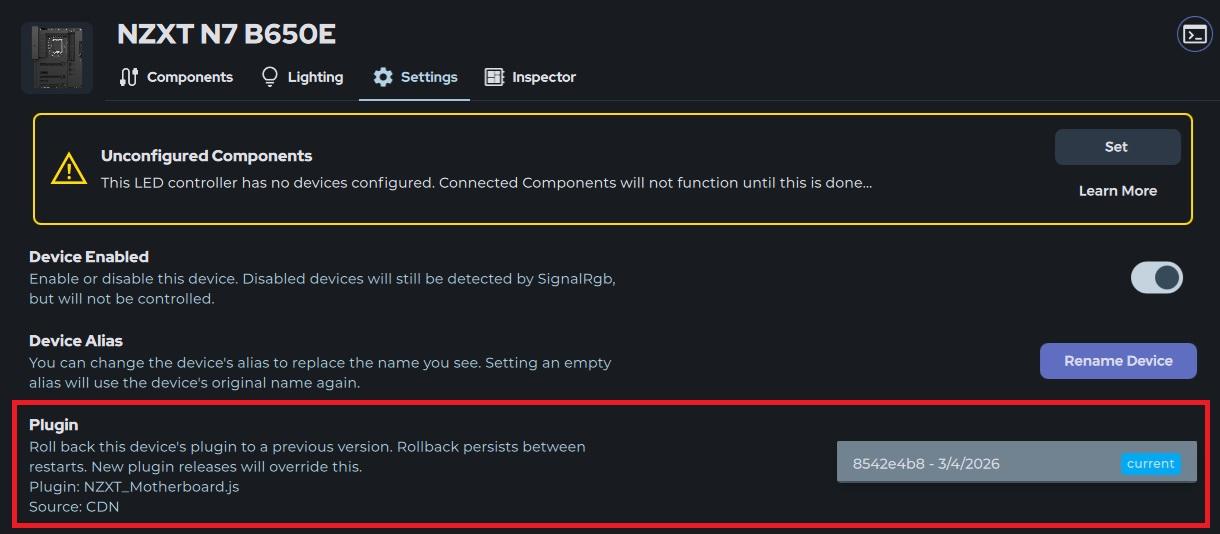
Section titled “Confirm Which Plugin Version Is Currently Loaded”If you’re not sure whether a rollback is active or which version is running, check the Plugin section in device settings. The currently loaded version’s CRC hash and deployment date are shown there. If the displayed date is older than you’d expect, a rollback may be in effect.
Manual Plugin Replacement
Section titled “Manual Plugin Replacement”As a last resort, if Plugin Rollback isn’t available for your device or all rollback versions have the same problem, you can manually install a specific plugin version by placing it in your user plugins folder. This bypasses the CDN entirely and persists across updates, so remove the file once a proper fix is released.
For steps, see Replacing a Plugin File.
Reporting Issues
Section titled “Reporting Issues”If you’ve tried these troubleshooting steps and your device is still not working correctly, please file a bug report so our team can investigate:
What to include in your bug report:
- Your device name and model
- The plugin source type shown in device settings (CDN, Built-in, etc.)
- The CRC hash of the version you rolled back to (visible in the Plugin section)
- What the device is doing: flickering, no lighting, wrong colors, or no response
- Whether the rollback appeared to apply (did the plugin reload after selecting a version?)
- What you’ve already tried from this guide
How to submit:
- Use the bug icon in the app (upper-right corner)
- Submit a bug report
- Contact Customer Support
Our support team will follow up and work with you to resolve the issue!
Related Articles
Section titled “Related Articles”- Device Not Detected — if your device isn’t showing up at all
- Conflicting Programs — if other RGB software may be interfering with your device
- Replacing a Plugin File — how to side-load a plugin manually
- When and How to Contact Support — for info on how to contact our support team