

System Monitoring
What Is System Monitoring?
Section titled “What Is System Monitoring?”System Monitoring is a SignalRGB Pro feature that displays real-time hardware sensor data inside the app. You can view temperatures, clock speeds, load percentages, and more without switching to a separate monitoring tool. It includes large customizable graphs for your most important metrics and smaller mini-graphs for everything else.
Available Sensors
Section titled “Available Sensors”System Monitoring reads data from the following hardware sources:
CPU
- Temperature
- Clock speed
- Load percentage
- Power draw
GPU
- Temperature
- Clock speed
- VRAM usage
- Fan speed
RAM
- Usage
- Frequency
Storage
- Temperature (if supported by your drive and motherboard)
Fans
- RPM for all connected sensors that your system exposes
Navigating the Monitoring Page
Section titled “Navigating the Monitoring Page”- Click the Monitoring tab in the left sidebar. This tab is only visible to Pro users.
- The top section displays two or three large customizable graphs.
- Use the dropdown menu on each graph to choose which sensor to display.
- The lower section shows all remaining sensors as smaller mini-graphs.
- Scroll down to see all available sensors in the mini-graph panel.
Customizing Your View
Section titled “Customizing Your View”Use the dropdown on each large graph to change the displayed metric. The change takes effect immediately. All sensors update in real time so you always see current hardware state.
To change what is displayed on a graph, select a different item from the dropdown menu.
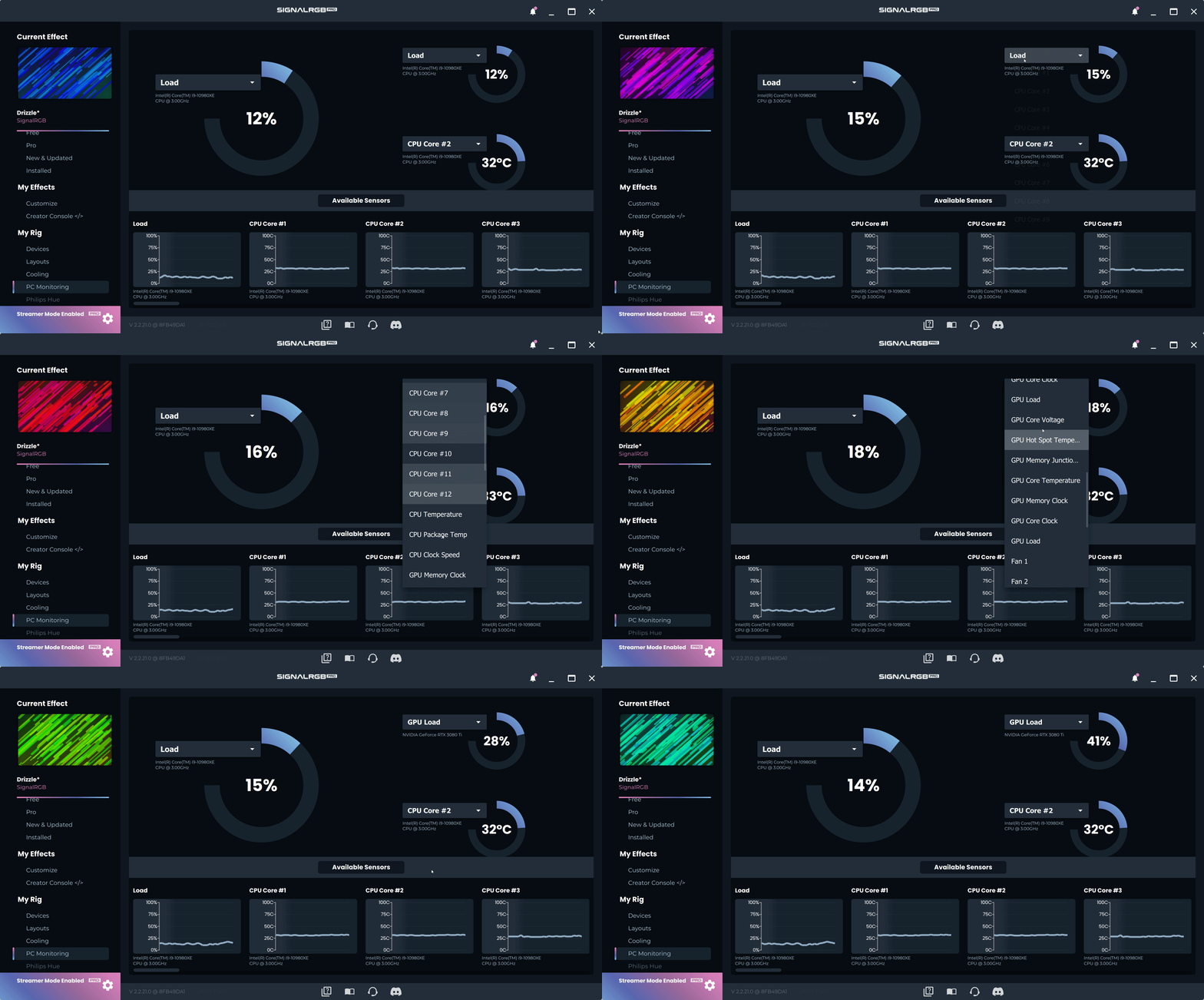
All other sensors appear below in smaller mini-graphs. Scroll down in the lower portion of the page to see all of them.