

Startup Issues
If SignalRGB isn’t starting with Windows, or it starts at the wrong time, this guide will help you fix it.
Before You Start
Section titled “Before You Start ”Before troubleshooting, check that these requirements are met:
- SignalRGB is updated to the latest version
- Startup Behavior is turned on in SignalRGB (Settings > Windows Settings)
- Always Launch as Administrator is turned off in SignalRGB
- SignalRGB is turned on in Windows startup apps
- Open Windows Settings, click Apps, then click Startup
- You restart your computer after changing any startup setting
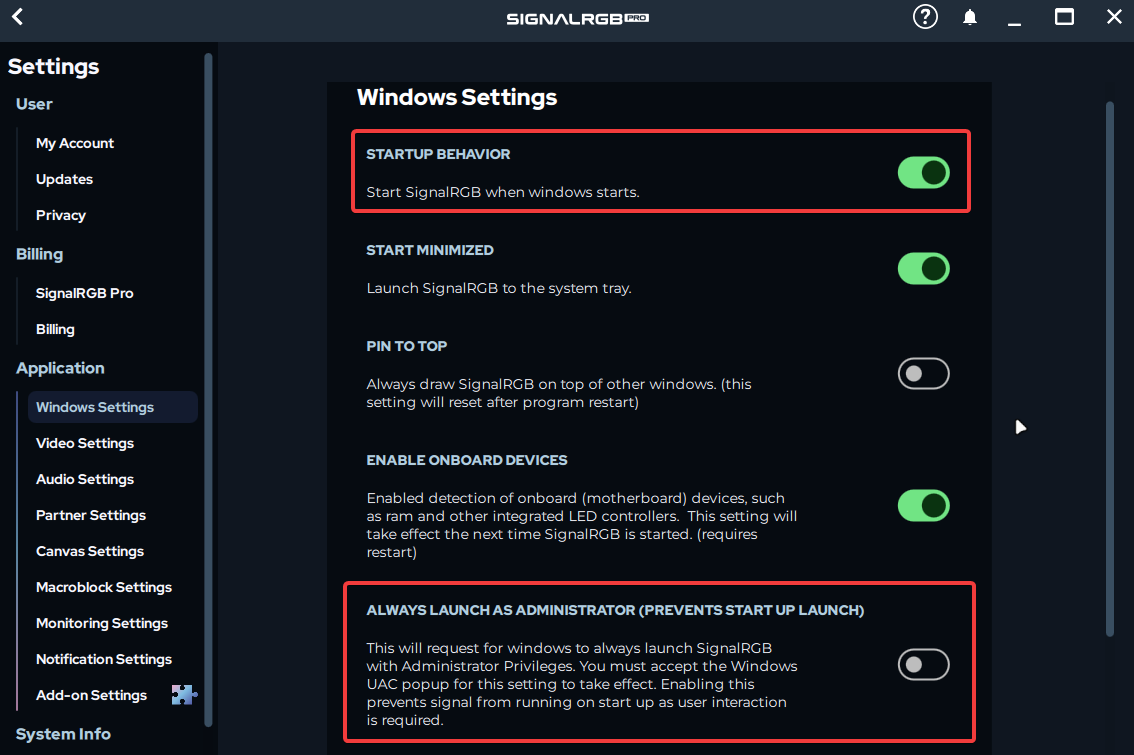
If all requirements are met and SignalRGB still doesn’t start correctly, continue to the solutions below.
Common Issues and Solutions
Section titled “Common Issues and Solutions ”SignalRGB Doesn’t Open When Windows Starts
Section titled “SignalRGB Doesn’t Open When Windows Starts ”Symptoms: You sign in to Windows, but SignalRGB doesn’t open. Startup Behavior is already turned on.
Solution: Turn off Run as administrator on SignalRGB’s program files.
- Press
WIN + R, type%localappdata%\VortxEngine, and press Enter. - Right-click
SignalRgbLauncher.exeand click Properties. - Click the Compatibility tab.
- Uncheck Run this program as an administrator.
- Click Change settings for all users and uncheck it there too.
- Click OK.
- Repeat steps 2 to 5 for these files:
app-[version]\SignalRgbLauncher.exeapp-[version]\Signal-x64\SignalRgb.exe- If you see more than one
app-folder, check each one.
- Restart your computer.
SignalRGB should now open automatically after you sign in.
Why this happens: Windows blocks programs set to run as administrator from starting on their own. This is part of User Account Control (UAC), a Windows security feature.
If SignalRGB needs administrator access on your computer for a specific reason, such as GPU fan control, see Start SignalRGB with Task Scheduler.
Lighting Takes Too Long to Turn On After You Sign In
Section titled “Lighting Takes Too Long to Turn On After You Sign In ”Symptoms: SignalRGB starts with Windows, but your lighting stays off or on default colors for a while after you sign in.
Solution: Start SignalRGB with a Task Scheduler task. This skips the delay Windows adds to normal startup apps. Follow Start SignalRGB with Task Scheduler and leave the delay turned off.
Devices Are Missing When SignalRGB Starts With Windows
Section titled “Devices Are Missing When SignalRGB Starts With Windows ”Symptoms: SignalRGB opens at startup, but some devices are missing or don’t light up. Restarting SignalRGB fixes it.
Solution: Delay SignalRGB’s startup so your devices have time to get ready. Follow Start SignalRGB with Task Scheduler and add a 1-minute delay.
App Needs Administrator Access and Won’t Start With Windows
Section titled “App Needs Administrator Access and Won’t Start With Windows ”Symptoms: You turned on Always Launch as Administrator, and now SignalRGB doesn’t start with Windows.
Solution: Windows blocks administrator programs from the normal startup list. A Task Scheduler task can start SignalRGB with administrator access at sign-in. Follow Start SignalRGB with Task Scheduler and turn on Run with highest privileges.
Advanced Troubleshooting
Section titled “Advanced Troubleshooting ”Start SignalRGB with Task Scheduler
Section titled “Start SignalRGB with Task Scheduler ”Use this method to control exactly when and how SignalRGB starts. Choose the settings that match your goal:
| Goal | Delay task for | Run with highest privileges |
|---|---|---|
| Faster lighting at sign-in | Off | Off |
| Give devices time to get ready | 1 minute | Off |
| Start with administrator access | Off | On |
Steps:
- Open SignalRGB and click Settings > Windows Settings.
- Turn off Startup Behavior and Always Launch as Administrator.
- This prevents SignalRGB from starting twice.
- Press
WIN + R, typetaskschd.msc, and press Enter. - Click Create Task in the right sidebar.
- On the General tab, type
SignalRGBas the name. - Select Run only when user is logged on.
- If you need administrator access, check Run with highest privileges.
- Click the Triggers tab, then click New.
- Set Begin the task to At log on. Make sure Specific user shows your account.
- Set Delay task for as needed, based on the table above.
- Make sure Stop task if it runs longer than is unchecked. Click OK.
- Click the Actions tab, then click New.
- Type
%localappdata%\VortxEngine\SignalRgbLauncher.exein Program/script. - Click the Conditions tab. Uncheck Start the task only if the computer is on AC power.
- Click the Settings tab. Uncheck Stop the task if it runs longer than.
- Click OK and restart your computer.
SignalRGB should now start automatically.
To undo this: Open Task Scheduler, click Task Scheduler Library, right-click the SignalRGB task, and click Delete. Then turn Startup Behavior back on in SignalRGB.
Still Not Working?
Section titled “Still Not Working? ”If you’ve tried these steps and SignalRGB still doesn’t start correctly, please contact our support team.
What to include when reporting:
- Your Windows version
- Your SignalRGB version
- Which startup method you’re using
- Whether SignalRGB opens normally when you start it by hand
- A screenshot of your Task Scheduler task, if you made one
- What you’ve already tried
How to get help:
- Use the bug report button in the app (upper-right corner)
- Submit through this link
- Contact Customer Support
Our support team will follow up and work with you to resolve the issue.
Related Articles
Section titled “Related Articles ”Need more help? Contact Customer Support