Macros
SignalRGB Macros let you automate lighting effects, customize game experiences, streamline workflows, and much more. This guide covers how to create macros, configure triggers and actions, and organize them into profiles.
Creating a macro
Section titled “Creating a macro”- Navigate to the Macros page.
- Click Create Macro.
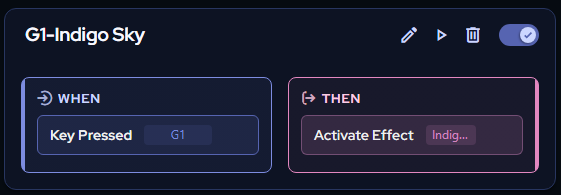
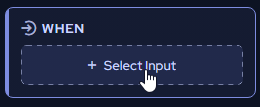
A widget will appear with two sides: When and Then.
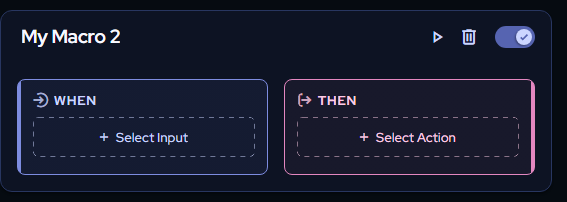
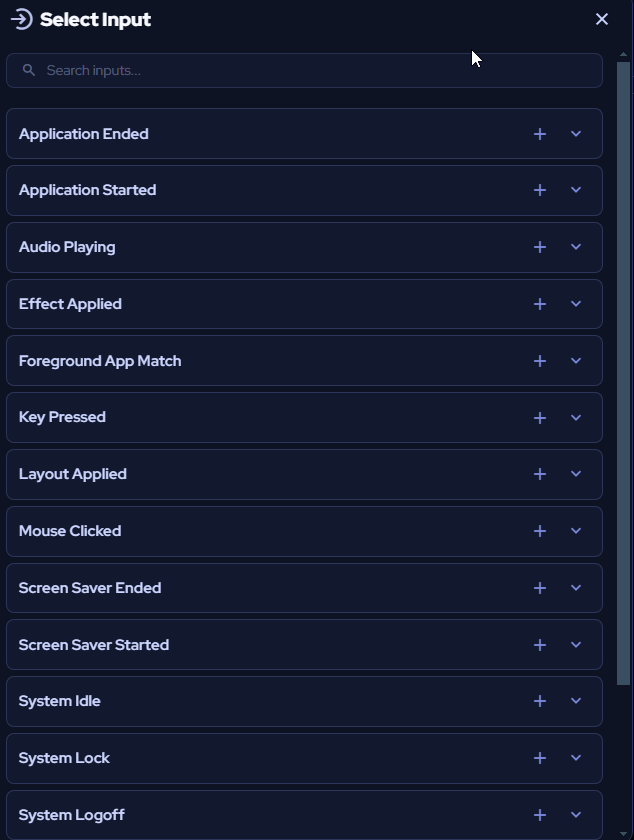
Under When, select the input that triggers your macro.
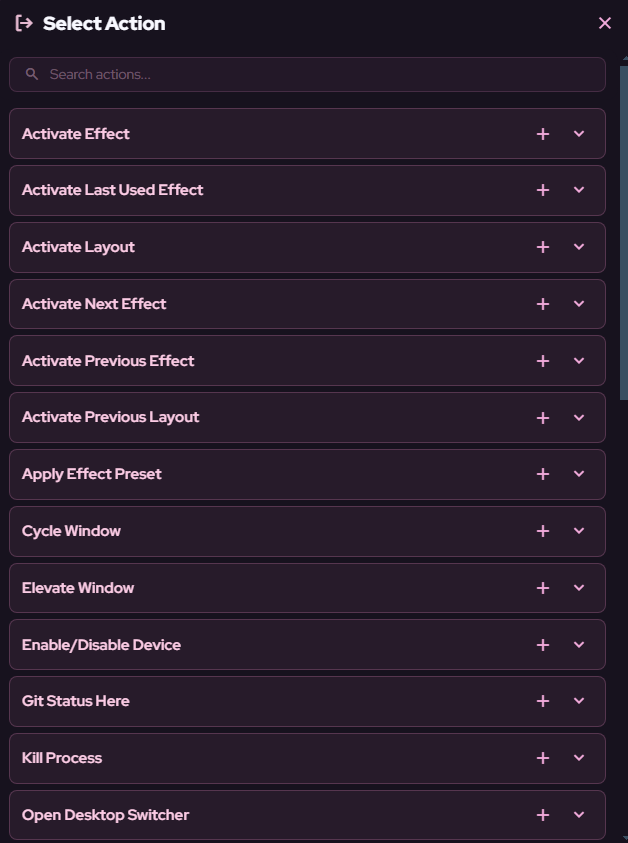
Under Then, choose the action that runs when the trigger fires.
Every macro follows this same structure: an input that triggers it, and an action it performs.
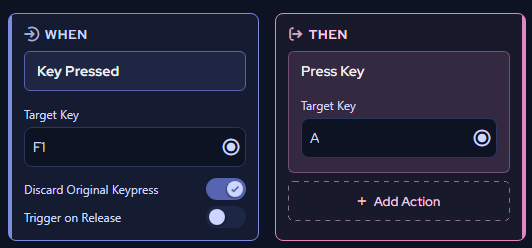
Example: Key replacement macro
Section titled “Example: Key replacement macro”This macro replaces one keypress with another.
- From the Select Input dropdown, choose Key Pressed.

- Press record under Target Key, and press the key on your device (for example, F1).
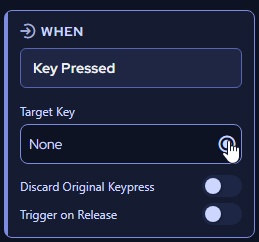
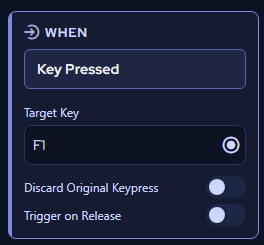
- Enable the Discard Original Keypress toggle. This discards the original F1 input so only the replacement key is registered.

- From the Action dropdown, choose Press Key.
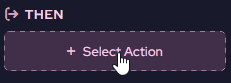

- Select the replacement key (for example, A).
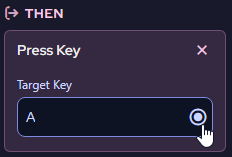
With this macro active, pressing F1 will input A instead.
Example: Auto-activating a Game Integration effect
Section titled “Example: Auto-activating a Game Integration effect”This macro switches to a Game Integration lighting effect automatically when you launch a game.
- From the Select Input dropdown, choose Application Started.
- Enter the name of the application that should trigger the macro. The name must match exactly, so copying and pasting the application’s name is recommended.
- From the Action dropdown, choose Activate Effect.
- Select the game’s corresponding Game Integration lighting effect.
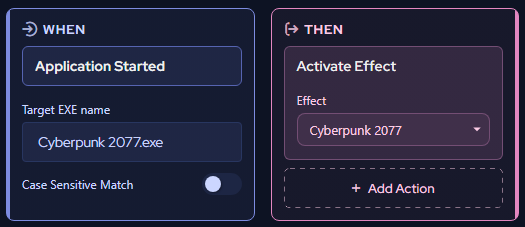
Now, whenever you launch the game, SignalRGB will switch to the correct lighting effect automatically.
Managing macros
Section titled “Managing macros”Rename a macro by clicking on its title.

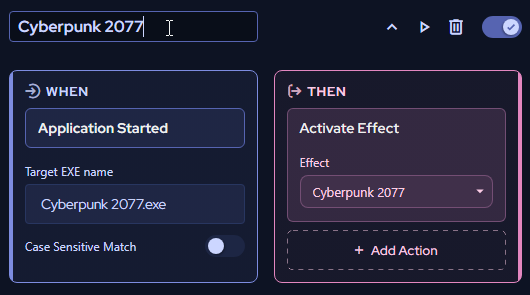
The buttons in the top right of each macro let you:
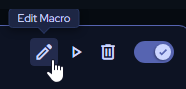
- Adjust the macro’s inputs and actions
- Test the macro
- Delete the macro
- Toggle the macro on and off
Macro profiles
Section titled “Macro profiles”Profiles let you create new sets of macros and switch between them easily using the profile dropdown in the upper left of the Macros page.
Creating a profile
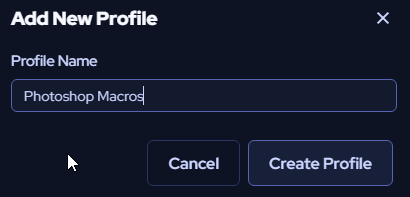
Section titled “Creating a profile”- Click + New Profile.
- Enter a name for your profile.
- Click Create Profile.
Switching profiles
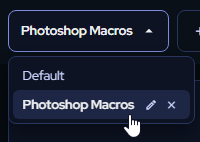
Section titled “Switching profiles”Click the profile dropdown and select from your list of custom profiles.
Pausing macros
Section titled “Pausing macros”To pause all macros in the selected profile, click the Macros Enabled toggle.