

How to Customize Effects
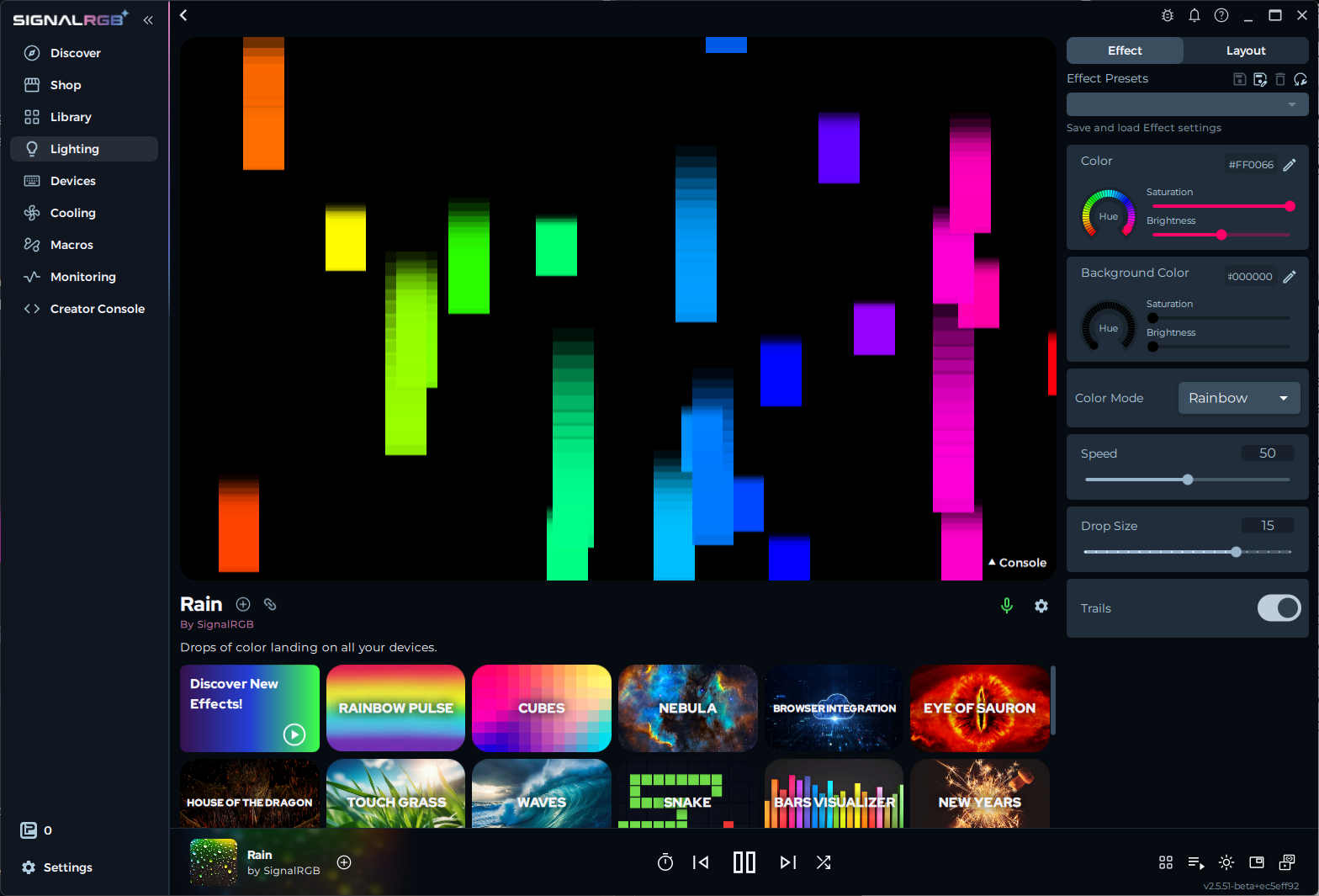
Every SignalRGB effect has adjustable parameters. You can change colors, speed, scale, and more to make any effect look completely different from its defaults. All of these controls live on the Customize page.
Before You Start
Section titled “Before You Start”- SignalRGB installed and running
- At least one effect installed from the Shop or Library
- Devices detected and showing on the Devices page
Opening the Customize Page
Section titled “Opening the Customize Page”Select an effect from the Library. The Customize tab opens automatically, or you can click it in the left sidebar. The effect preview at the top of the page updates live as you adjust settings.
Understanding the Controls
Section titled “Understanding the Controls”Each effect exposes its own set of controls. The available options depend on what the effect supports. Common controls include:
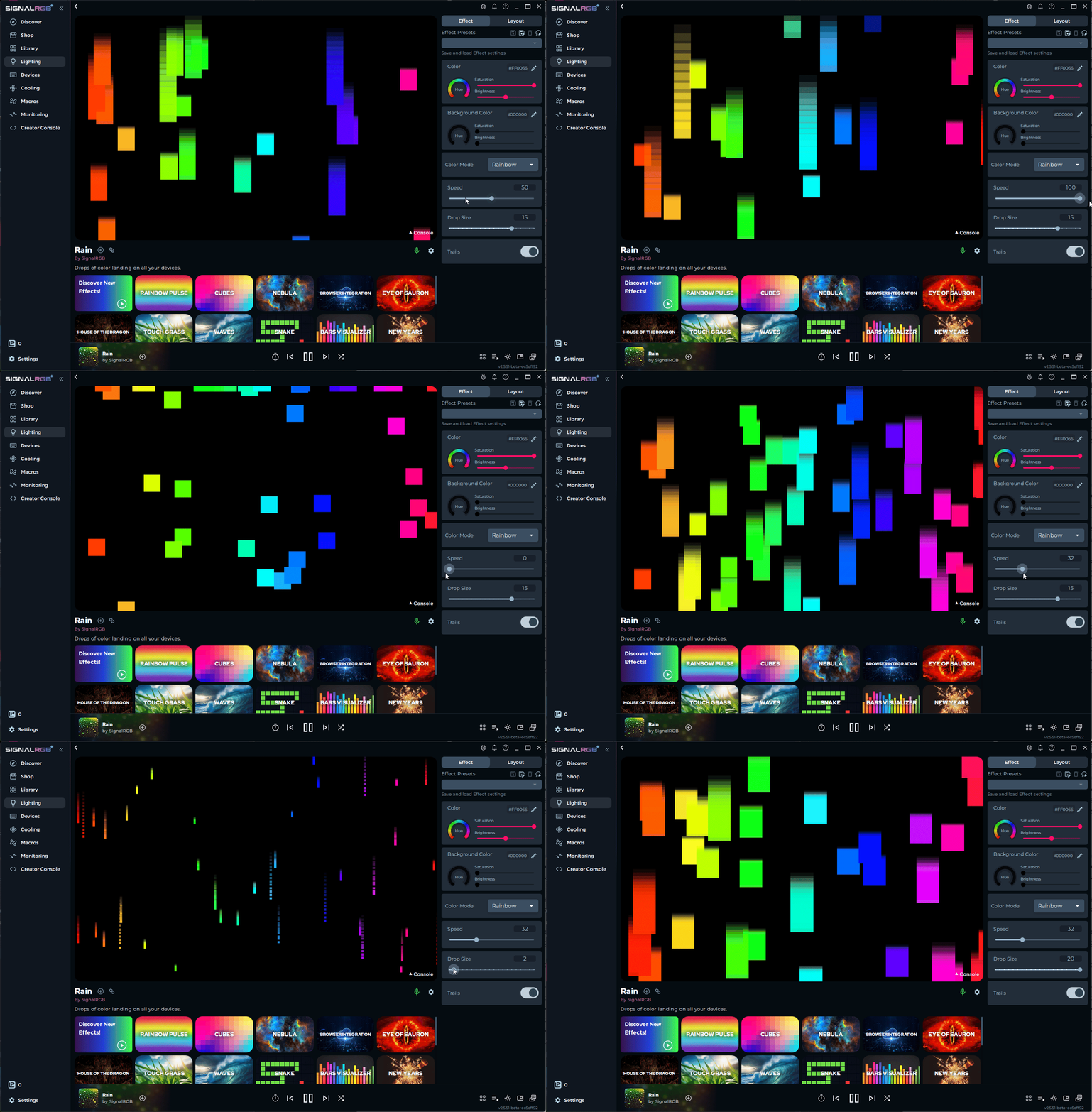
- Speed — Controls how fast the animation runs. Higher values make the effect move faster.
- Color pickers — Choose one or more colors used in the effect. Many effects support full gradient palettes.
- Brightness — Adjusts the overall intensity of the LEDs.
- Size / Scale — Controls the size of patterns, gradients, or particles in the effect.
- Direction — Changes which way the animation moves across your devices.
The slider in the example below controls the speed of the Rain effect:
Saving Presets
Section titled “Saving Presets”Once you have an effect configured the way you want it, save it as a preset so you can reload it later.
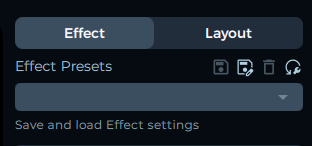
- Open the preset menu below the effect preview.
- Enter a name for your preset.
- Click Save.
To load a saved preset, open the same menu and select it from the list.
You can also assign a preferred layout to each preset. When you load that preset, SignalRGB automatically switches to the assigned layout.
Troubleshooting
Section titled “Troubleshooting”- Controls not appearing — make sure you’re on the Effect tab, not the Layout tab
- Changes not showing on devices — check that SignalRGB is detecting your devices on the Devices page
- Preset not saving — ensure the preset has a unique name
Sharing Presets
Section titled “Sharing Presets”You can share a preset you’ve created with others in the SignalRGB community.
- Open the preset menu and select the preset you want to share.
- Click Share (or right-click the preset and select Share).
- SignalRGB generates a shareable link or export file you can post in Discord, Reddit, or other community spaces.
To import a shared preset someone else made, click the link or drag the preset file into SignalRGB.
Reactive (Keytap) Effects
Section titled “Reactive (Keytap) Effects”Some effects in SignalRGB respond to individual keypresses. These are called Keytap or Reactive effects. When you press a key, the effect plays a short animation on that key or across nearby LEDs.
Keytap effects appear in the Library like any other effect. Load one and press keys on your keyboard to see the reactive animation. You can adjust the reaction intensity and colors on the Customize page like any other effect.
Keytap effects require a Pro subscription.
Related Articles
Section titled “Related Articles”Need more help? Contact Customer Support