

First-Time Setup
After installing SignalRGB, follow these steps to get everything configured properly.
Step 1: Create or Sign In to Your Account
Section titled “Step 1: Create or Sign In to Your Account”SignalRGB requires an account to function. Sign in with an existing account or create a new one on the welcome screen.
See How to Create an Account for a step-by-step walkthrough.
Step 2: Check for Updates
Section titled “Step 2: Check for Updates”Before doing anything else, make sure you are running the latest version. Updates often include new device support and bug fixes.
See How to Update SignalRGB for instructions.
Step 3: Complete the Onboarding Walkthrough
Section titled “Step 3: Complete the Onboarding Walkthrough”When you first launch SignalRGB, you will be guided through a short onboarding sequence. Here is what to expect at each step.
Welcome to SignalRGB
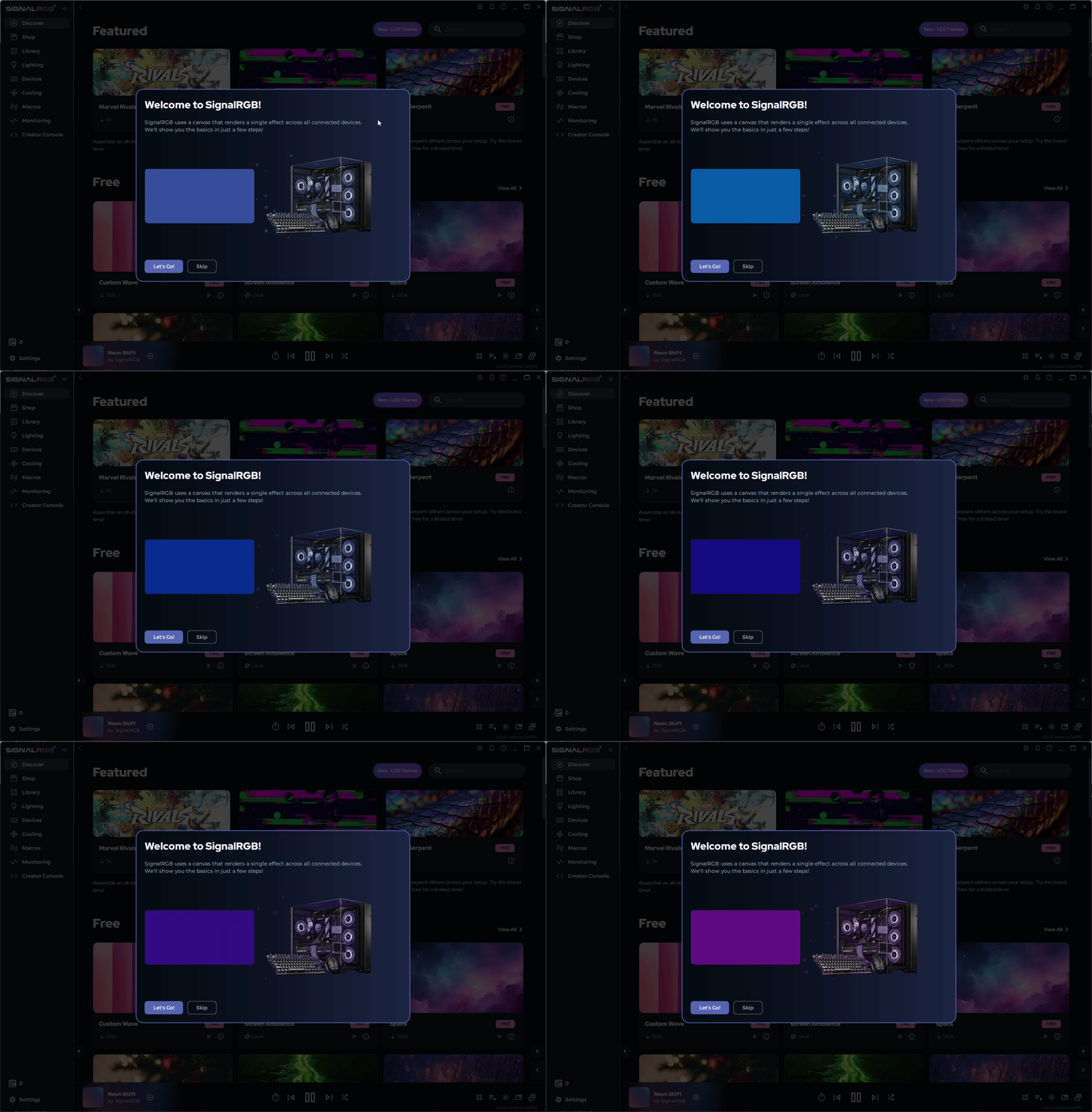
Section titled “Welcome to SignalRGB”The onboarding begins by showing you how the color-shifting canvas works — the canvas is what changes your PC’s RGB lighting in real time, keeping all your devices synchronized.
Check Your Devices Are Pulsing
Section titled “Check Your Devices Are Pulsing”Next, SignalRGB pulses all your devices a single color to confirm they are detected and responding correctly.
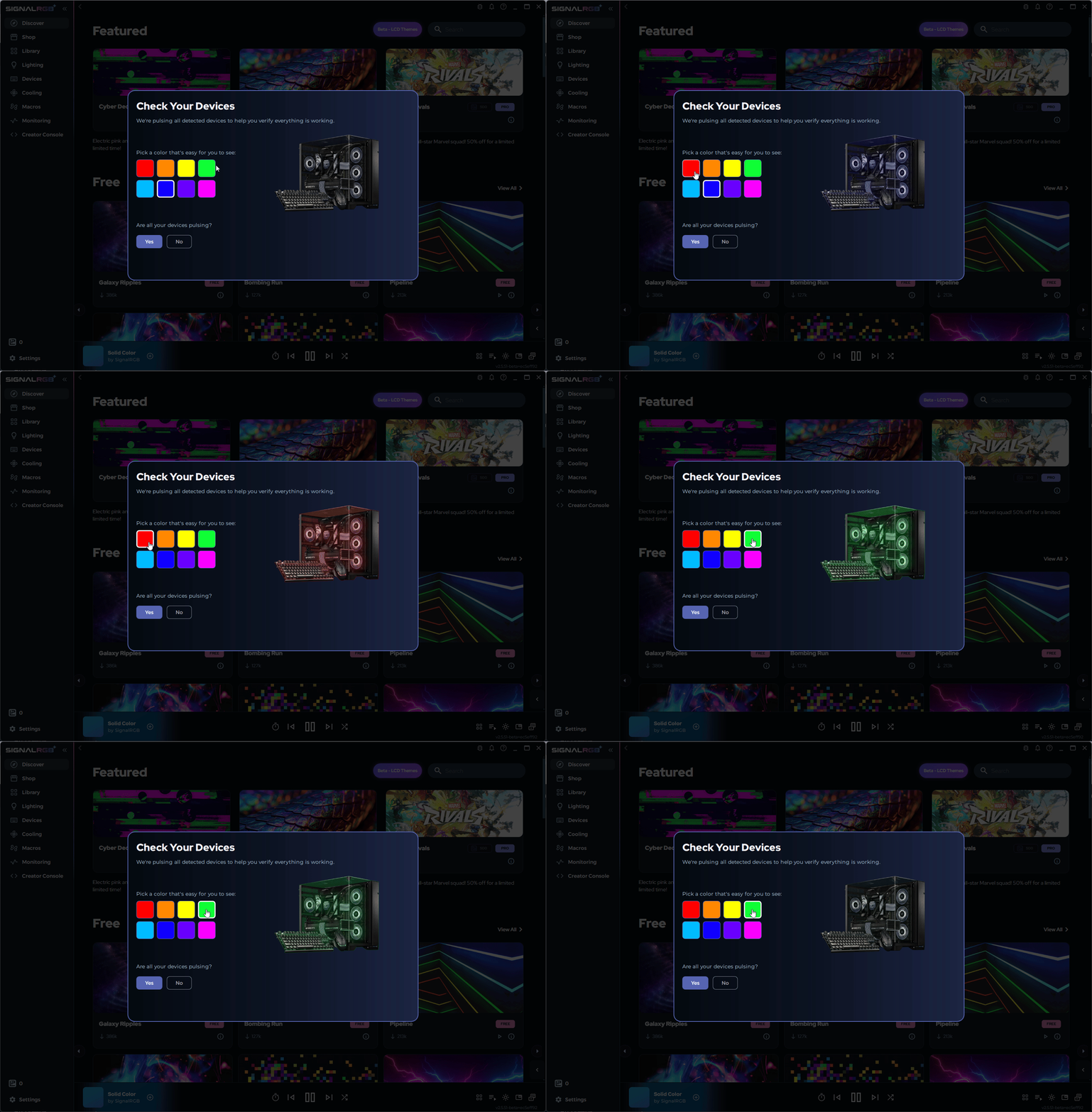
If your devices are pulsing correctly, continue to the next step.
If your devices are not pulsing correctly:
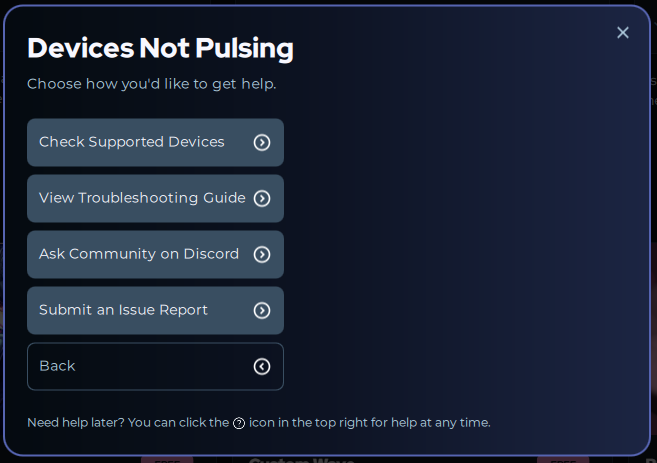
Check the Device Not Detected guide if issues persist.
Customize Your Lighting
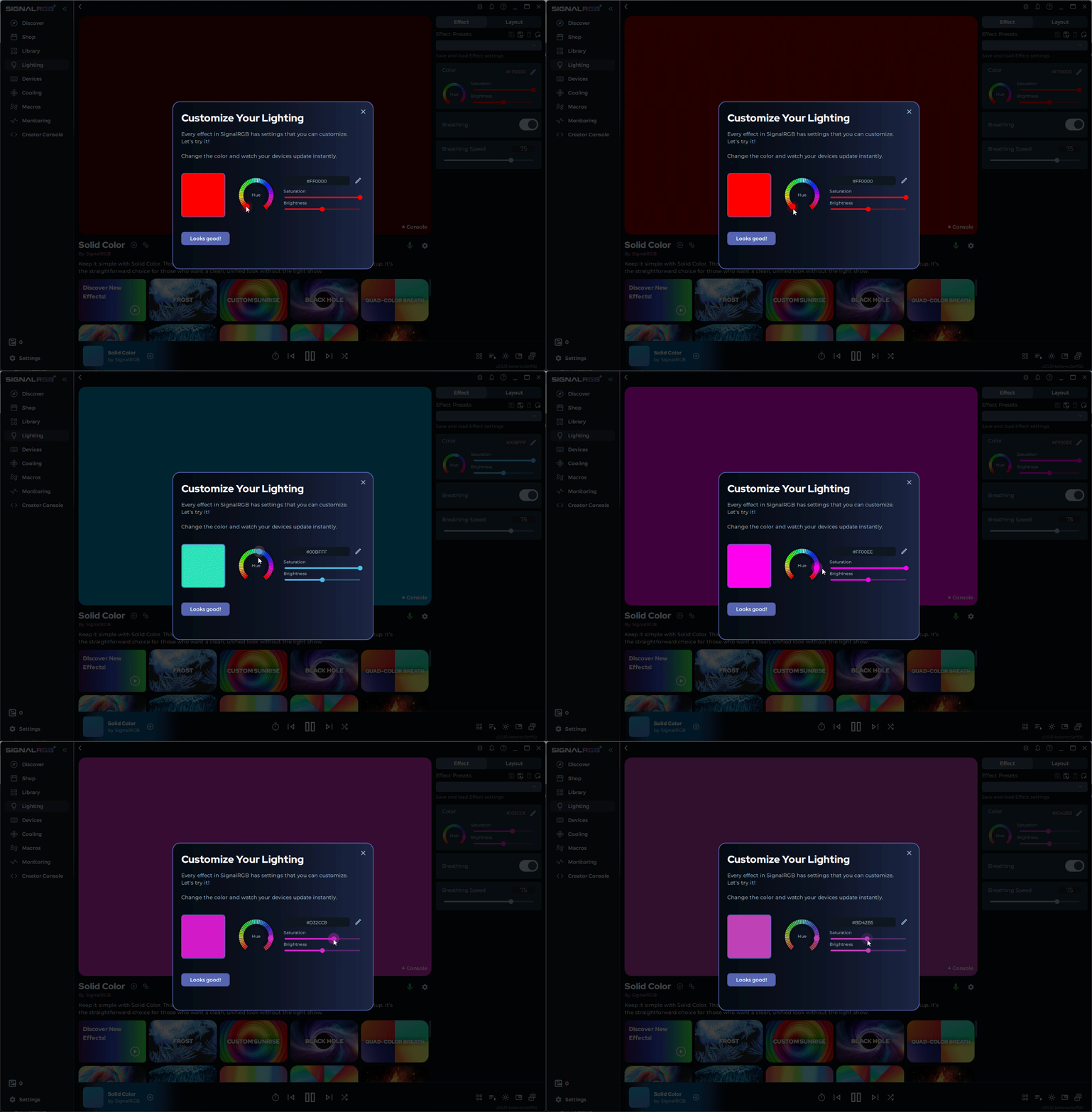
Section titled “Customize Your Lighting”The onboarding then walks you through using the color picker to personalize your lighting — showing you how easy it is to change your entire setup’s color in seconds.
Head to the Discover Page
Section titled “Head to the Discover Page”Once you have customized your color, you are directed to the Discover page to explore effects.
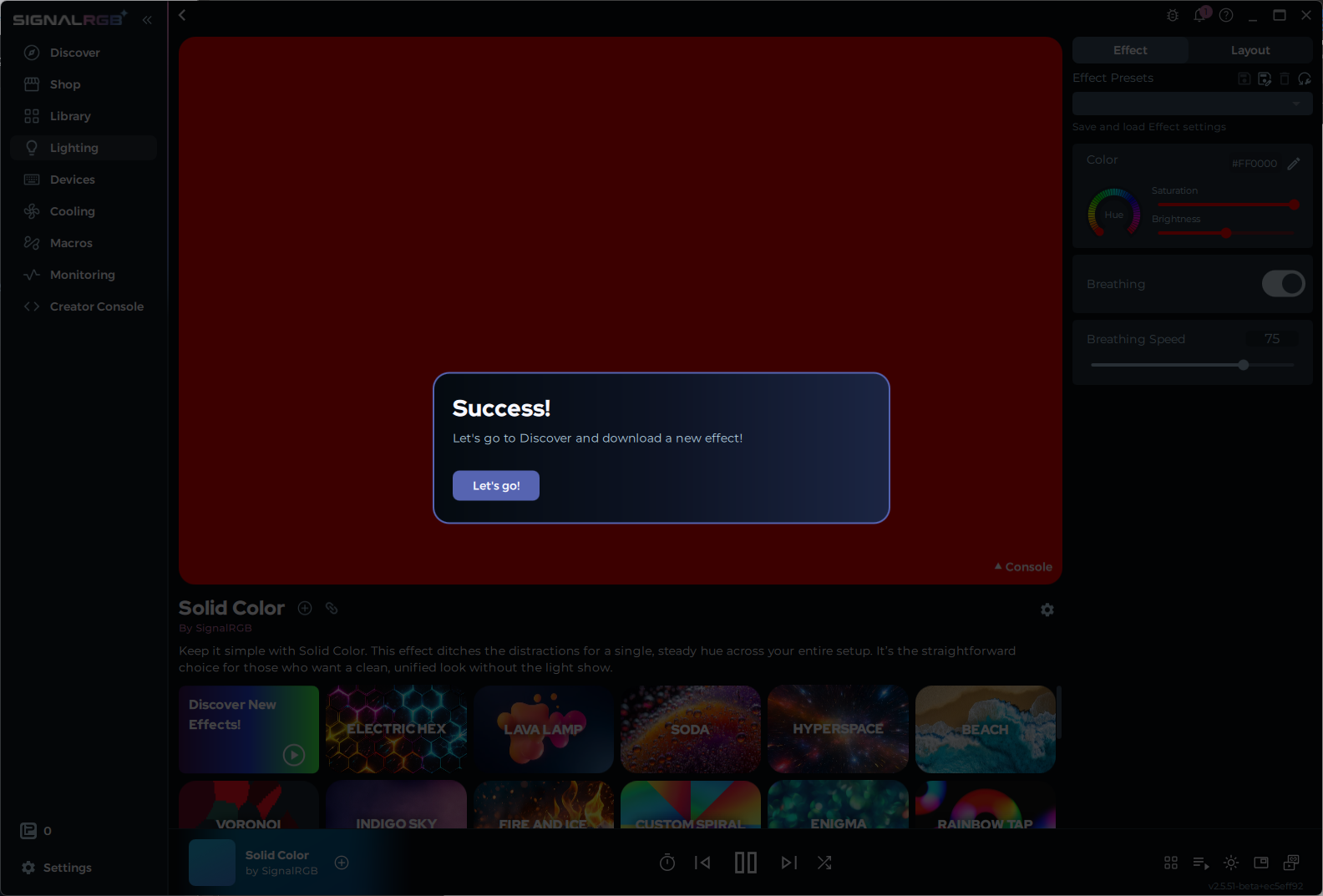
On the Discover page, a popup will guide you to click the Terminal effect card to explore your first downloadable effect.
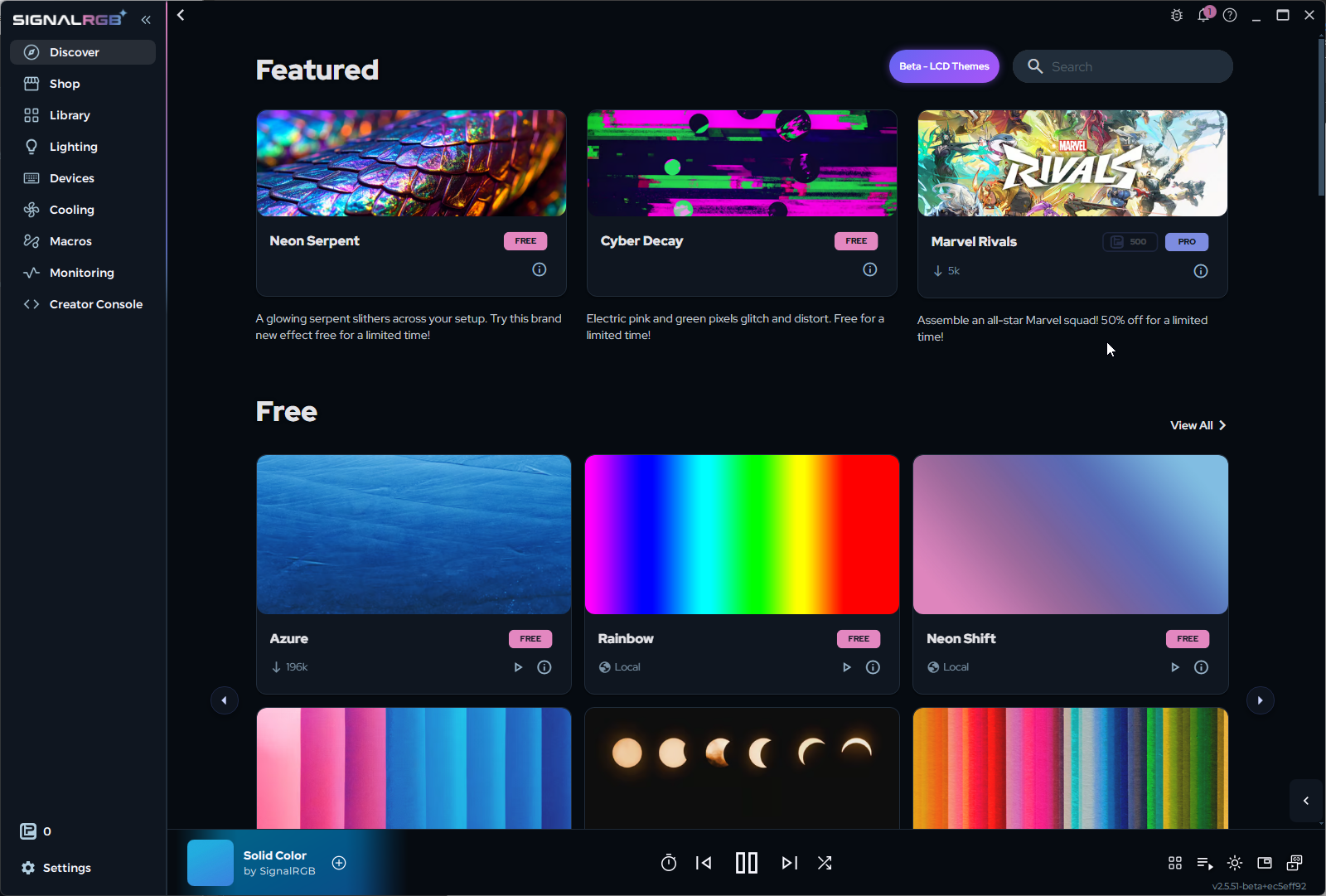
Download and Apply an Effect
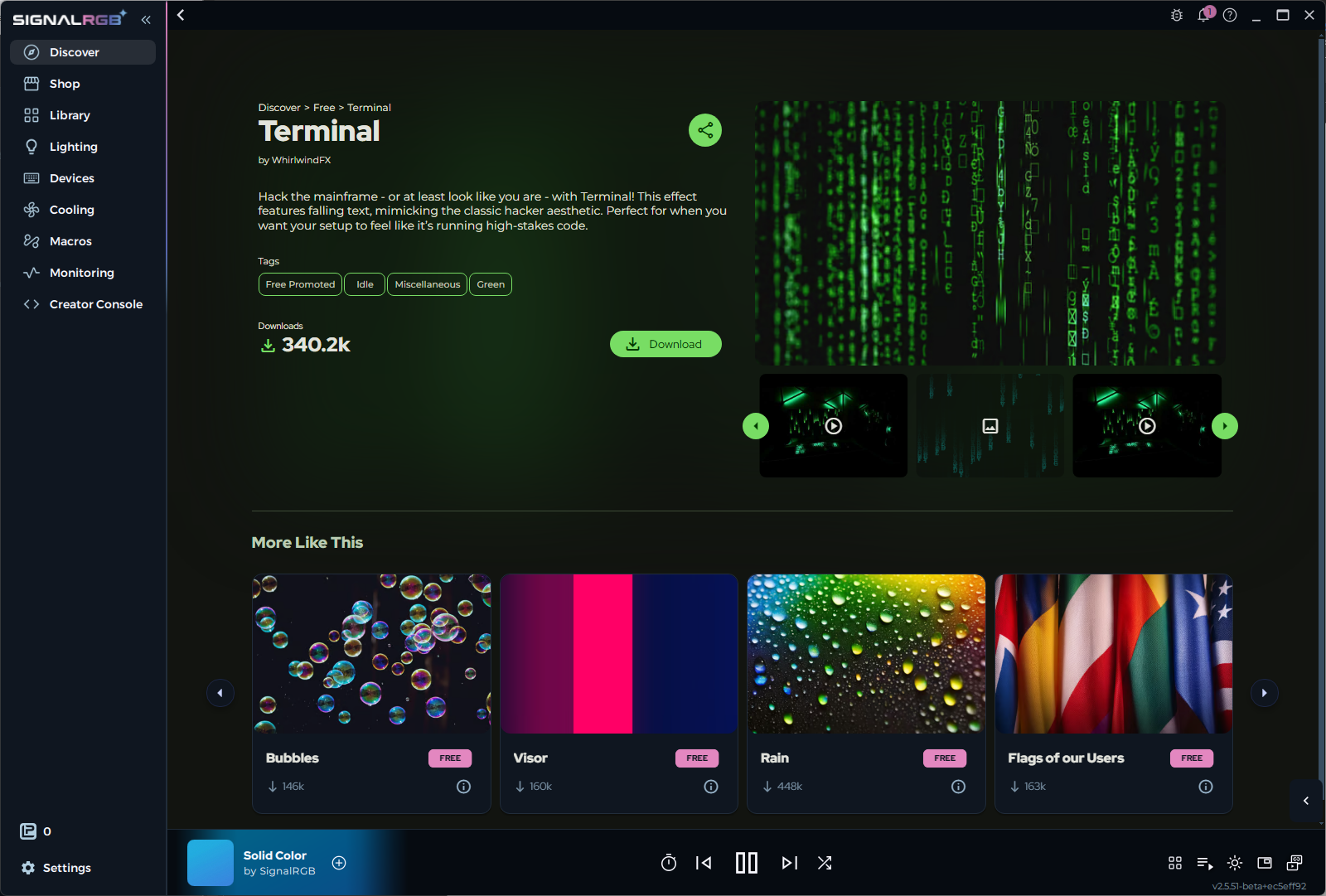
Section titled “Download and Apply an Effect”Click through to the Terminal effect page and download it.
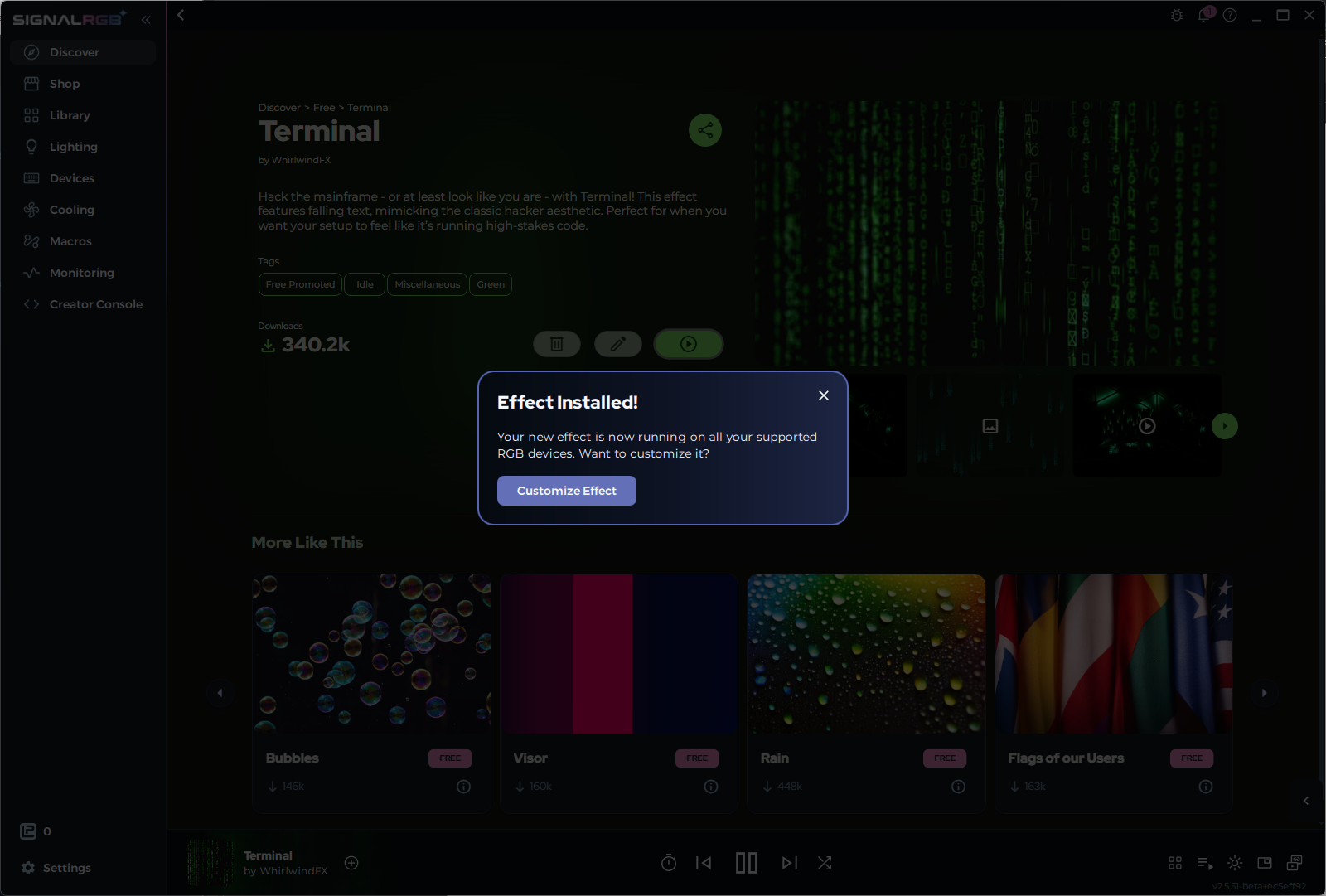
After the effect downloads, you are taken to the Customize Lighting page where you can adjust it to your liking.
Explore the Devices Page
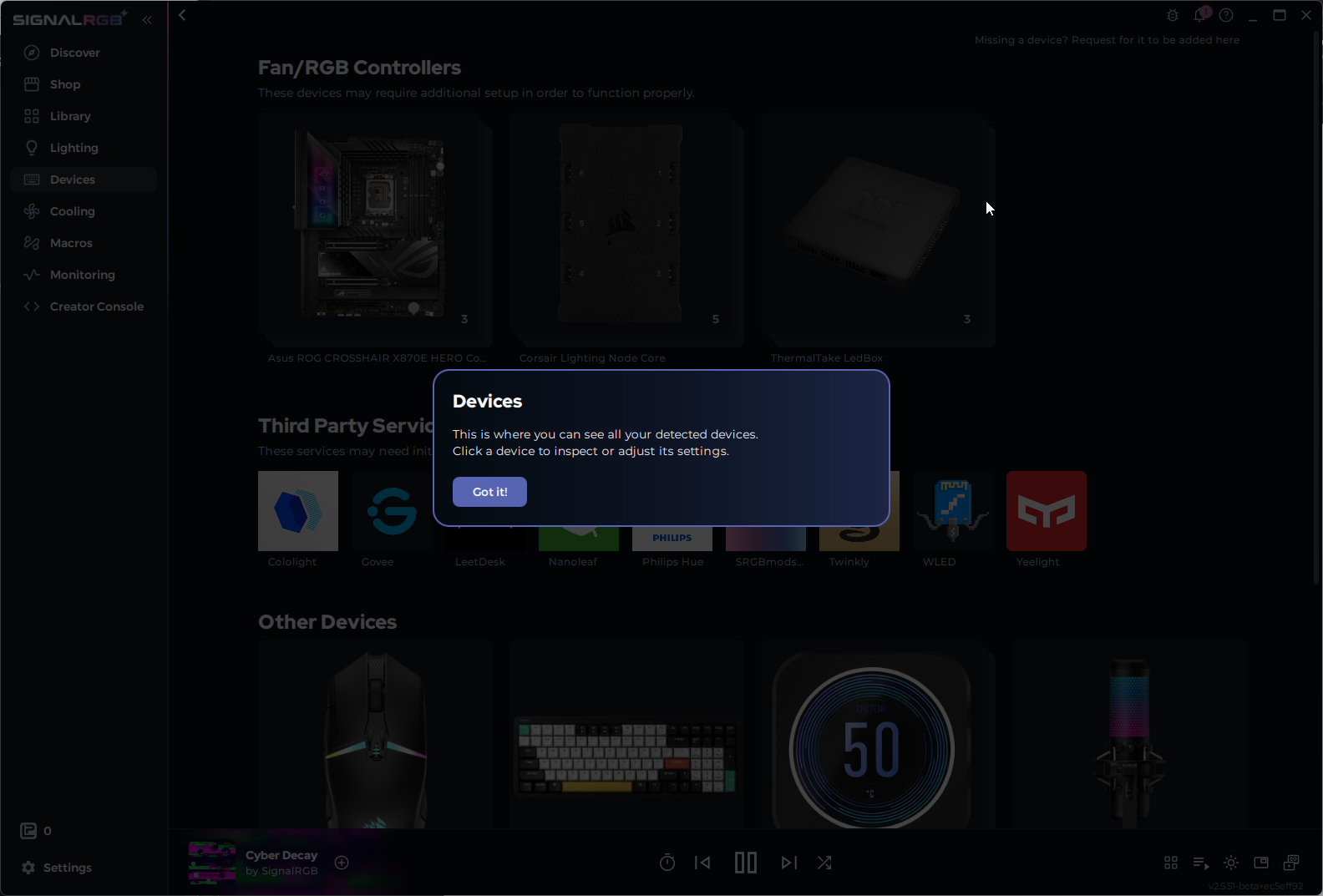
Section titled “Explore the Devices Page”After setting up your lighting, head to the Devices page. SignalRGB does more than just RGB lighting — the Devices page is where you manage all your connected hardware.
Step 4: Configure RGB Controllers or ARGB Headers
Section titled “Step 4: Configure RGB Controllers or ARGB Headers”Some devices — such as RGB controllers and motherboard ARGB headers — require additional configuration before SignalRGB can control them.
Devices that need attention appear at the top of the Devices tab with a configuration prompt. Follow the on-screen instructions or see Configure RGB Controllers for detailed steps.
Step 5: Set Up Your Layout
Section titled “Step 5: Set Up Your Layout”The Layout editor lets you arrange your devices spatially so lighting effects flow correctly across your entire setup.
Drag and drop your devices to match their physical positions on your desk. See About Layouts for more information.
What’s Next
Section titled “What’s Next”Your setup is now complete. Learn your way around the app in Navigating SignalRGB, or dive deeper into effects with How to Customize Effects.