

How to Install SignalRGB
Follow these steps to install SignalRGB on your computer.
Before You Begin
Section titled “Before You Begin ”Make sure you have:
- A Windows 10 (64-bit, version 1903 or later) or Windows 11 PC
- About 500 MB of free storage space
- A stable internet connection
- Any other RGB software (iCUE, Synapse, Aura Sync, etc.) closed or uninstalled
See System Requirements for full details.
Installing SignalRGB
Section titled “Installing SignalRGB ”1. Download the Installer
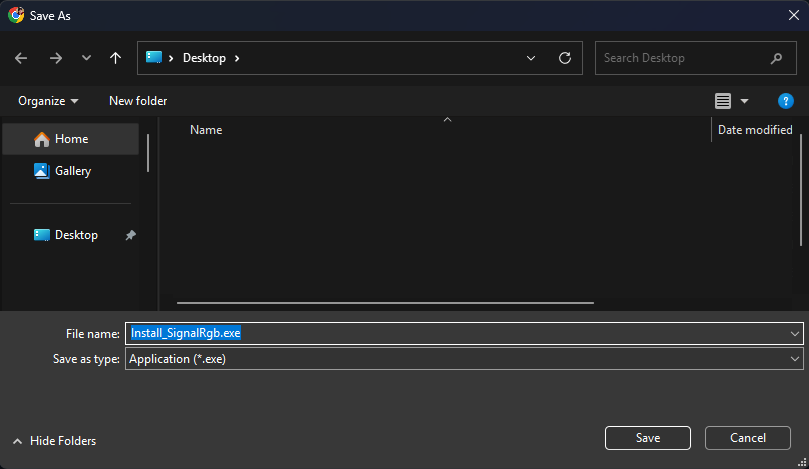
Section titled “1. Download the Installer”Go to the SignalRGB website and download the latest installer.

2. Run the Installer
Section titled “2. Run the Installer ”Locate the downloaded file and double-click it to begin installation.
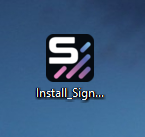
The installer will ask for administrator permission. Click Yes to allow it to continue.
3. Follow the Setup Wizard
Section titled “3. Follow the Setup Wizard ”The setup wizard guides you through the installation. Accept the license agreement when prompted. Click Next to advance through each screen.
4. Wait for Installation to Complete
Section titled “4. Wait for Installation to Complete”The installer copies the necessary files to your system. This typically takes less than a minute. Do not close the installer window while it is running.
5. Approve the Driver and Service Installation
Section titled “5. Approve the Driver and Service Installation ”After the main installer finishes, SignalRGB will prompt you to install or update its hardware driver and background service. Click Install. Windows will then show a permission prompt. Click Yes to approve it.
6. Create or Sign In to Your Account
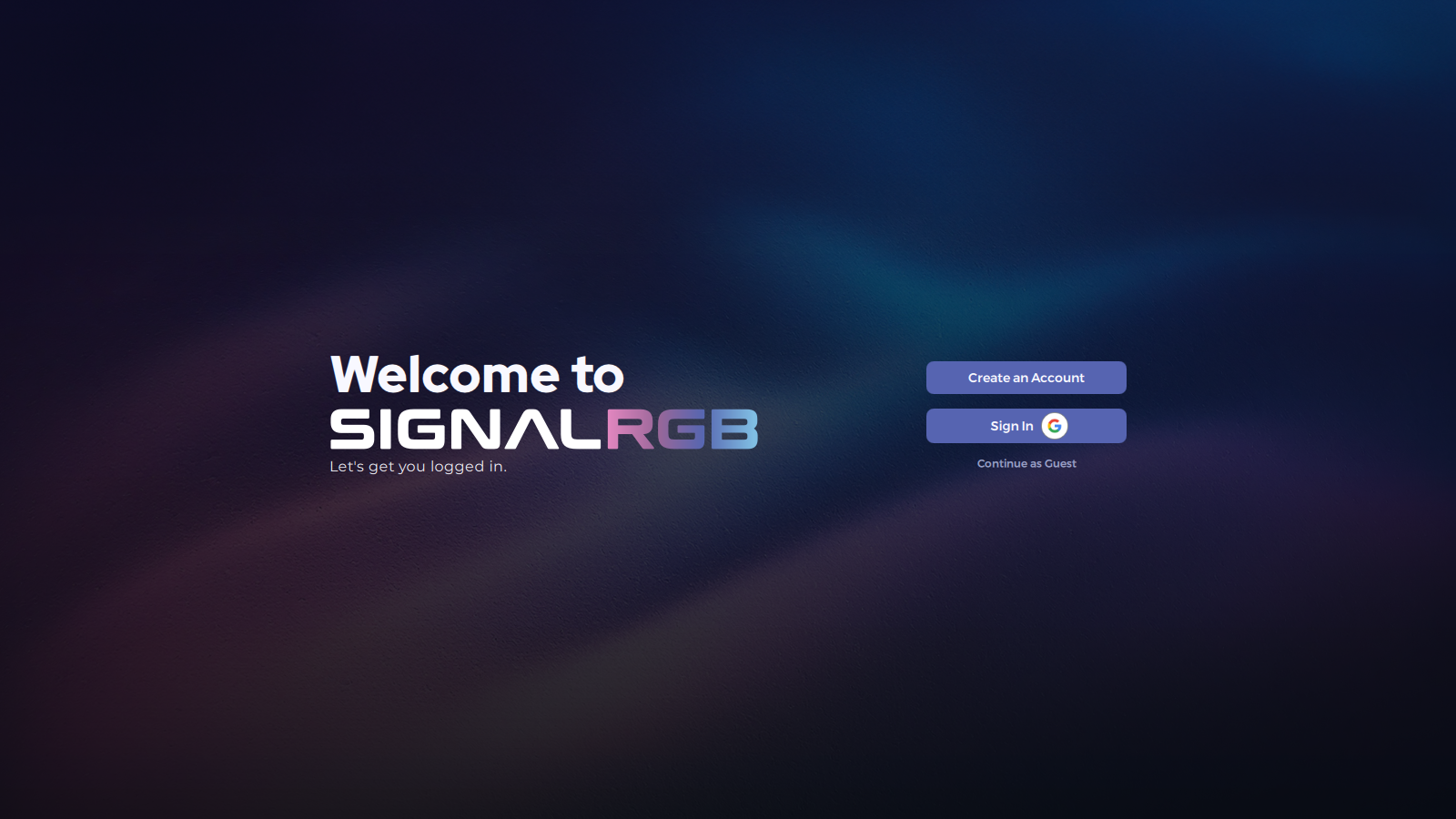
Section titled “6. Create or Sign In to Your Account ”SignalRGB will prompt you to sign in. Signing in gives you access to the full effect library and Pro features. You can continue without an account and sign in whenever you’re ready.
See How to Create an Account for a full walkthrough.
Troubleshooting
Section titled “Troubleshooting ”Windows Blocks the Installer
Section titled “Windows Blocks the Installer ”If a pop-up shows “Windows protected your PC” or “Unknown publisher,” click More info, then Run anyway. This warning appears for new software that hasn’t accumulated enough download history with Microsoft and doesn’t mean the file is unsafe.
Installer Won’t Start or Freezes During Setup
Section titled “Installer Won’t Start or Freezes During Setup ”Right-click the installer file and select Run as administrator, then try again. If it still freezes, temporarily disable your antivirus, run the installer, then re-enable antivirus afterward.
Driver and Service Installation Errors
Section titled “Driver and Service Installation Errors ”After the main install, SignalRGB runs a second step to install its hardware driver and background service. If this step fails, the app shows a diagnostic code. Find your code below.
The fastest fix for most codes is to click Retry and approve the Windows permission prompt when it appears. If that doesn’t work, the specific guidance below explains what to do next.
PS_ERROR
Section titled “PS_ERROR ”The Windows permission prompt was likely declined. Click Retry and choose Yes when Windows asks for permission.
If Retry doesn’t resolve it:
-
Open Windows PowerShell (search PowerShell in the Start menu. Be sure to use Windows PowerShell, not Terminal).
-
Run this command and press Enter:
Terminal window Set-ExecutionPolicy -ExecutionPolicy RemoteSigned -Scope CurrentUserType Y and press Enter to confirm.
-
Close PowerShell and click Retry in SignalRGB.
If it still fails, check that the PowerShell directory is in your system PATH:
- Press
WIN + R, typesysdm.cpl, and press Enter. - Go to the Advanced tab and click Environment Variables.
- In the System variables section, find Path and click Edit.
- Check whether this path is in the list:
C:\Windows\System32\WindowsPowerShell\v1.0\ - If it’s missing, click New, paste the above path, then click OK on all windows.
- Perform a full power cycle of your PC.
- Attempt to complete installation again.
The above steps allow your PC to run locally created PowerShell scripts without needing a digital signature, while still requiring scripts downloaded from the internet to be signed. If the issue still persists, the remaining causes are most likely:
- A Windows Group Policy restricts what PowerShell is allowed to do even when it runs
- A username or install path that contains an apostrophe or other special character, which may break how the command is assembled internally
- Security software or antivirus programs that allow PowerShell to launch, but block the specific elevation request necessary to complete the installation
PS_FAILED_TO_START
Section titled “PS_FAILED_TO_START ”Windows PowerShell could not be launched, which SignalRGB needs to request the required permissions. This can happen if security software or system policy is blocking PowerShell on your machine.
Try restarting Windows and clicking Retry. If PowerShell is blocked by a managed IT policy (common on work or school computers), you may need to contact your IT department or install SignalRGB on a personal machine instead.
PS_CRASHED
Section titled “PS_CRASHED ”Click Retry. If it fails again, restart your PC and attempt to complete installation again.
If it continues to fail:
- Check antivirus and security software.
- A security tool that monitors or terminates PowerShell processes mid-execution can cause this error.
- Add a SignalRGB exception to your antivirus or security software, then click Retry or attempt the installation again.
- Check if the Windows permission prompt appeared behind another window.
- SignalRGB waits up to 5 minutes for the permission step to complete.
- If the prompt appeared unnoticed and was never approved, the installer will time out.
- Minimize your other windows after clicking Install to make sure the prompt is visible.
PS_TIMEOUT
Section titled “PS_TIMEOUT ”Click Retry. If it fails again, restart your PC and attempt to complete installation again.
If it continues to fail:
- Check antivirus and security software.
- A security tool that monitors or terminates PowerShell processes mid-execution can cause this error.
- Add a SignalRGB exception to your antivirus or security software, then click Retry or attempt the installation again.
- Run the Windows system file checker.
- If the issue persists after a restart and antivirus exclusions, a corrupted Windows PowerShell installation may be the cause.
- Open Command Prompt as administrator (search “cmd,” right-click, and select Run as administrator), type
sfc /scannow, press Enter, and allow it to complete. - Restart your PC after it finishes and attempt the installation again.
SERVICE_NOT_INSTALLED or SERVICE_EXE_MISSING
Section titled “SERVICE_NOT_INSTALLED or SERVICE_EXE_MISSING ”SignalRGB’s background service file was not found. It may have been quarantined by antivirus software. Try the steps below:
- Open your antivirus or security software and check the quarantine history.
- Look for any file related to SignalRGB, particularly
SignalRgbService.exe. - Restore the file from quarantine and add a SignalRGB exception.
- Attempt to complete installation again.
SERVICE_NOT_RUNNING
Section titled “SERVICE_NOT_RUNNING ”The service is installed but isn’t running. Click Retry. If it fails again, check whether antivirus or security software is actively blocking or terminating the SignalRGB service, add an exception, then attempt to complete installation once more.
SERVICE_HEALTH_FAILED
Section titled “SERVICE_HEALTH_FAILED ”The service is running but SignalRGB can’t reach it. This is usually caused by a firewall or security tool blocking local communication on your PC.
Allow SignalRGB and its service through your firewall and any security software, then click Retry. See Library Fails to Load for additional troubleshooting of network-related issues.
SERVICE_EXE_LOCKED
Section titled “SERVICE_EXE_LOCKED ”Another process has the service file open and SignalRGB can’t replace it. Wait about a minute and click Retry. If it keeps failing, restart your PC and attempt to complete installation again.
SERVICE_EXE_ACCESS_DENIED
Section titled “SERVICE_EXE_ACCESS_DENIED ”Security software is preventing SignalRGB from updating its service files. Check your antivirus settings. In particular, look for a Controlled Folder Access or Ransomware Protection feature and add a SignalRGB exception. Then click Retry or attempt to complete the installation again.
DRIVER_OUTDATED, SERVICE_VERSION_MISMATCH, SERVICE_EXE_MISMATCH, or SERVICE_EXE_ACCESS_FAILED
Section titled “DRIVER_OUTDATED, SERVICE_VERSION_MISMATCH, SERVICE_EXE_MISMATCH, or SERVICE_EXE_ACCESS_FAILED ”The old driver or service may need a reboot to fully unload. Click Retry. If it repeats, restart your PC and attempt to complete installation again.
INFRASTRUCTURE_INSTALL_FAILED or Any Unlisted Code
Section titled “INFRASTRUCTURE_INSTALL_FAILED or Any Unlisted Code ”Click Retry. If the problem persists, restart your PC and attempt to complete installation again.
If you continue to experience this error, contact Customer Support and include the diagnostic code shown in the app.
Related Articles
Section titled “Related Articles”- System Requirements
- How to Set Up SignalRGB for the First Time
- Conflicting Programs
- About Pro Features
Need more help? Contact Customer Support.