

Configure RGB Controllers
Components are any devices connected to RGB controllers or motherboard headers. This includes RGB fans, LED strips, water blocks, CPU coolers, and case lighting. SignalRGB cannot detect what is physically connected to each channel. You must configure every component manually.
Before You Begin
Section titled “Before You Begin”Gather the following information before starting:
- Which devices are connected to each controller channel
- The LED count for any custom strips
- The physical position of each device in your case
Step 1: Open the Devices Page
Section titled “Step 1: Open the Devices Page”Unconfigured devices appear at the top of the Devices page. Any controller or header that needs setup is listed there.
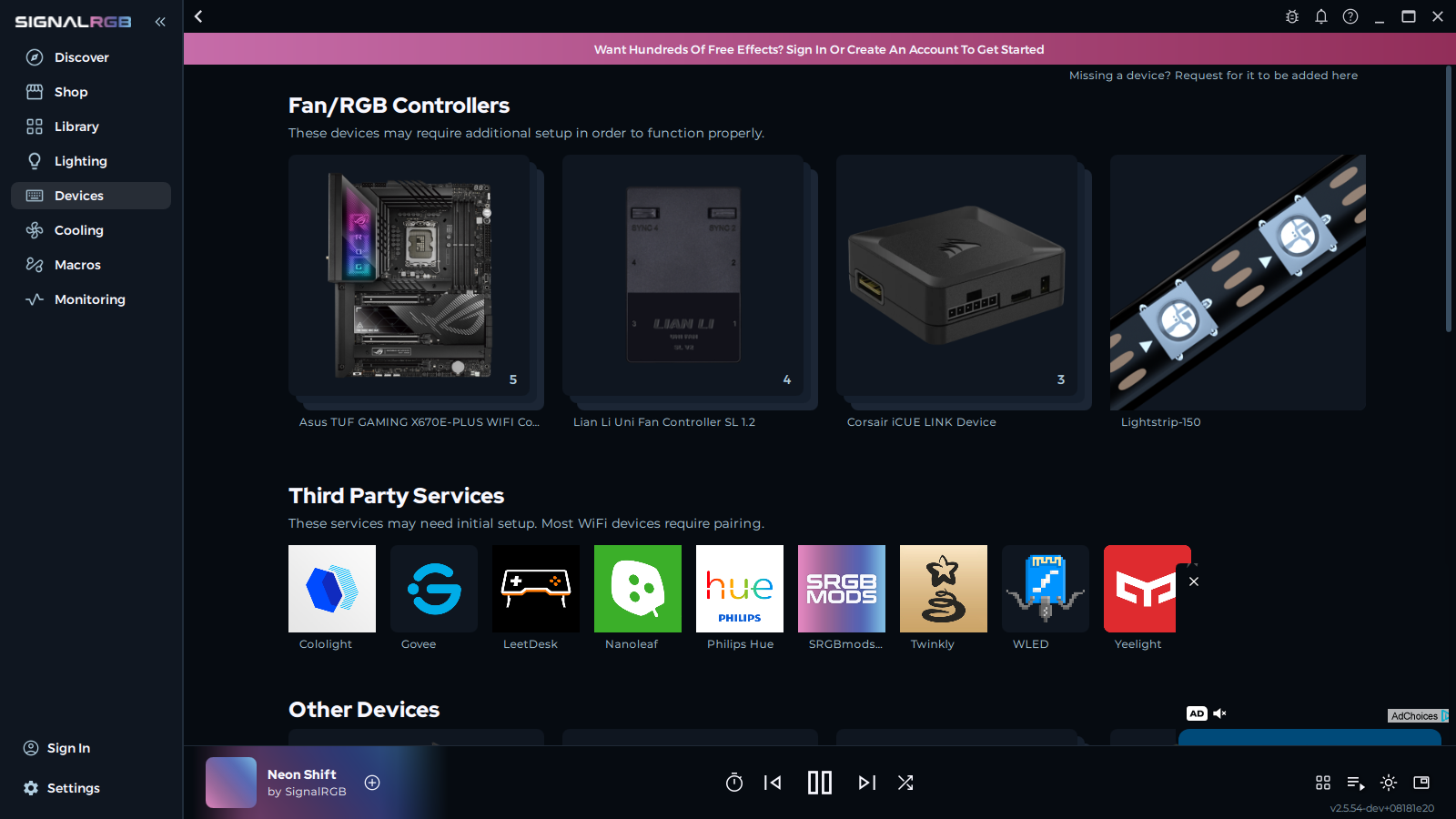
Click a device to open its configuration page. From here you can manage components and other settings for that controller.
Step 2: Remove Default Placeholder Strips
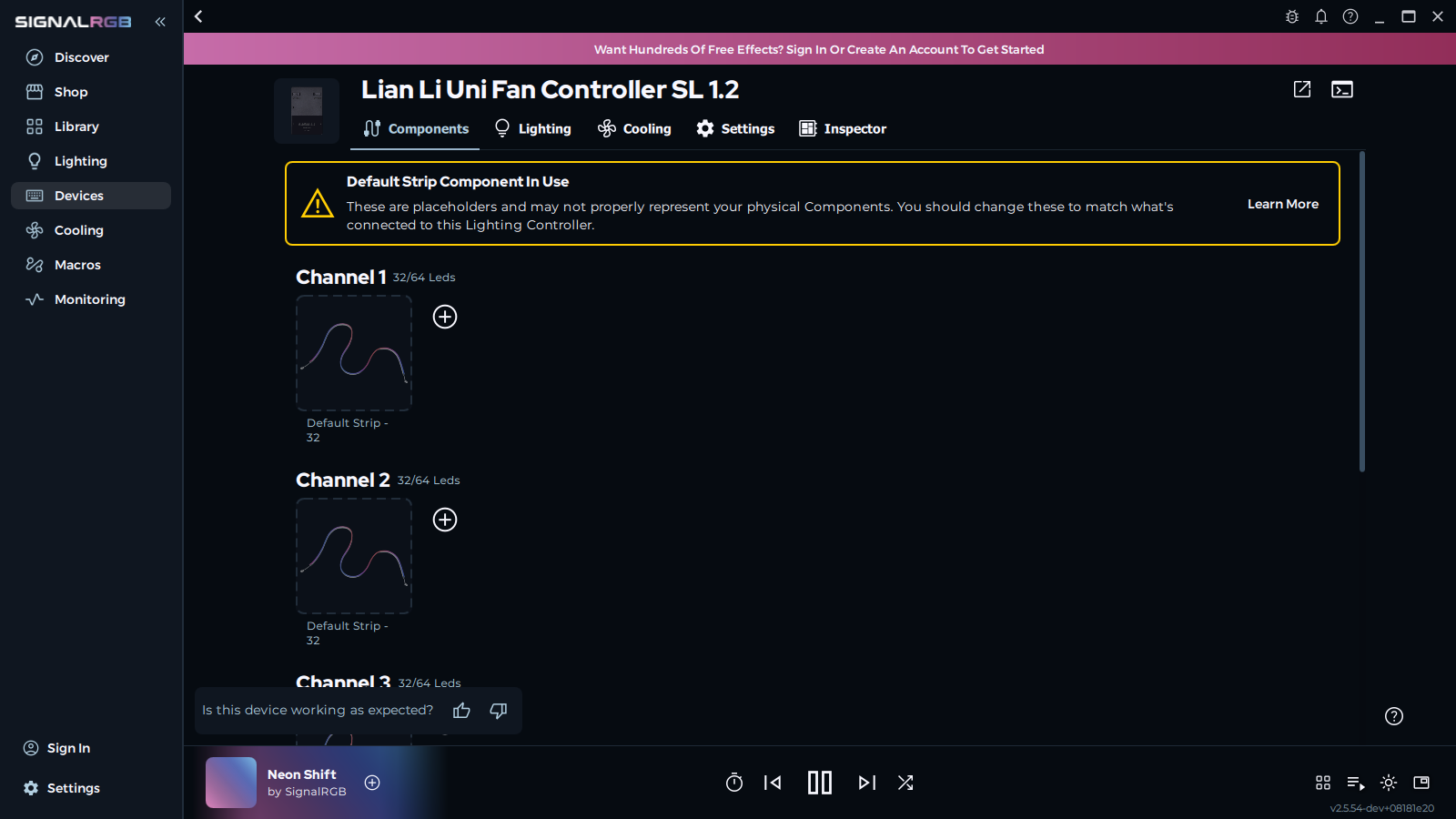
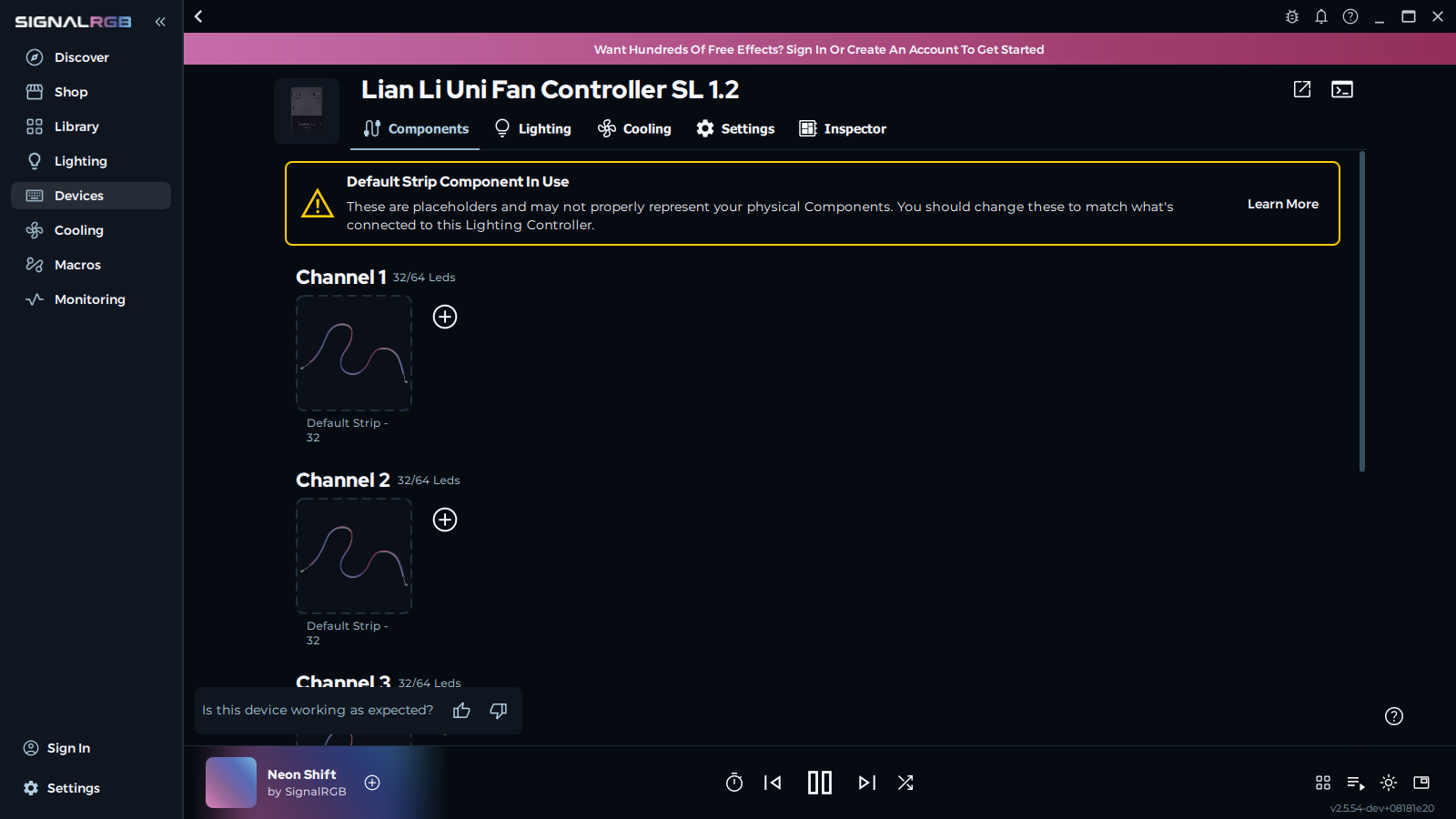
Section titled “Step 2: Remove Default Placeholder Strips”Every RGB controller and motherboard header includes default placeholder strips. You must remove these before adding your real components. Hover over a placeholder strip and click the remove button to delete it.
Step 3: Identify Which Devices Are on Each Channel
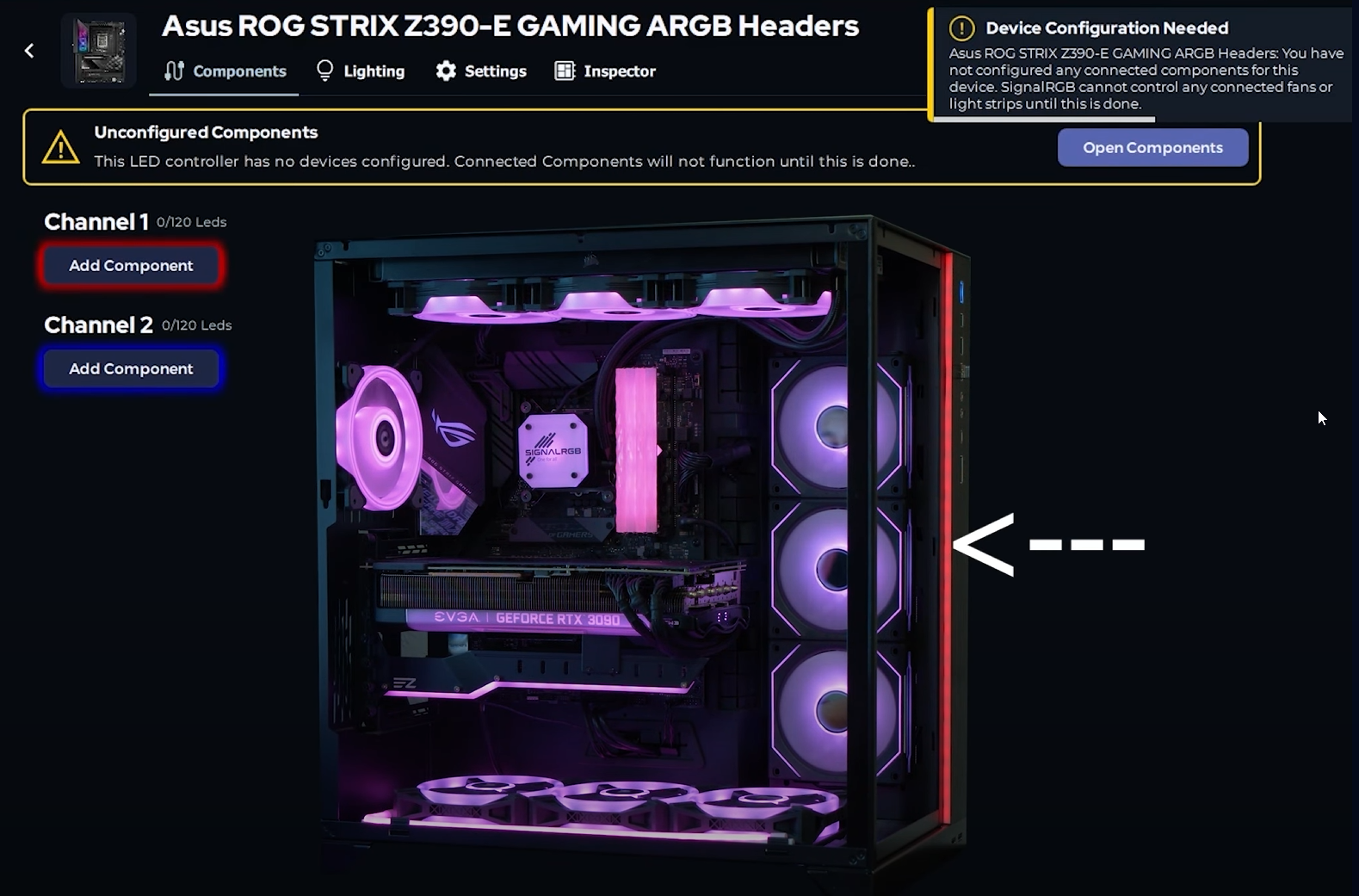
Section titled “Step 3: Identify Which Devices Are on Each Channel”Depending on the controller type, you will see one or more channels. SignalRGB pulses each channel a unique color so you can identify what is connected to it. In the example below, the front strip pulses red, indicating it is on channel 1. Nothing pulses blue, so channel 2 is empty.
Step 4: Add Components to Each Channel
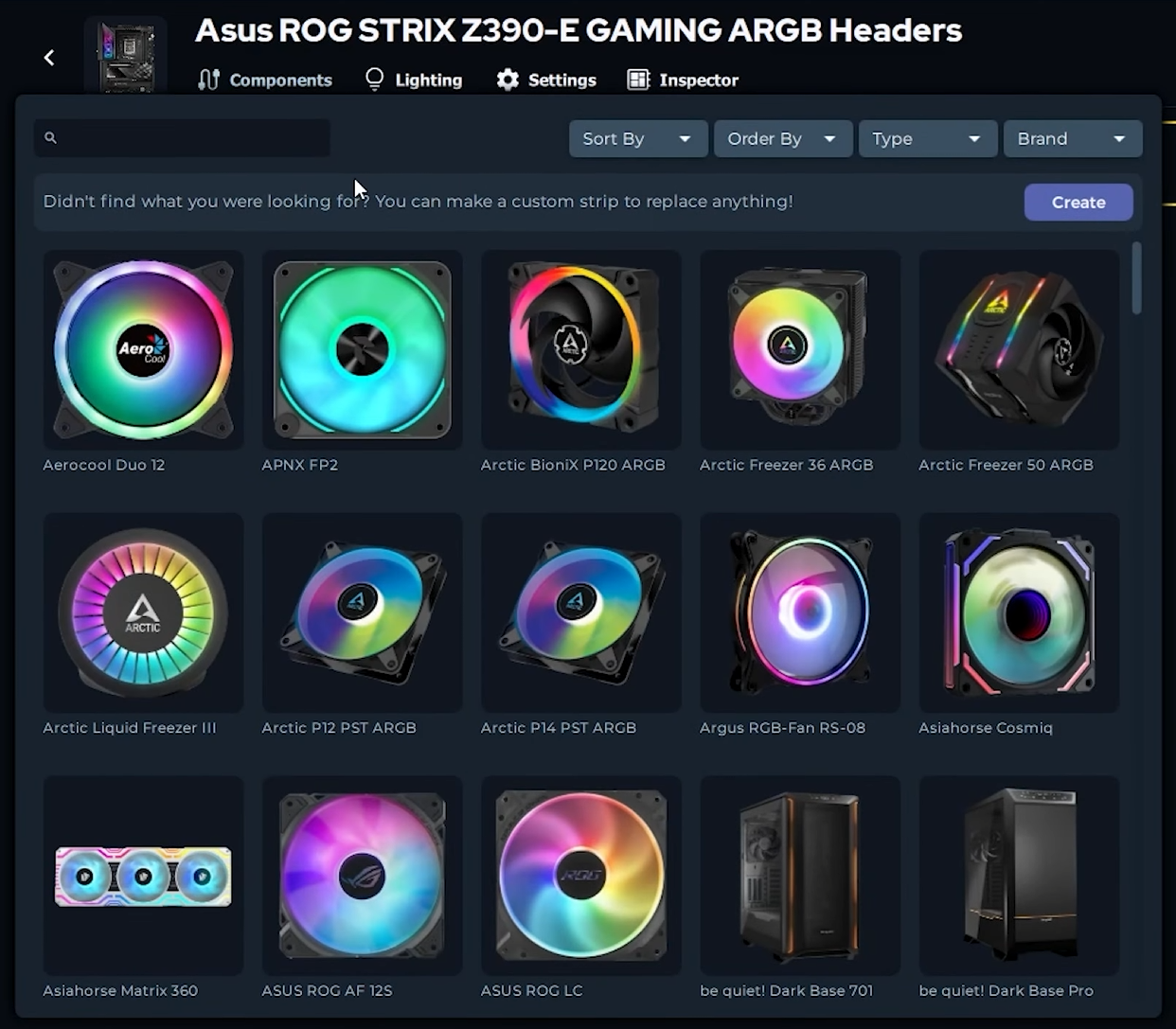
Section titled “Step 4: Add Components to Each Channel”Once you know what is connected to each channel, click “Add Component” under the appropriate channel. A menu appears with a searchable list of supported components.

Step 5: Create a Custom Strip (If Needed)
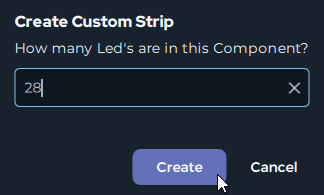
Section titled “Step 5: Create a Custom Strip (If Needed)”If your component is not in the list, create a custom strip with the correct LED count. Enter the number of LEDs in your strip and save it.

Step 6: Repeat for All Channels and Controllers
Section titled “Step 6: Repeat for All Channels and Controllers”Work through each channel on every controller until all components are added. SignalRGB will now control each component individually.
Next Steps
Section titled “Next Steps”With your components configured, you are ready to arrange them spatially on a canvas. Visit About Layouts to learn how to position your devices so that lighting effects flow naturally across your entire setup.