

About Layouts
What Are Layouts?
Section titled “What Are Layouts?”A layout is a canvas where you position your RGB devices to match their physical locations. SignalRGB uses this spatial information to determine how lighting effects move across your setup. Think of it as a map of your desk or case that the lighting engine reads.
Why Layouts Matter
Section titled “Why Layouts Matter”Without a layout, each device runs effects independently. A wave effect on your keyboard has no relationship to the same wave on your mouse or fans. With an accurate layout, that wave sweeps across your entire desk as if all your devices are one continuous surface.
Opening the Layouts Page
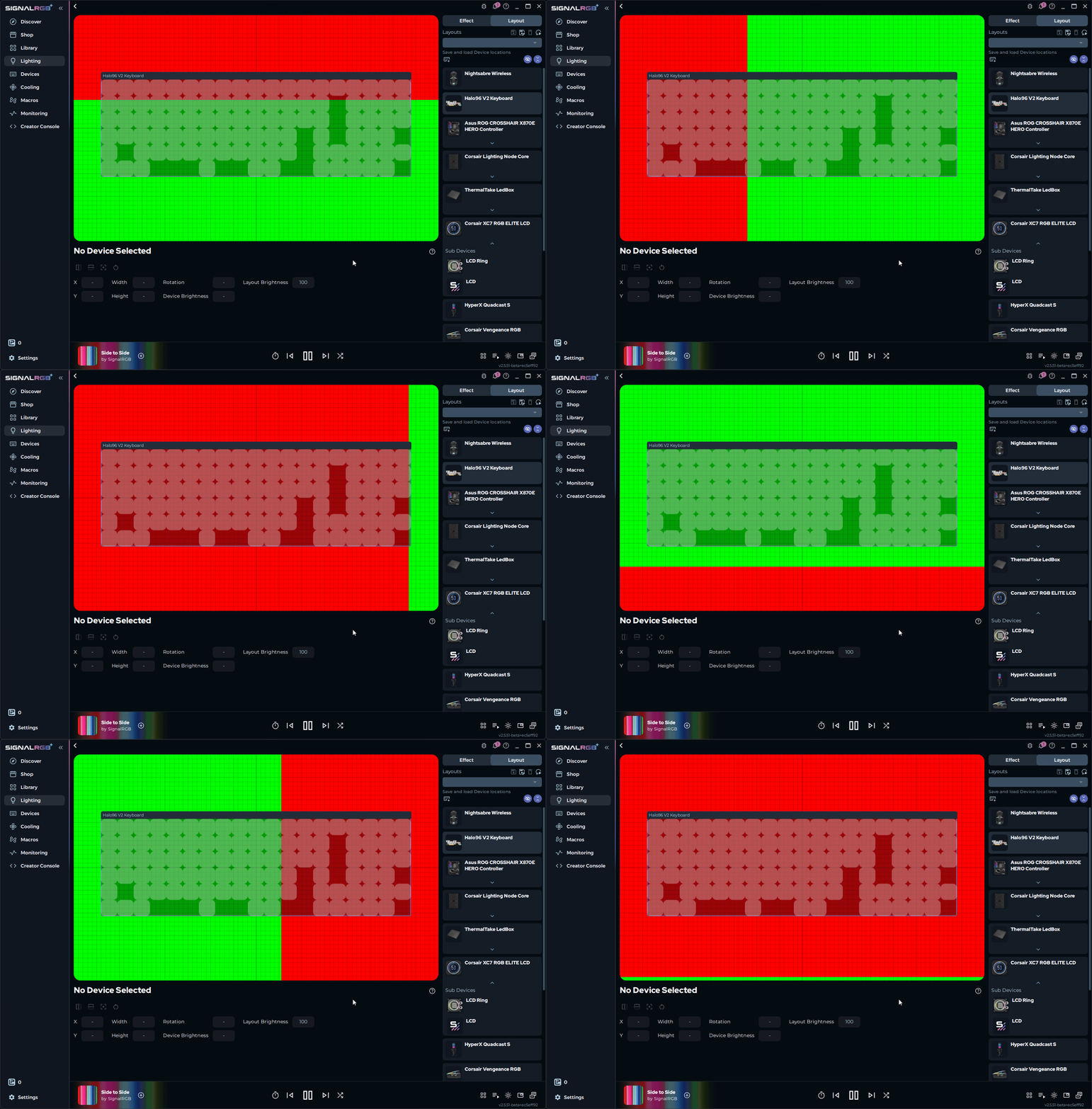
Section titled “Opening the Layouts Page”Click the Layouts tab in the left sidebar under the Lighting category. The canvas displays every device in your setup. By default, all devices are stacked at the center of the canvas, so each device captures a similar portion of any effect. Your goal is to spread them out to match reality.
Adding Devices to Your Layout
Section titled “Adding Devices to Your Layout”All detected devices appear on the canvas automatically. If a device is not visible, check that it is connected and recognized on the Devices page. Each device is represented as a labeled box on the canvas.
Arranging Devices
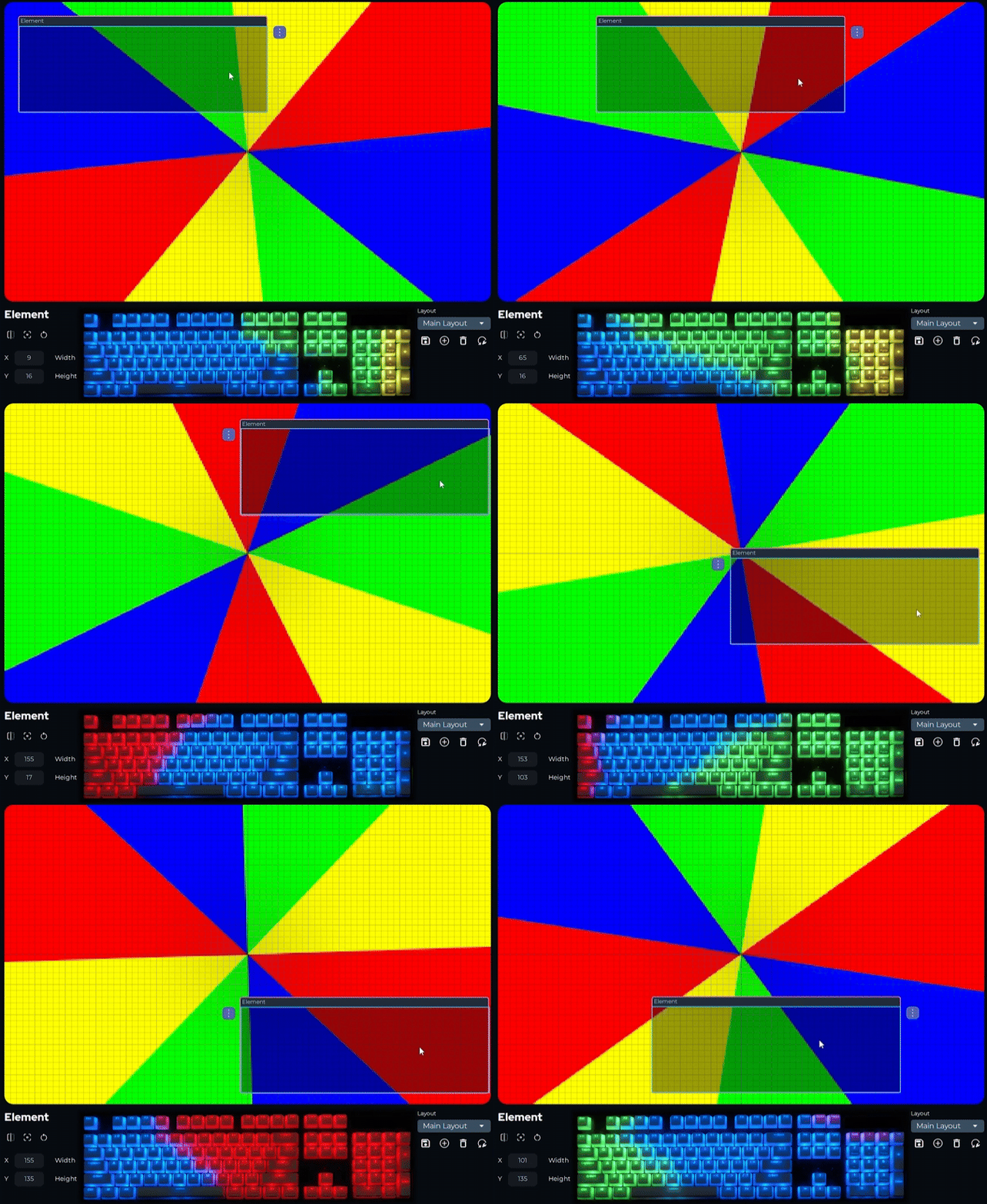
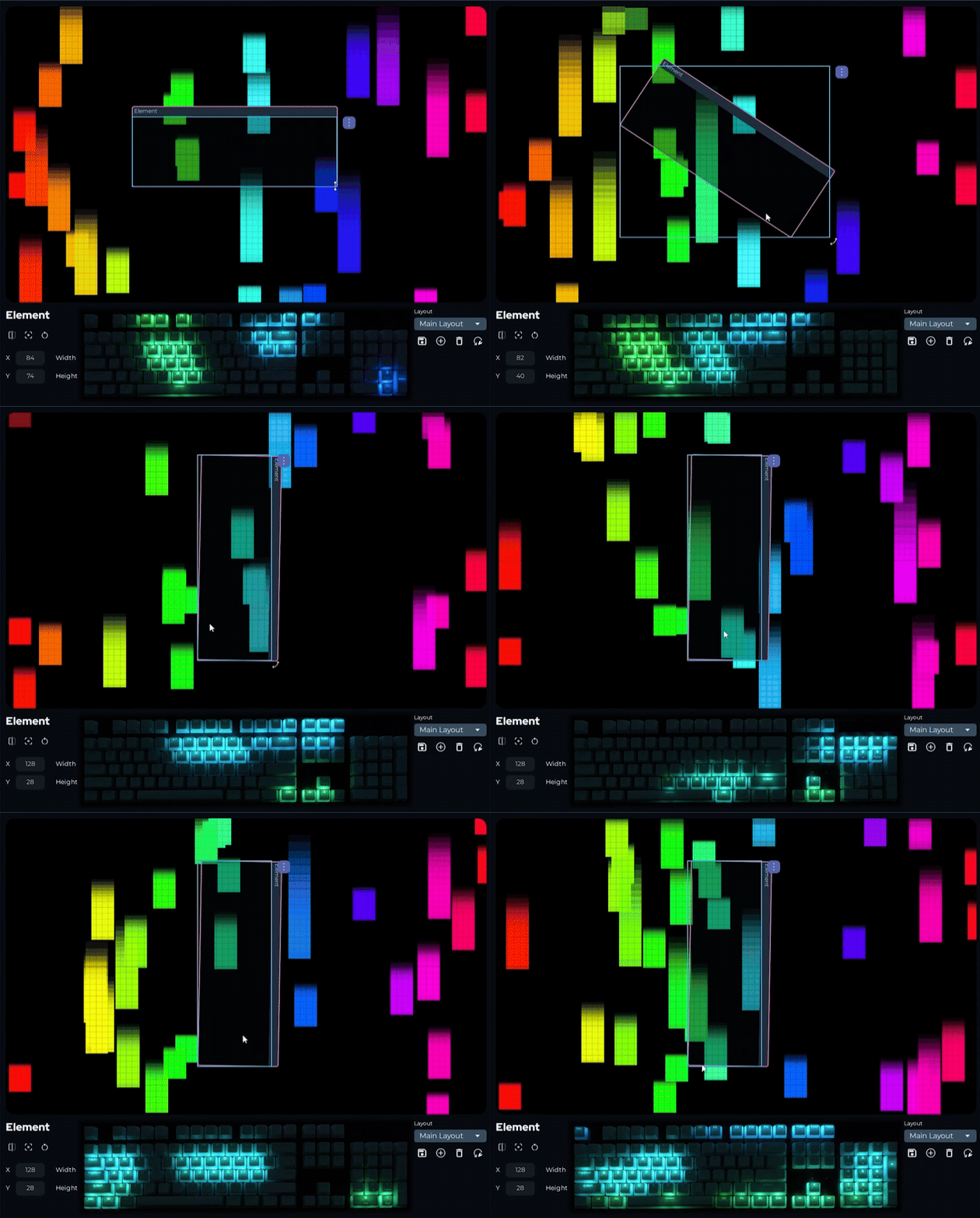
Section titled “Arranging Devices”Drag each device box to the position that matches its physical location. You can also type exact coordinates using the settings panel at the bottom of the page. Watch how moving a device on the canvas changes the portion of the effect it displays.
Resizing and Rotating Devices
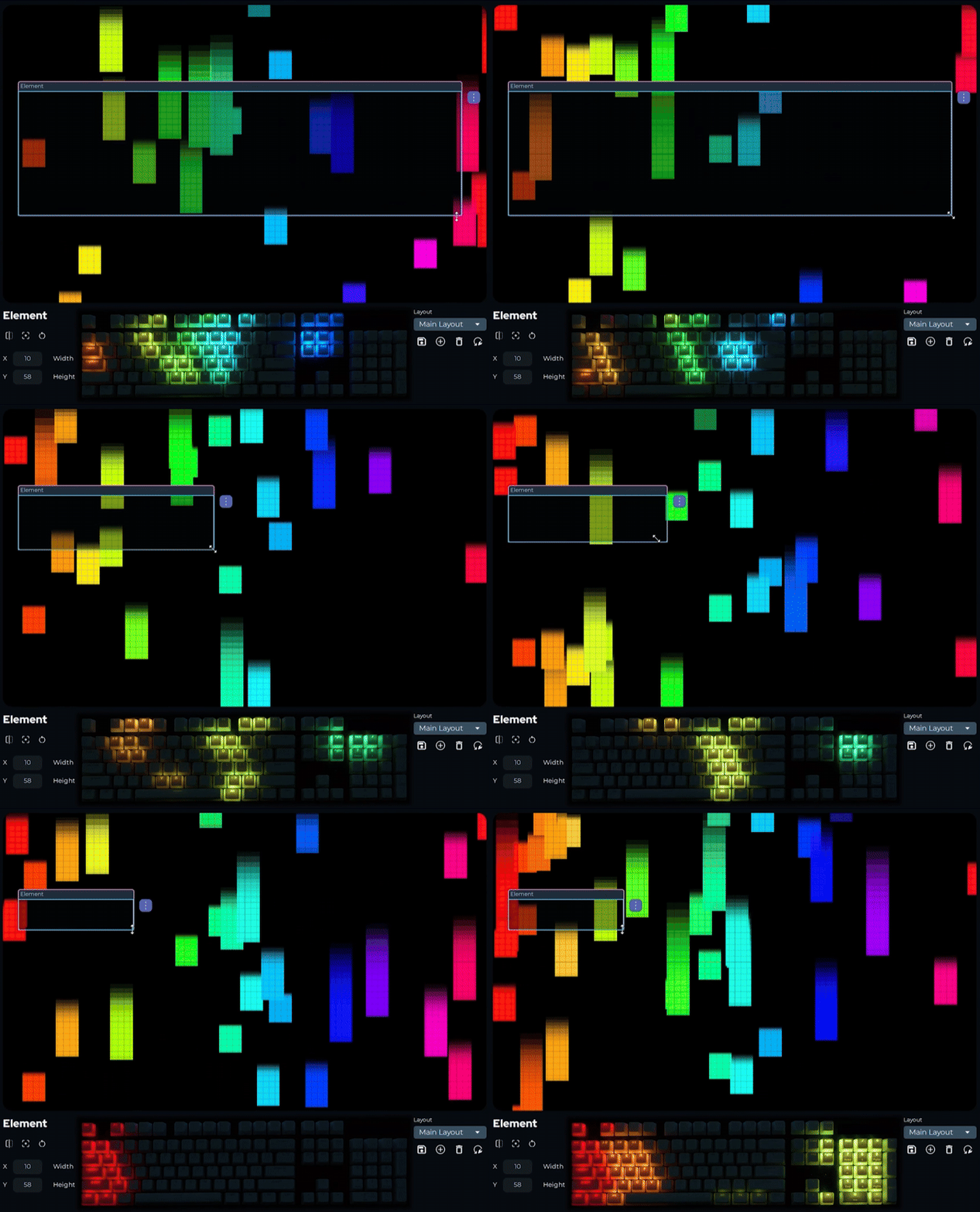
Section titled “Resizing and Rotating Devices”Drag the corners of a device box to resize it. You can also rotate a device using the corner handles or by entering a rotation value in the settings panel at the bottom of the page.
Scaling a device changes how much of the effect canvas it samples. Rotating changes the direction the effect enters and exits the device.
Inverting Devices
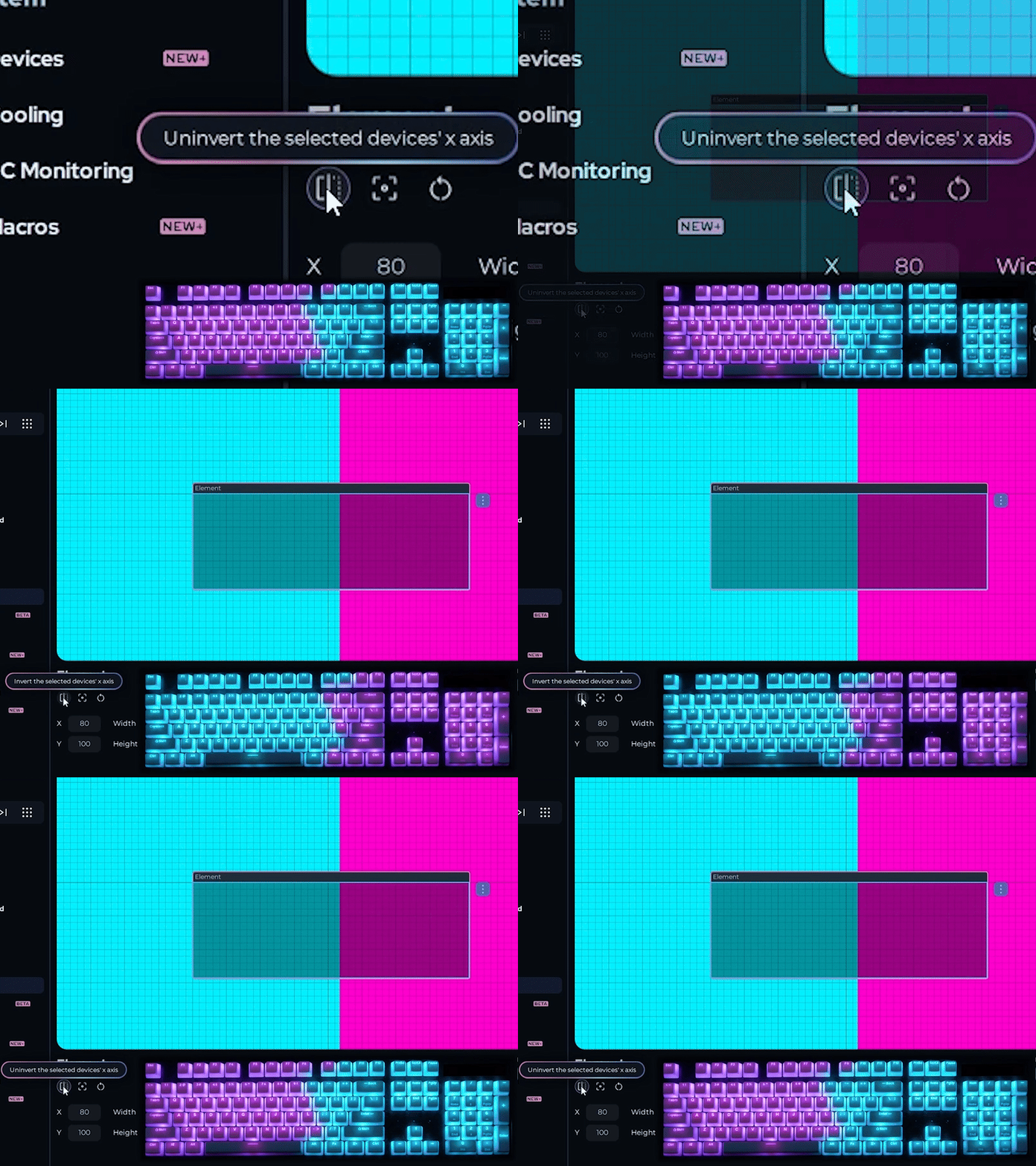
Section titled “Inverting Devices”Use the invert button in the bottom-left corner to flip a device over its x-axis. This is most useful for RGB fans that are mounted upside down or facing backwards. Inverting corrects the direction effects travel across those fans.
Hiding Devices from Effects
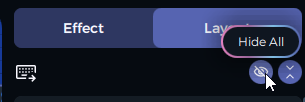
Section titled “Hiding Devices from Effects”You can exclude a device from the current layout without removing it from SignalRGB. Click the eye icon next to the device name to hide it. Hidden devices do not receive effect data from the layout canvas.
Saving Your Layout
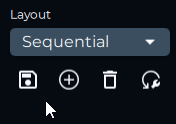
Section titled “Saving Your Layout”Save, load, and delete layouts using the controls in the bottom-right corner of the page. Give each layout a descriptive name. You can create multiple layouts for different setups, games, or moods and switch between them at any time.
Keyboard Shortcuts
Section titled “Keyboard Shortcuts”These shortcuts are available while working in the Layouts page.
| Shortcut | Action |
|---|---|
| Ctrl+Z | Undo |
| Ctrl+Y | Redo |
| Ctrl+S | Save current layout |
| Ctrl+A | Select all devices |
| Delete | Remove the selected device from the layout |
| Escape | Cancel the current selection |
| F5 | Refresh the device list |