

How to Create a Layout
This guide walks you through building a layout in SignalRGB so lighting effects move across your devices as one continuous surface.
Before You Start
Section titled “Before You Start”Make sure you have:
- SignalRGB installed and running
- At least one device detected and visible on the Devices page
For background on how layouts work, see About Layouts.
Open the Layouts Page
Section titled “Open the Layouts Page”Click the Lighting page on the left navigation and click the Layouts tab on the top right.
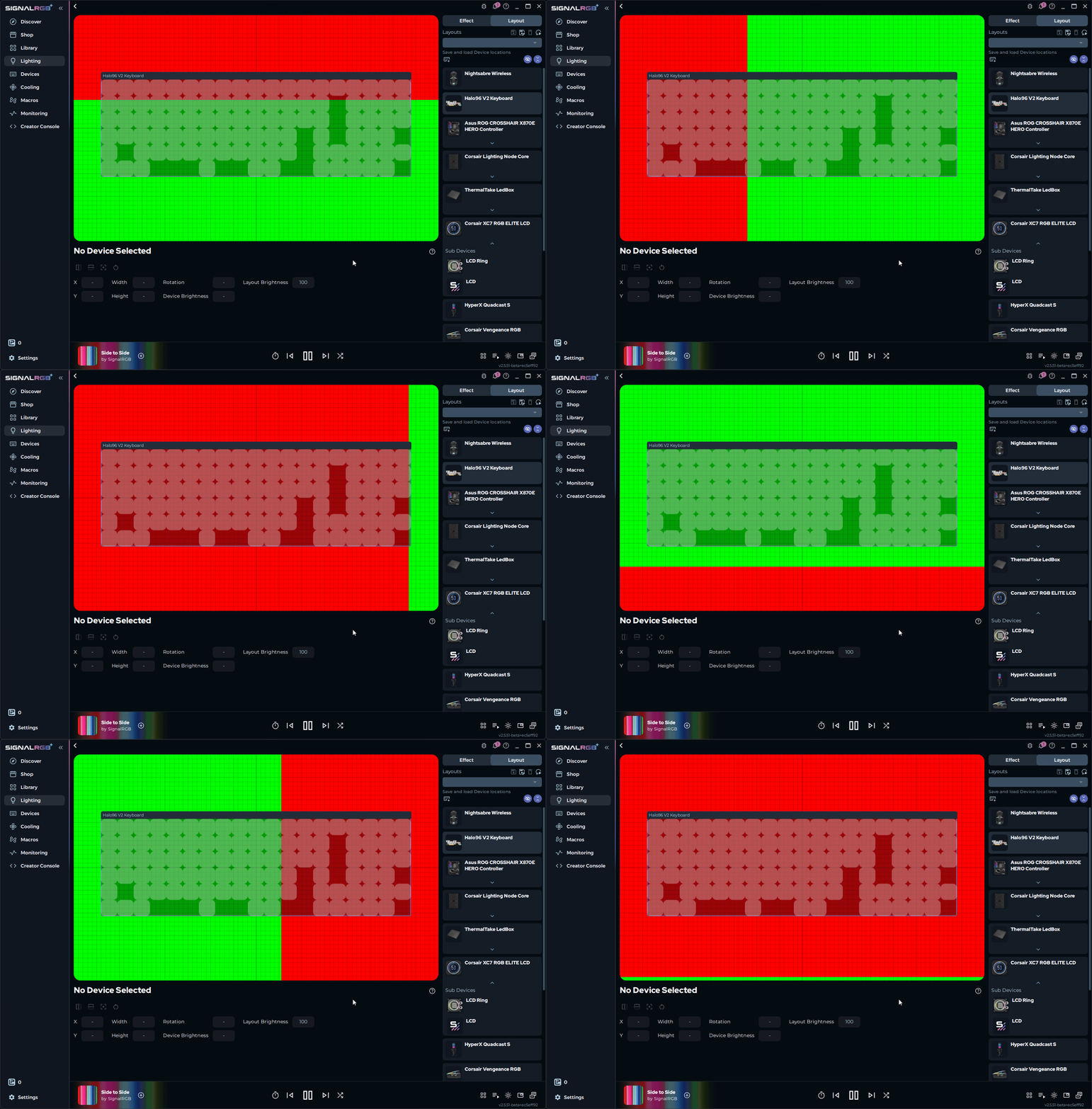
The canvas displays every detected device in your setup. By default, all devices are stacked at the center of the canvas.
Add Devices to Your Layout
Section titled “Add Devices to Your Layout”All detected devices appear on the canvas automatically. Each device is represented as a labeled box.
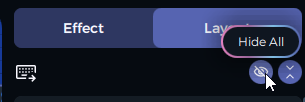
- Click Hide All in the top-right corner to clear the canvas
- Unhide one device at a time and position it before moving to the next
If a device is not visible on the canvas, check that it is connected and recognized on the Devices page.
Position Your Devices
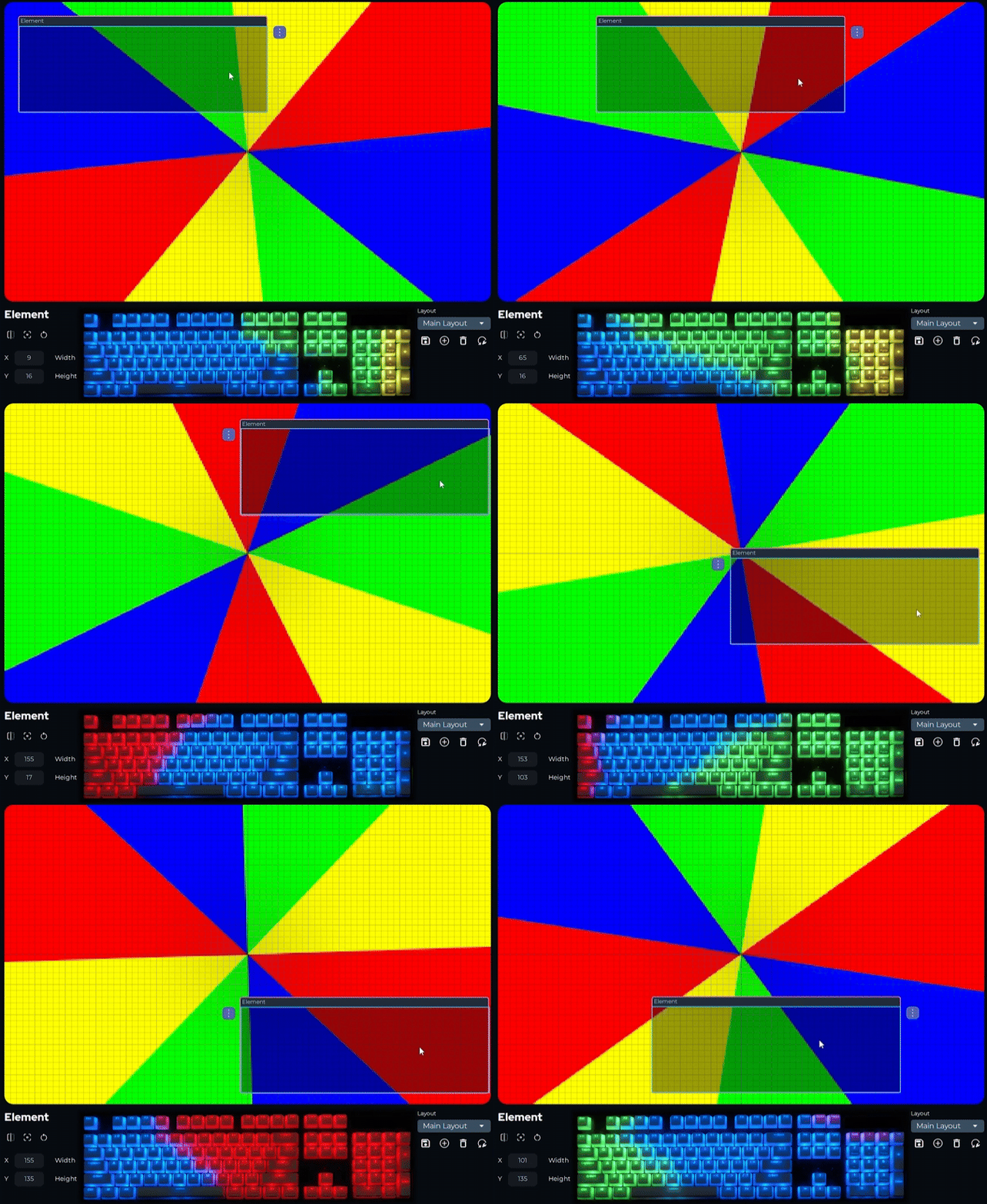
Section titled “Position Your Devices”- Drag each device box to the position that matches its physical location on your desk or in your case
- For precise placement, enter exact coordinates in the settings panel at the bottom of the page
Moving a device on the canvas changes the portion of the effect it displays.
Resize and Rotate Devices
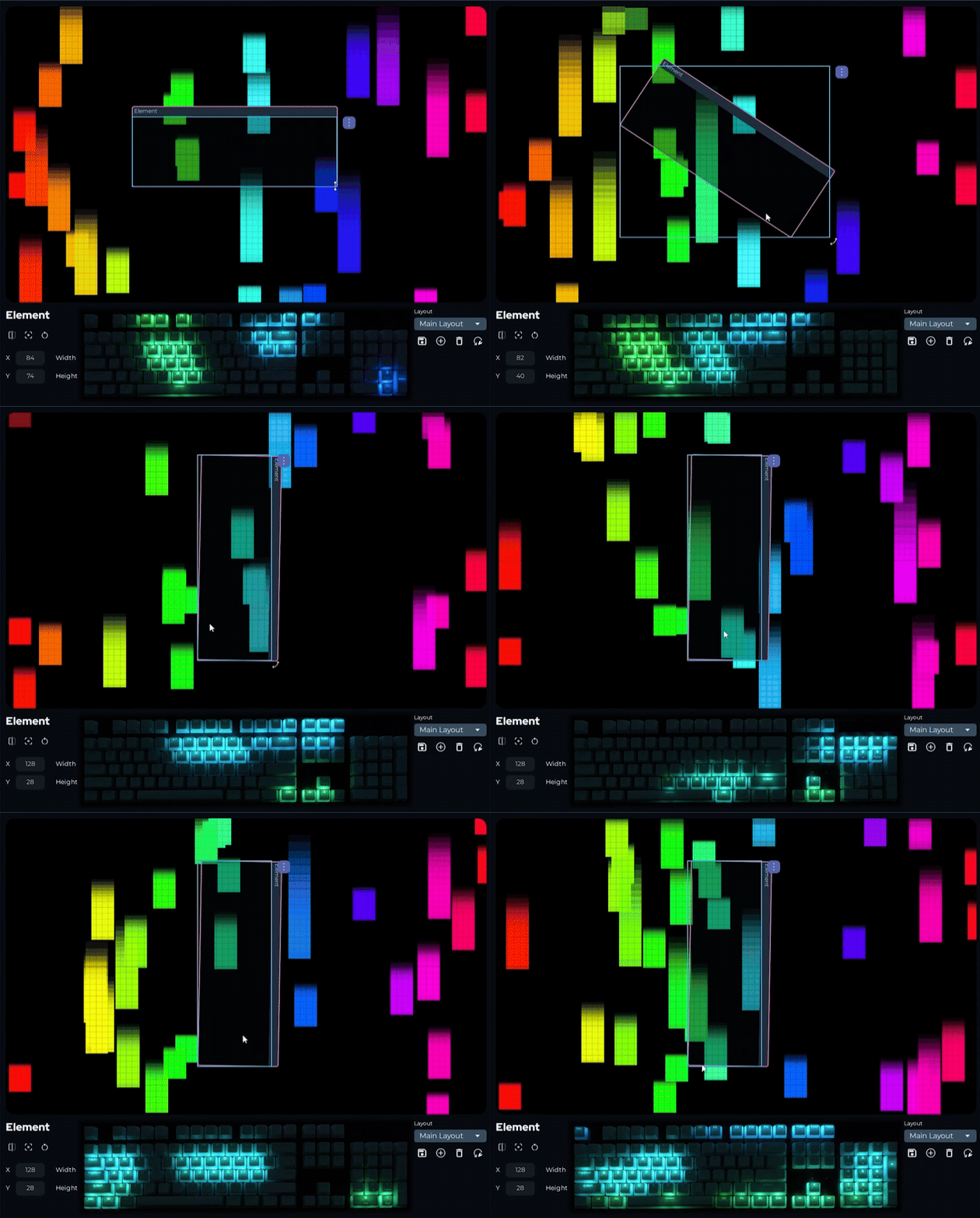
Section titled “Resize and Rotate Devices”Scaling a device changes how much of the effect canvas it samples. Rotating changes the direction effects enter and exit the device.
- Drag the corners of a device box to resize it
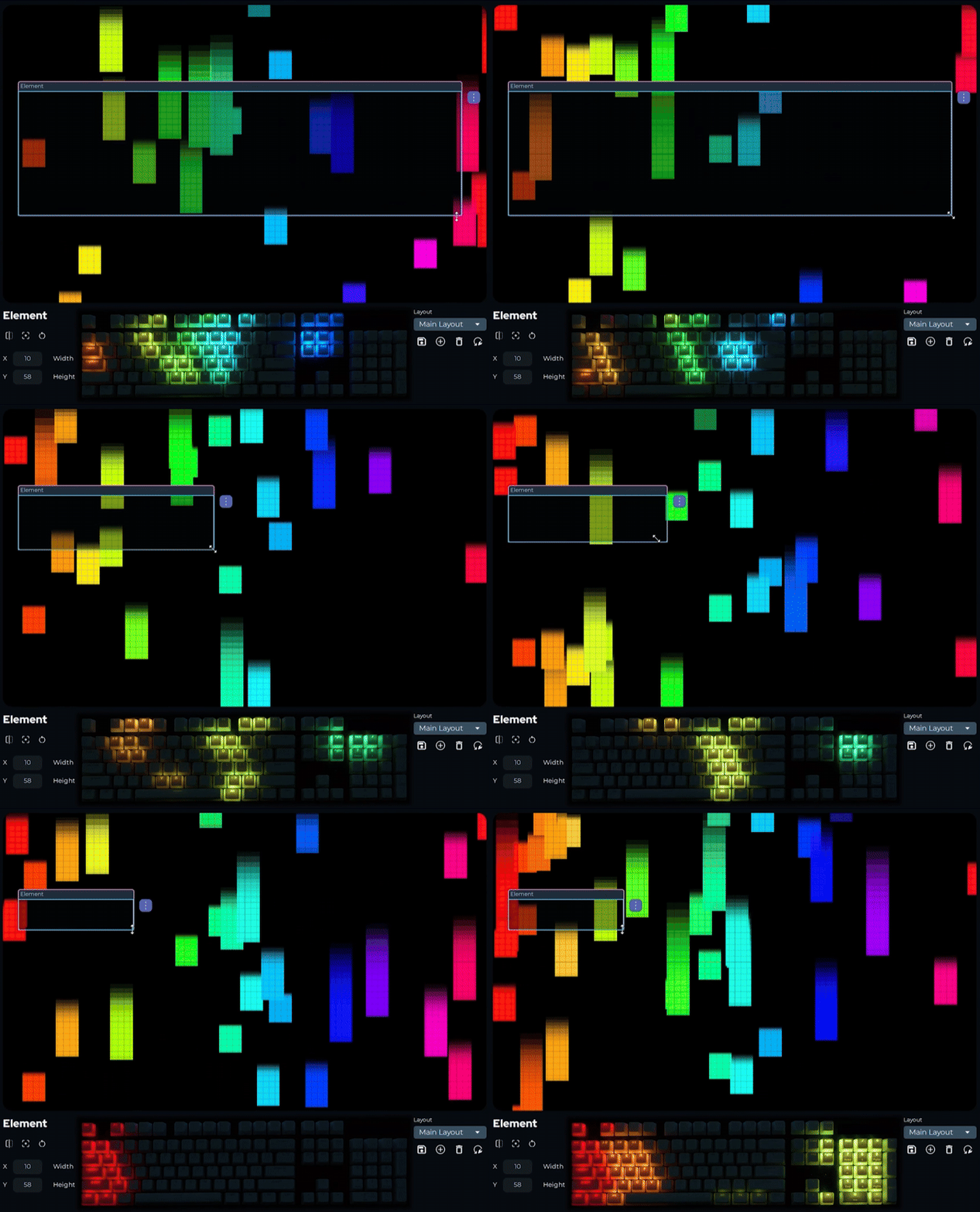
- Use the corner handles to rotate, or enter a rotation value in the settings panel at the bottom of the page
Invert a Device
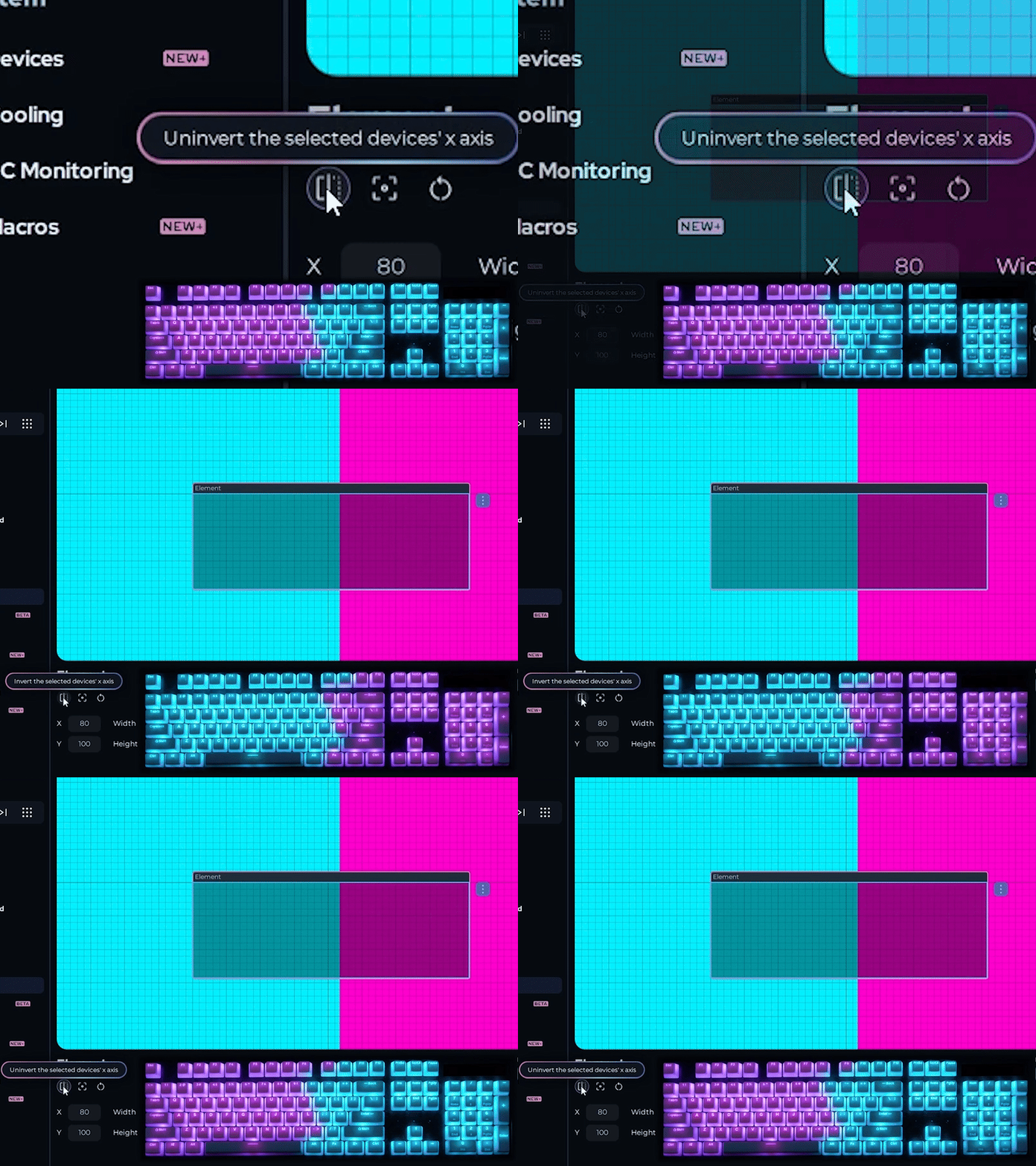
Section titled “Invert a Device”Use the invert option to flip a device over its x-axis. This is most useful for RGB fans mounted upside down or facing backwards.
- Select the device on the canvas
- Click the invert button in the bottom-left corner
The direction effects travel across the device is reversed.
Save Your Layout
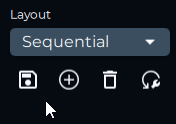
Section titled “Save Your Layout”- Click the save control in the bottom-right corner of the page
- Enter a descriptive name for the layout
- Click Save
You can create multiple layouts for different setups, games, or moods and switch between them at any time using the same controls.
Keyboard Shortcuts
Section titled “Keyboard Shortcuts”These shortcuts are available while working on the Layouts page.
| Shortcut | Action |
|---|---|
| Ctrl+Z | Undo |
| Ctrl+Y | Redo |
| Ctrl+S | Save current layout |
| Ctrl+A | Select all devices |
| Delete | Remove selected device from the layout |
| Escape | Cancel the current selection |
| F5 | Refresh the device list |
Related Articles
Section titled “Related Articles”Need more help? Contact Customer Support