

How to Update SignalRGB
SignalRGB keeps itself up to date automatically. You can also check for updates manually at any time.
Automatic Updates
Section titled “Automatic Updates”SignalRGB checks for updates automatically every time it launches. When an update is available, a notification appears in the top bar of the application. Click the notification to begin the update process.
Check for Updates Manually
Section titled “Check for Updates Manually”You can check for updates at any time without restarting the application.
- Open SignalRGB and go to Settings.
- Navigate to Application > Updates.
- Click Check for Updates.
SignalRGB will check the update server and download any available update.
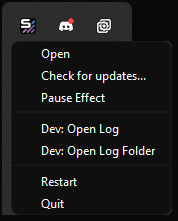
You can also check for updates by right-clicking the SignalRGB icon in the system tray and selecting Check for Updates.
Preview Channel (Pro Only)
Section titled “Preview Channel (Pro Only)”Pro subscribers can opt in to the Preview update channel. This gives you early access to new features before they reach the stable release.
- Go to Settings > Application > Updates.
- Under Update Channel, select Preview.
What to Do If an Update Fails
Section titled “What to Do If an Update Fails”If an update fails to complete, try the following steps.
Step 1 — Restart and retry. Close SignalRGB completely and relaunch it. If an update is still available, the notification will reappear. Click it to try again.
Step 2 — Run the installer manually. If the update continues to fail, download the latest installer from the SignalRGB website. Run the installer over your existing installation. Your settings and configurations will be preserved.