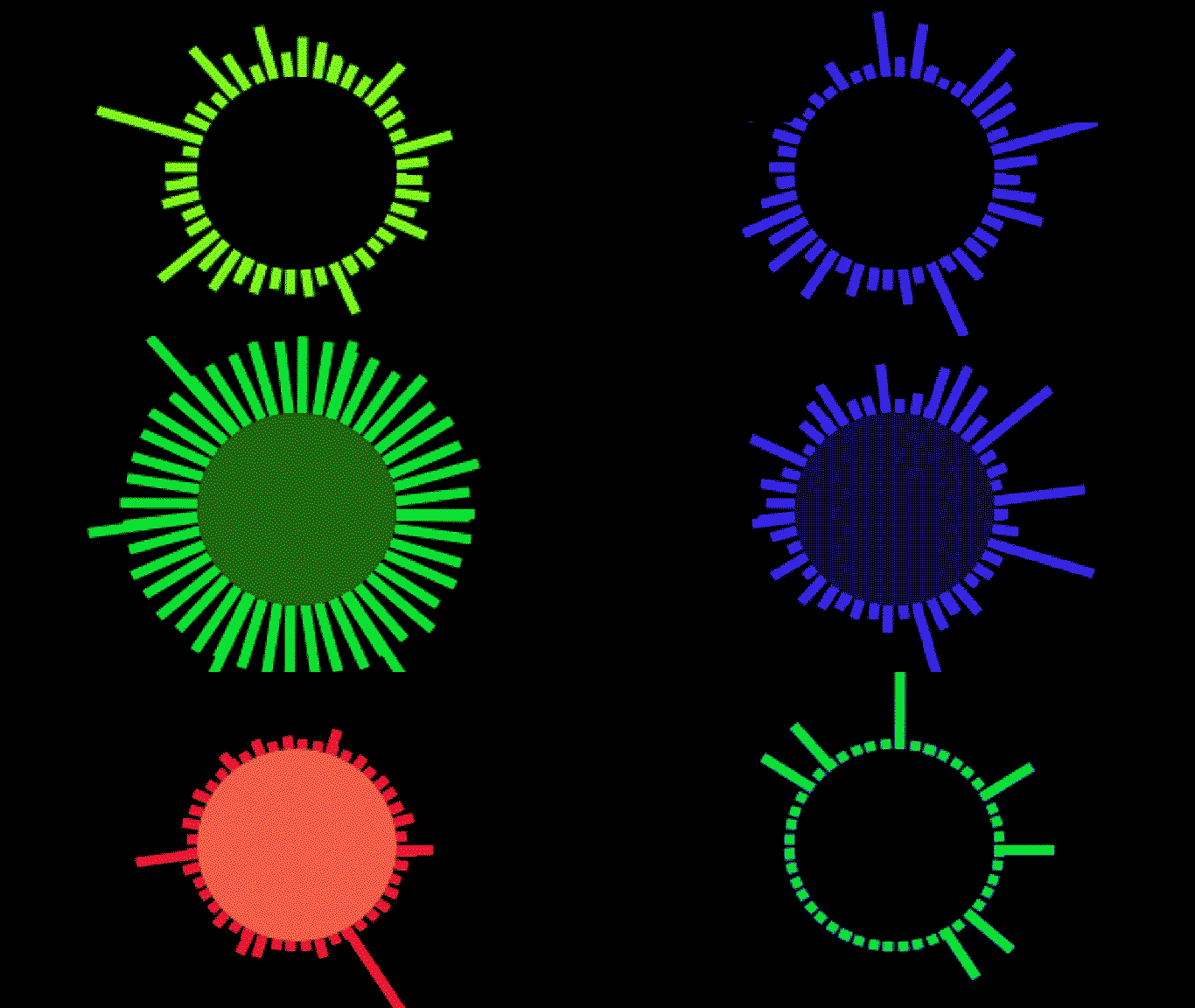
오디오 시각화 효과
여기서는 API 오디오 속성에 대해 알아보고 오디오 시각화 효과 만들기의 기초를 설명합니다. 대부분의 시각화 효과는 동일한 기본 원리에서 만들어지므로 조금만 연습하면 매우 재미있는 결과를 얻을 수 있습니다.
SignalRGB 오디오 속성
섹션 제목: “SignalRGB 오디오 속성”SignalRGB에서 제공하는 오디오 데이터는 코드의 몇 가지 속성을 통해 접근할 수 있습니다:
- engine.audio.level - 트랙의 전체 음량을 나타내는 -100~0 사이의 숫자를 반환합니다. 0은 크고, -100은 매우 작습니다.
- engine.audio.density - 음색의 거칠기를 나타내는 0~1 사이의 숫자를 반환합니다. 테스트 톤은 0에 가깝고 화이트 노이즈는 1에 가깝습니다.
- engine.audio.freq - 트랙의 주파수 데이터를 포함하는 200개의 요소 배열을 반환합니다.
각 속성은 올바르게 활용되기 전에 다른 수준의 정규화 또는 조정이 필요합니다. 이에 대해 잠시 후 설명하겠습니다.
기본 주파수 애니메이션부터 시작해 보겠습니다.
주파수
섹션 제목: “주파수”주파수는 우리가 듣는 소리의 음높이를 나타내며 오디오 시각화 효과에서 가장 중요한 속성입니다. 여기서 하는 것은 매 프레임마다 주파수 파형의 200개 슬라이스를 가져와 시각적 형태로 변환하는 것입니다. 기본 프로세스는 다음과 같습니다:
- 배열을 인스턴스화하고 주파수 데이터로 채웁니다.
- 필요에 맞게 이 배열을 편집합니다(필터, 맵, 리듀스 등).
- 각 요소를 나타낼 “사운드 바” 클래스를 작성합니다.
- 매 프레임마다 데이터를 사운드 바 클래스에 연결합니다.
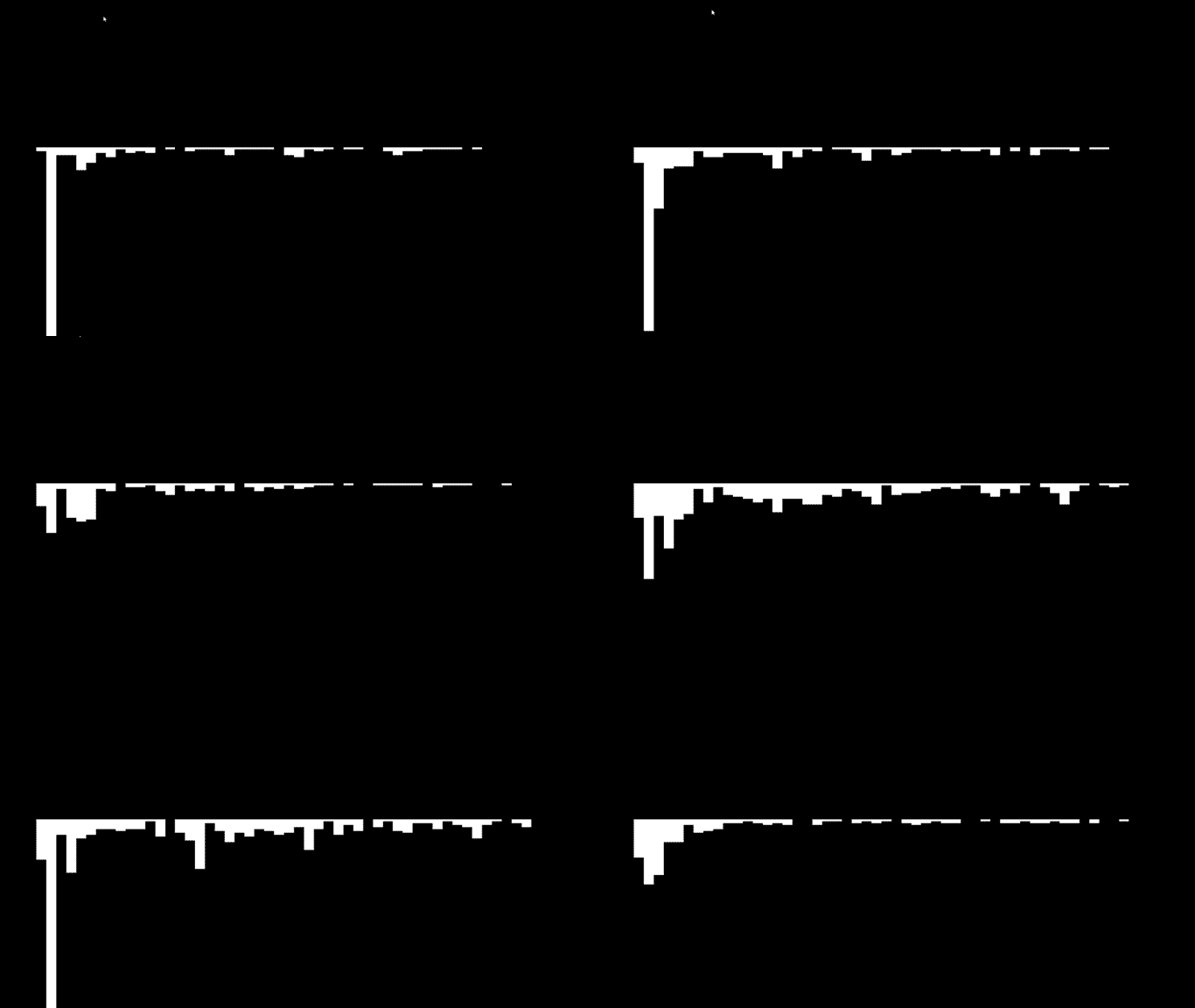
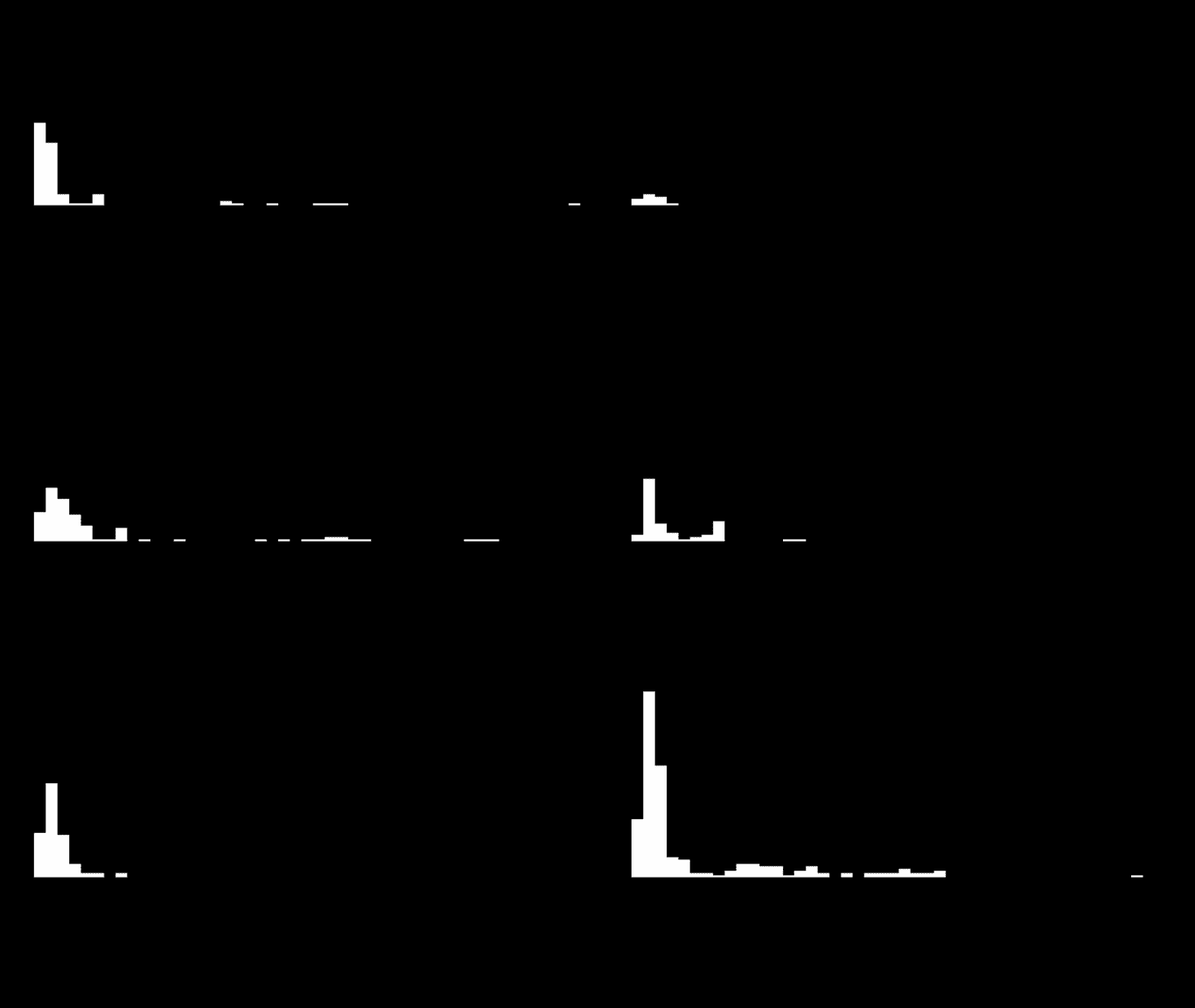
주파수와 관련하여 원시 데이터에 두 가지 조정을 해야 합니다. 때때로 요소에 음수 값이 들어올 수 있는데, 이는 시각적으로 거슬립니다. 요소의 높이도 이 예시에서 잘못 나올 수 있습니다. 직사각형의 “height” 옵션에서 양수 값이 도형의 원점에서 아래로 그려지므로, 일반적인 시각화 효과처럼 보이도록 이를 뒤집어야 합니다.
예시 - 처리되지 않은 데이터:
처리된 데이터:
처리된 데이터 코드 예시:
<head>    <title>Visualizer Tutorial</title>    <meta description="Basic Effects" />    <meta publisher="SignalRgb" />  </head>
  <body style="margin: 0; padding: 0; background: #000;">    <canvas id="exCanvas" width="320" height="200"></canvas>  </body>
  <script>    canvas = document.getElementById('exCanvas');    ctx = canvas.getContext('2d');    var effects = [];    var reducedFreq = [];
    function update() {
      // "frequency" represents the full 200 elements from our frequency data        var frequency = new Int8Array(engine.audio.freq)      // "reducedFreq" filters the data down to every fourth result to save some CPU load        reducedFreq = frequency.filter((element, index) => {            return index % 4 === 0;        })
      // Create the effect if it does not yet exist        if(effects.length < 1){            effects.push(new soundBars(20, 100))        }
      // Background color        DrawRect(0, 0, 320, 200, "black")
      // Play effect        effects.forEach((ele, i) => {          ele.draw();          if (ele.lifetime <= 0) {            effects.splice(i, 1);          }        });
      window.requestAnimationFrame(update);    }
    function soundBars (x, y){        this.x = x;        this.y = y;        this.draw = function(){          for(let i = 0; i < reducedFreq.length; i++){                var x = this.x + 5 * i                var y = this.y     // Data processing occurs for "height". Find the absolute value of each element, then flip negative                var height = -Math.abs(reducedFreq[i])                DrawRect(x, y, 5, height, "white")            }        }    }
    function DrawRect(x, y, width, height, color) {      ctx.beginPath();      ctx.fillStyle = color;      ctx.fillRect(x, y, width, height);    };
    window.requestAnimationFrame(update);  </script>
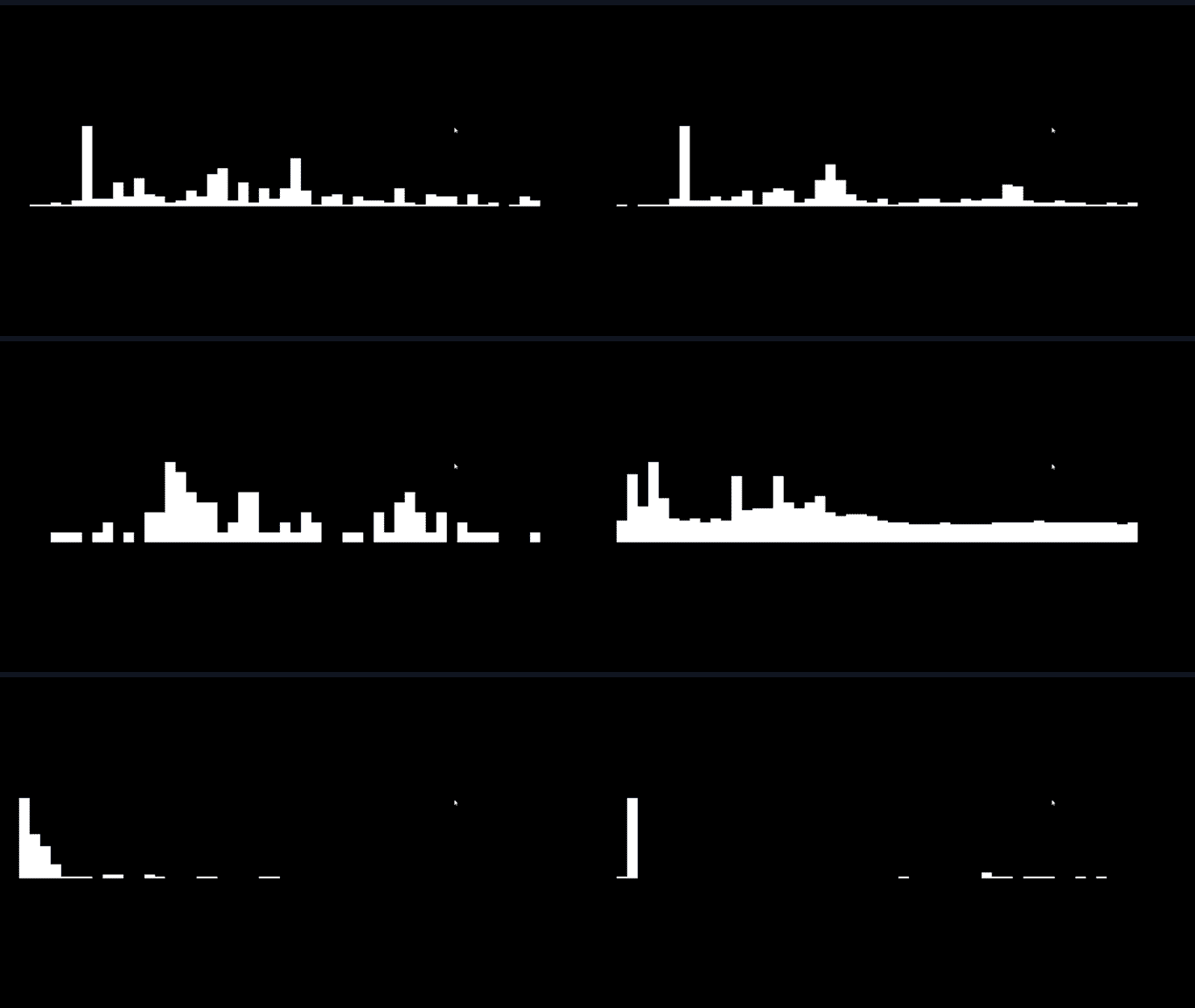
위 시각화 효과에는 아직 몇 가지 문제가 있습니다. 이어폰을 통해 듣는 노래는 균형 잡혀 있는 것처럼 들리지만, 데이터가 일부 사운드 바에 크게 편중되어 다른 것들은 완전히 보이지 않는 경우가 자주 있습니다. 예술적 관점에서 이는 이상적이지 않으므로 SignalRGB에서 받은 데이터를 “정규화”하겠습니다. 정규화는 데이터를 최댓값과 최솟값 사이에 균등하게 분배하여 서로 간의 값을 더 잘 나타내는 것입니다. 주파수 배열에서 최댓값과 최솟값을 파악한 후 방정식은 매우 간단합니다: (x - min) / (max - min) 여기서 “x”는 현재 요소를 나타냅니다.
정규화된 처리 데이터:
다음으로 사운드 바를 원형으로 배열하여 화려함을 더하겠습니다:
function soundBars (x, y){      this.x = x;      this.y = y;
      this.draw = function(){
        var max = Math.max(...reducedFreq)        var min = Math.min(...reducedFreq)
        for(let i = 0; i < reducedFreq.length; i++){          //Save the current state of the canvas          ctx.save()          //Add the circular component to your bars. "50" here is the radius of the circle          var x = this.x + Math.cos(i) * 50          var y = this.y + Math.sin(i) * 50          var height = ((Math.abs(reducedFreq[i])) - min) / (max - min) * -40          // Determine the angle of the bar, to make it perpindicular to the circle          var rotate = Math.atan2(y - this.y, x - this.x) + Math.PI / 2;          //Translate to circle center          ctx.translate(x, y)          //Rotate the canvas          ctx.rotate(rotate)          //Translate back for drawing          ctx.translate(-x, -y)          DrawRect(x, y, 5, height, "white")          //Restore the old state of the canvas after drawing to prevent positive feedback loops          ctx.restore()        }      }    }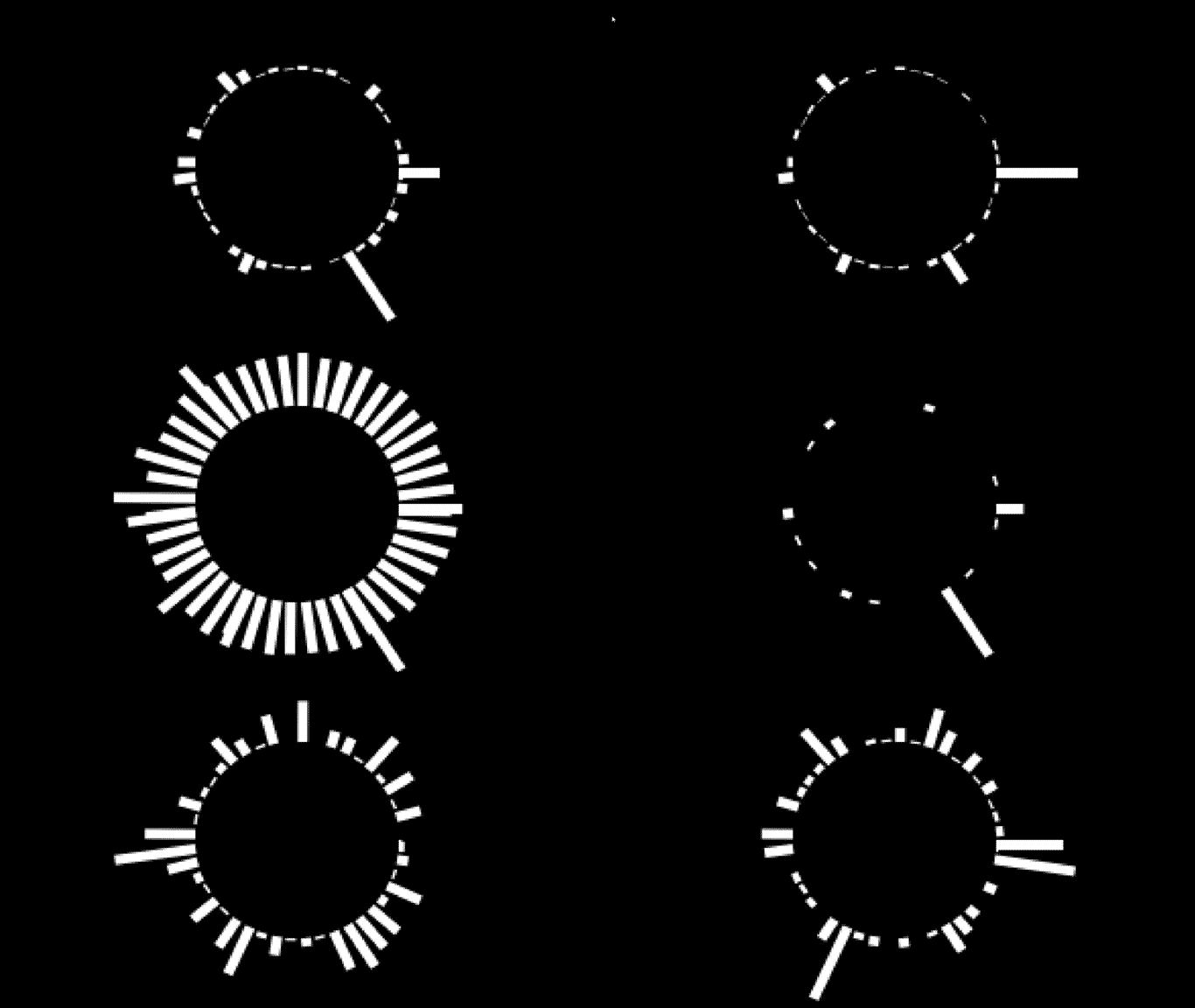
밀도는 사용하기 간단합니다. 반환된 값은 음색의 “청결함”을 나타내는 0~1 사이의 숫자입니다. 디지털 음은 0에 가깝고, 아날로그 음은 1에 가깝습니다. 이 예시에서는 사운드 바의 색상을 편집하는 데 사용하여 노래의 뚜렷한 음색에 뚜렷한 색상을 부여합니다.
function soundBars (x, y){
      this.x = x;      this.y = y;      this.rotate = 0;
      this.draw = function(){        //Hue is calculated each frame, the resulting amount will be a proper hue option for hsl        var hue = engine.audio.density * 360
        var max = Math.max(...reducedFreq)        var min = Math.min(...reducedFreq)        for(let i = 0; i < reducedFreq.length; i++){          ctx.save()          var x = this.x + Math.cos(i) * 50          var y = this.y + Math.sin(i) * 50          //Height slightly edited for visability          var height = ((Math.abs(reducedFreq[i])) - min) / (max - min) * -50 - 5          this.rotate = Math.atan2(y - this.y, x - this.x) + Math.PI / 2;          ctx.translate(x, y)          ctx.rotate(this.rotate)          ctx.translate(-x, -y)          //Insert the edited hue value each frame          DrawRect(x, y, 5, height, `hsl(${hue}, 100%, 50%)`)          this.rotate = 0;          ctx.restore()        }      }    }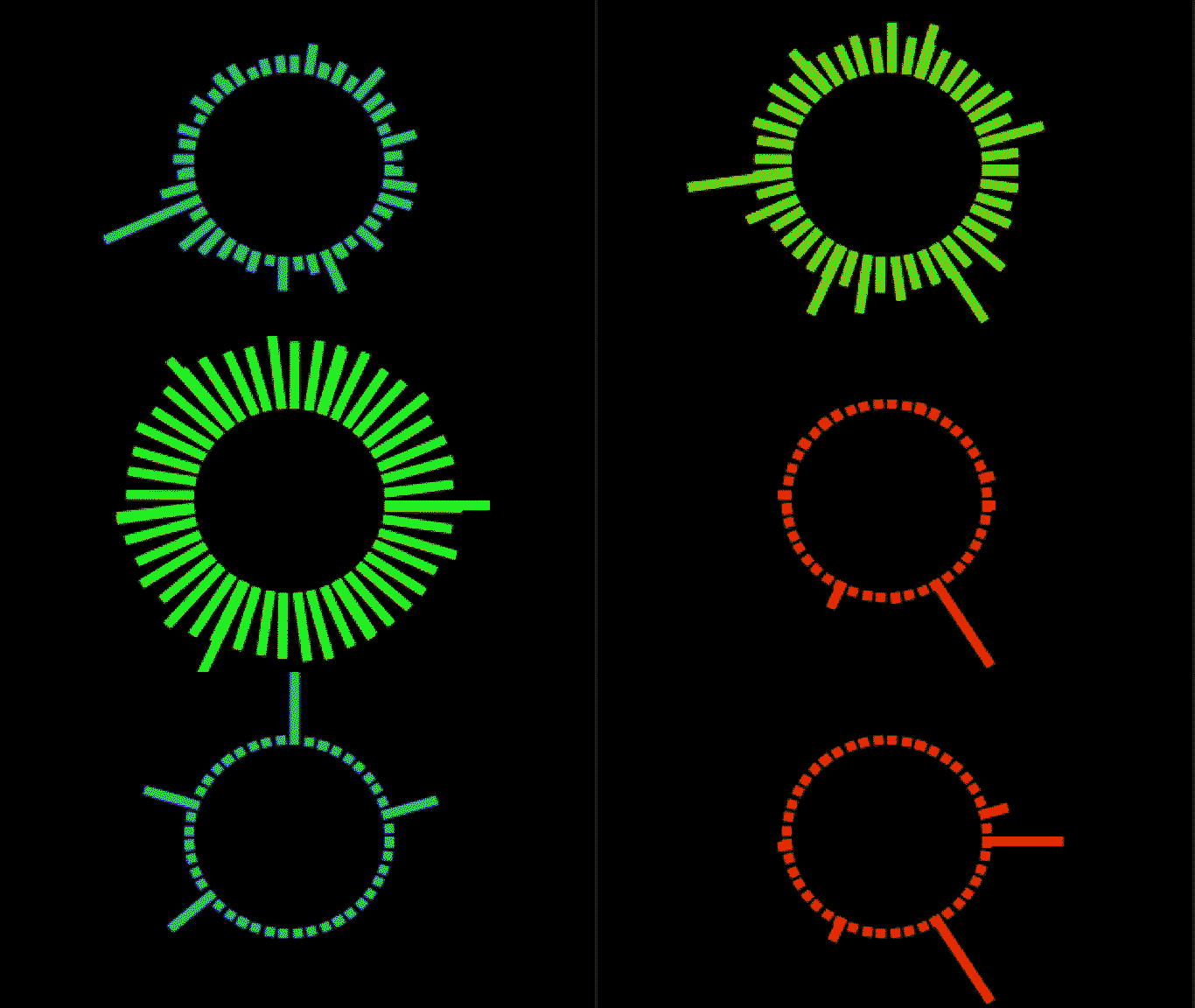
이 속성은 단순히 데시벨 단위의 트랙 음량을 반환하며, -100~0 사이의 숫자를 생성한다는 점이 특징입니다. -100은 매우 조용하고, 0은 매우 큽니다. 원하는 방식으로 사용하려면 이 데이터를 약간 편집해야 하며, 업데이트 함수에서 이 도형을 그리겠습니다. 여기서 트랙 레벨은 내부 검정 원의 밝기를 편집합니다.
function update() {
        var frequency = new Int8Array(engine.audio.freq)        reducedFreq = frequency.filter((element, index) => {            return index % 4 === 0;        })
        if(effects.length < 1){            effects.push(new soundBars(160, 100))        }
        DrawRect(0, 0, 320, 200, "black")
        effects.forEach((ele, i) => {          ele.draw();          if (ele.lifetime <= 0) {            effects.splice(i, 1);          }        });
        // Hue calcualtion to match the rest of the visualizer        var hue = engine.audio.density * 360        //The level has been multiplied by 10, then added to 100. This is arbitrary, but some combination        //of actions here will give you the result you want        DrawCircle(160, 100, 50, `hsl(${hue}, 100%, ${100 + engine.audio.level * 10}%)`)
      window.requestAnimationFrame(update);    }