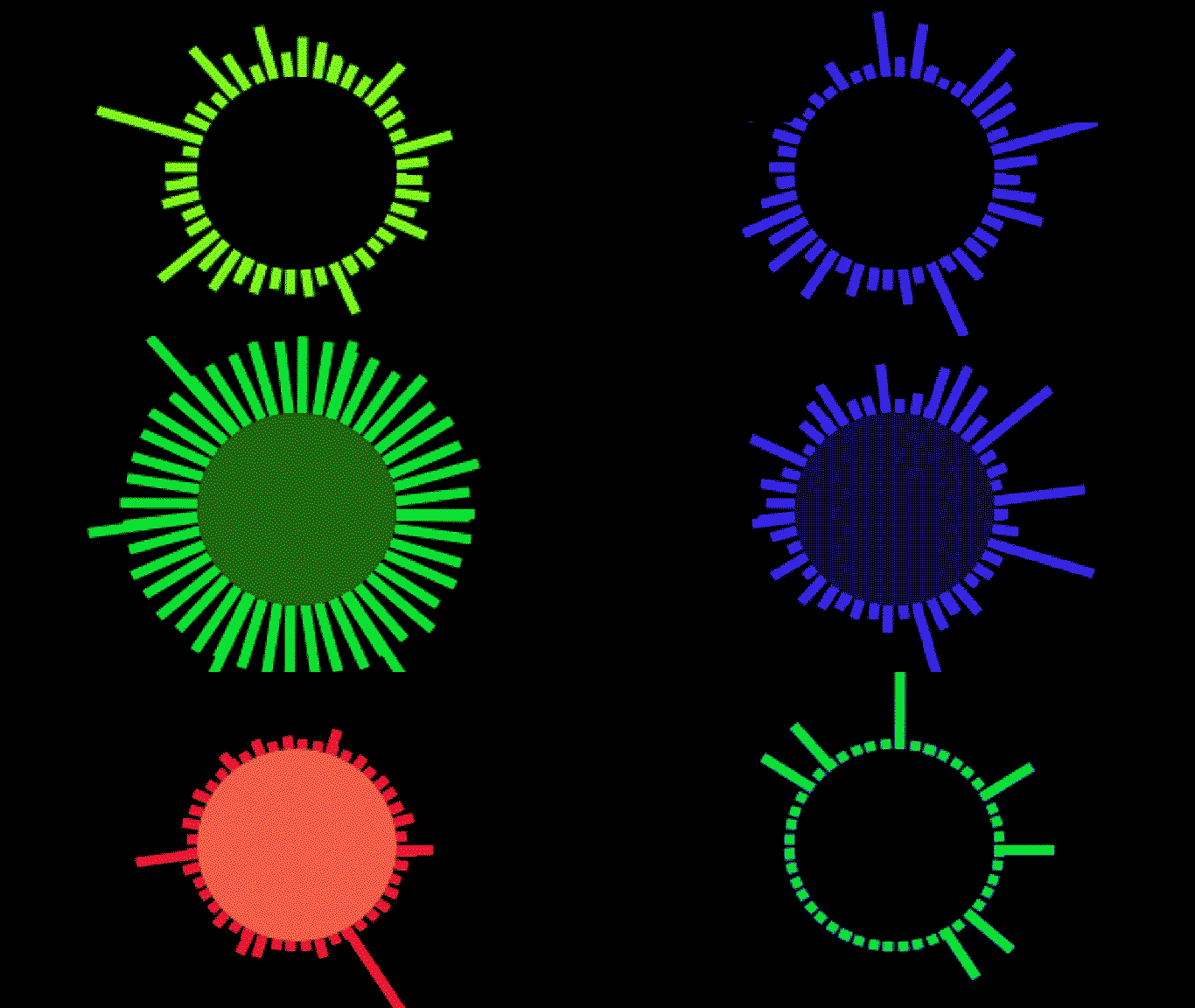
Audio vizuelizator
Ovde istražujemo neka od API audio svojstava i pokazujemo osnove kreiranja audio vizuelizatora. Većina vizuelizatora se zasniva na istim osnovnim principima, tako da malo vežbe može dati veoma zabavne rezultate.
SignalRGB audio svojstva
Section titled “SignalRGB audio svojstva”Audio podaci koje pruža SignalRGB mogu se preuzeti putem nekoliko svojstava u vašem kodu:
- engine.audio.level - vraća broj između -100 i 0 koji predstavlja ukupnu glasnoću numere. 0 je glasno, -100 je veoma tiho.
- engine.audio.density - vraća broj između 0 i 1 koji predstavlja gruboću zvuka; test tonovi vraćaju 0, beli šum 1.
- engine.audio.freq - vraća niz sa 200 elemenata koji sadrži frekventne podatke numere.
Svako svojstvo zahteva različite korake normalizacije ili prilagođavanja pre nego što se može pravilno koristiti, o čemu ću uskoro govoriti.
Počnimo sa osnovnom animacijom frekvencije.
Frekvencija
Section titled “Frekvencija”Frekvencija predstavlja visinu tona čujnog zvuka i najvažnije je svojstvo za audio vizuelizatore. Ovde uzimamo 200 preseka frekventnog talasa po frejmu i pretvaramo ih u vizuelni oblik. Osnovni tok je:
- Instancirati niz i popuniti ga frekventnim podacima.
- Obraditi ovaj niz po potrebi (filtrirati, mapirati, redukovati itd.).
- Napisati klasu “soundbar” za predstavljanje svakog elementa.
- Povezati podatke sa klasom soundbar po frejmu.
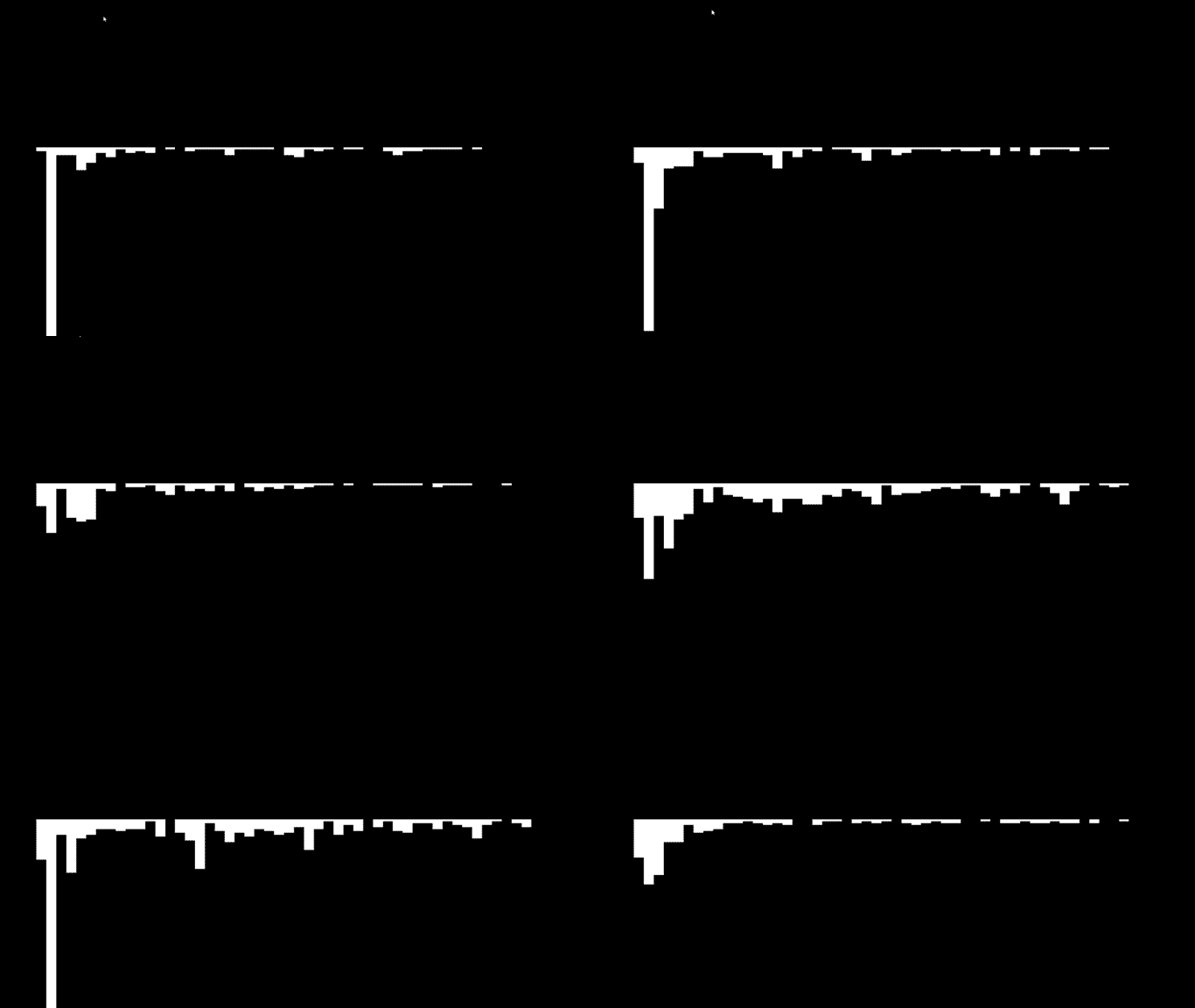
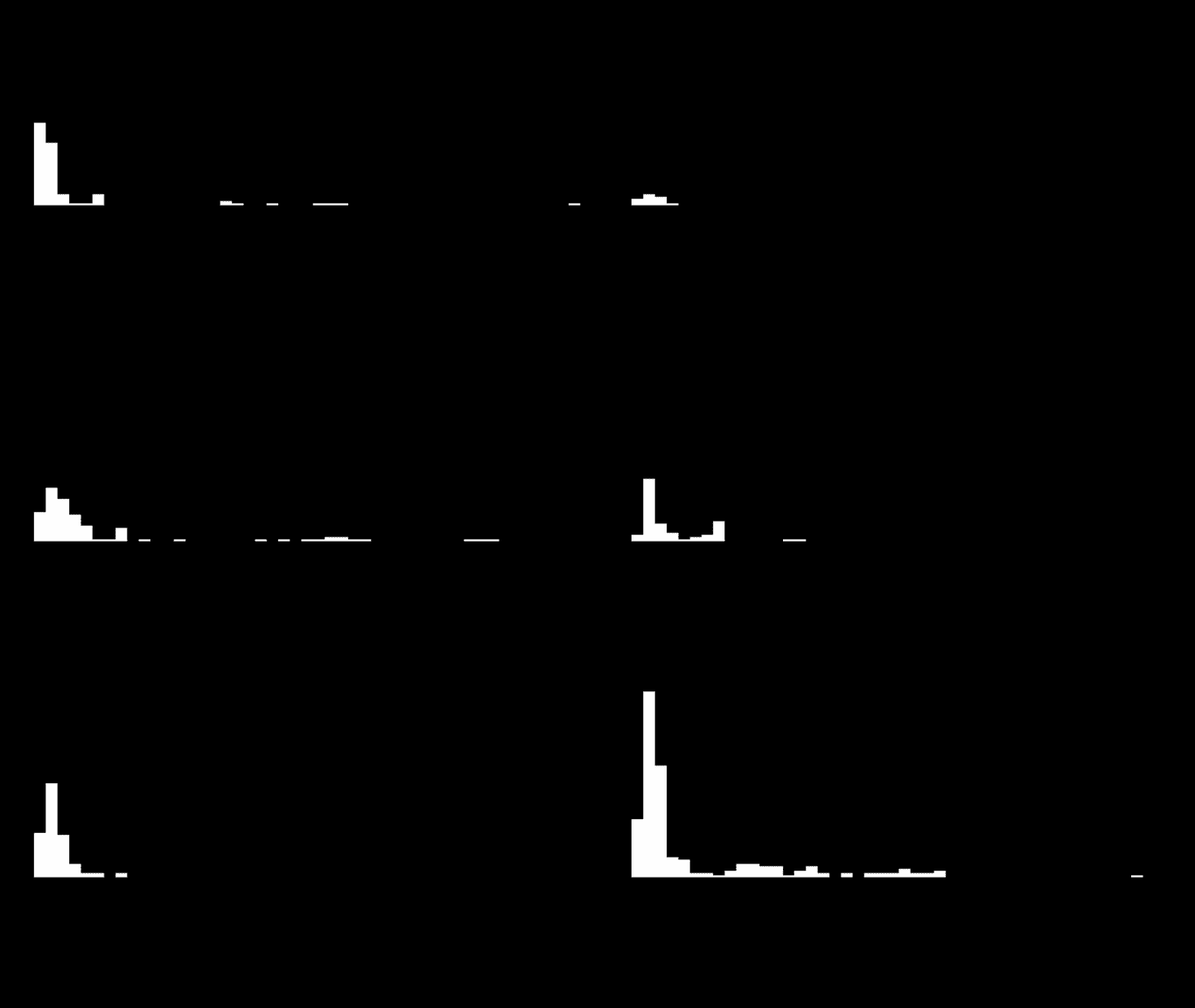
Važna stvar kod frekvencije je da moramo da napravimo dve korekcije sirovih podataka. Ponekad element stiže sa negativnom vrednošću, što je vizuelno ometajuće. Visina elemenata u ovom primeru takođe stiže netačno. Pošto se pozitivne vrednosti u opciji “height” pravougaonika crtaju prema dole od ishodišta oblika, želimo da ih obrnemo kako bi likovalo na prosečni vizuelizator.
Primer — neobrađeni podaci:
Obrađeni podaci:
Primer koda sa obrađenim podacima:
<head>    <title>Visualizer Tutorial</title>    <meta description="Basic Effects" />    <meta publisher="SignalRgb" />  </head>
  <body style="margin: 0; padding: 0; background: #000;">    <canvas id="exCanvas" width="320" height="200"></canvas>  </body>
  <script>    canvas = document.getElementById('exCanvas');    ctx = canvas.getContext('2d');    var effects = [];    var reducedFreq = [];
    function update() {
      // "frequency" represents the full 200 elements from our frequency data        var frequency = new Int8Array(engine.audio.freq)      // "reducedFreq" filters the data down to every fourth result to save some CPU load        reducedFreq = frequency.filter((element, index) => {            return index % 4 === 0;        })
      // Create the effect if it does not yet exist        if(effects.length < 1){            effects.push(new soundBars(20, 100))        }
      // Background color        DrawRect(0, 0, 320, 200, "black")
      // Play effect        effects.forEach((ele, i) => {          ele.draw();          if (ele.lifetime <= 0) {            effects.splice(i, 1);          }        });
      window.requestAnimationFrame(update);    }
    function soundBars (x, y){        this.x = x;        this.y = y;        this.draw = function(){          for(let i = 0; i < reducedFreq.length; i++){                var x = this.x + 5 * i                var y = this.y     // Data processing occurs for "height". Find the absolute value of each element, then flip negative                var height = -Math.abs(reducedFreq[i])                DrawRect(x, y, 5, height, "white")            }        }    }
    function DrawRect(x, y, width, height, color) {      ctx.beginPath();      ctx.fillStyle = color;      ctx.fillRect(x, y, width, height);    };
    window.requestAnimationFrame(update);  </script>
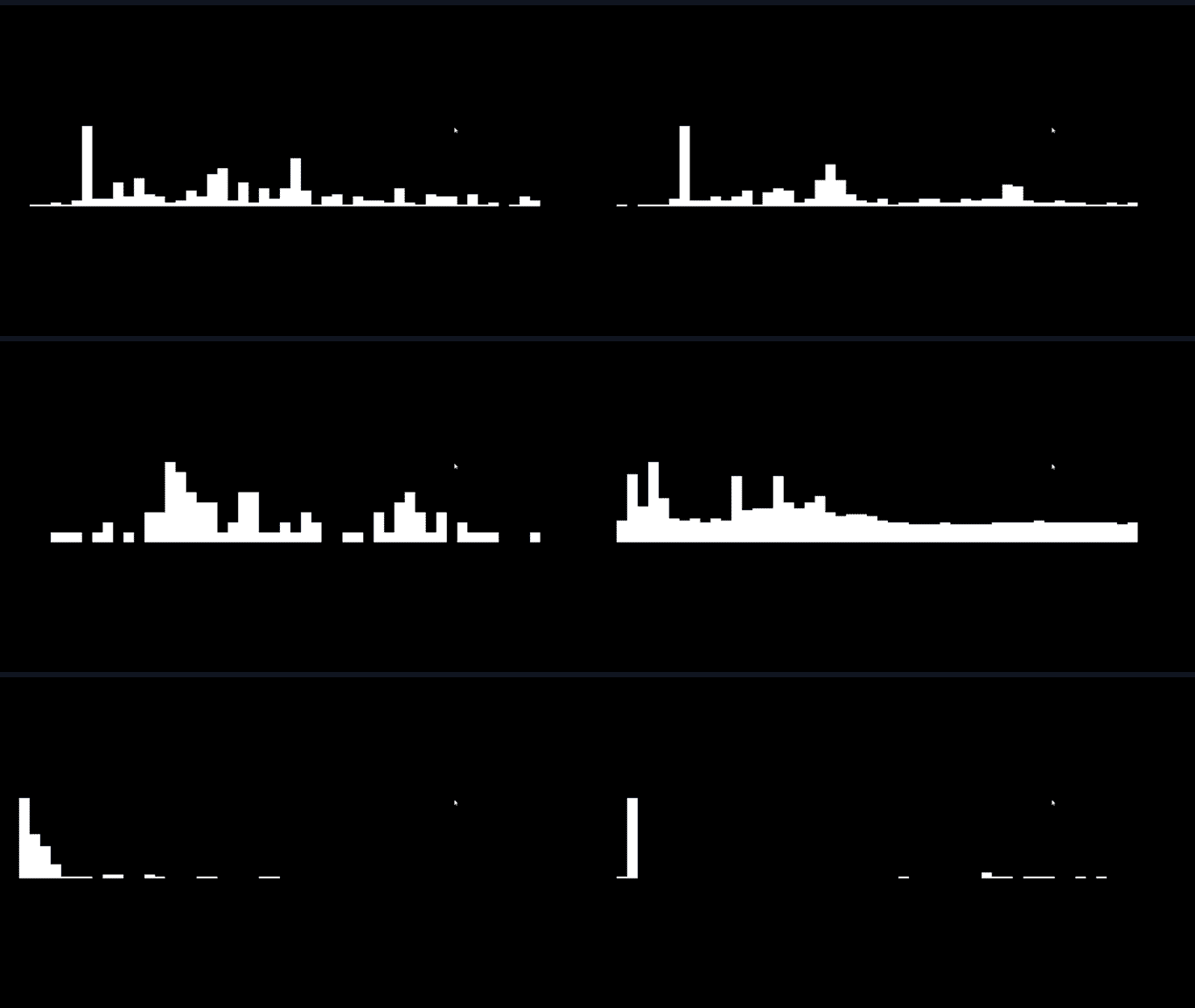
Međutim, sa gornjim vizuelizatorom ima još nekoliko problema. Iako pesma zvuči uravnoteženo u slušalicama, vidimo da podaci masivno favorizuju neke soundbarove i ostavljaju druge često potpuno nevidljivim. Sa umetničke perspektive, to nije idealno, pa ćemo “normalizovati” podatke primljene od SignalRGB-a. Normalizacija ravnomerno raspoređuje podatke između maksimalne i minimalne vrednosti kako bi bolje predstavila njihovu vrednost jedan u odnosu na drugi. Kada utvrdimo maksimalnu i minimalnu vrednost u frekventnom nizu, jednačina je ukupno prilično jednostavna: (x - min) / (max - min), gde “x” predstavlja trenutni element.
Normalizovani, obrađeni podaci:
Zatim dodajemo malo stila raspoređujući soundbarove u krug:
function soundBars (x, y){      this.x = x;      this.y = y;
      this.draw = function(){
        var max = Math.max(...reducedFreq)        var min = Math.min(...reducedFreq)
        for(let i = 0; i < reducedFreq.length; i++){          //Save the current state of the canvas          ctx.save()          //Add the circular component to your bars. "50" here is the radius of the circle          var x = this.x + Math.cos(i) * 50          var y = this.y + Math.sin(i) * 50          var height = ((Math.abs(reducedFreq[i])) - min) / (max - min) * -40          // Determine the angle of the bar, to make it perpindicular to the circle          var rotate = Math.atan2(y - this.y, x - this.x) + Math.PI / 2;          //Translate to circle center          ctx.translate(x, y)          //Rotate the canvas          ctx.rotate(rotate)          //Translate back for drawing          ctx.translate(-x, -y)          DrawRect(x, y, 5, height, "white")          //Restore the old state of the canvas after drawing to prevent positive feedback loops          ctx.restore()        }      }    }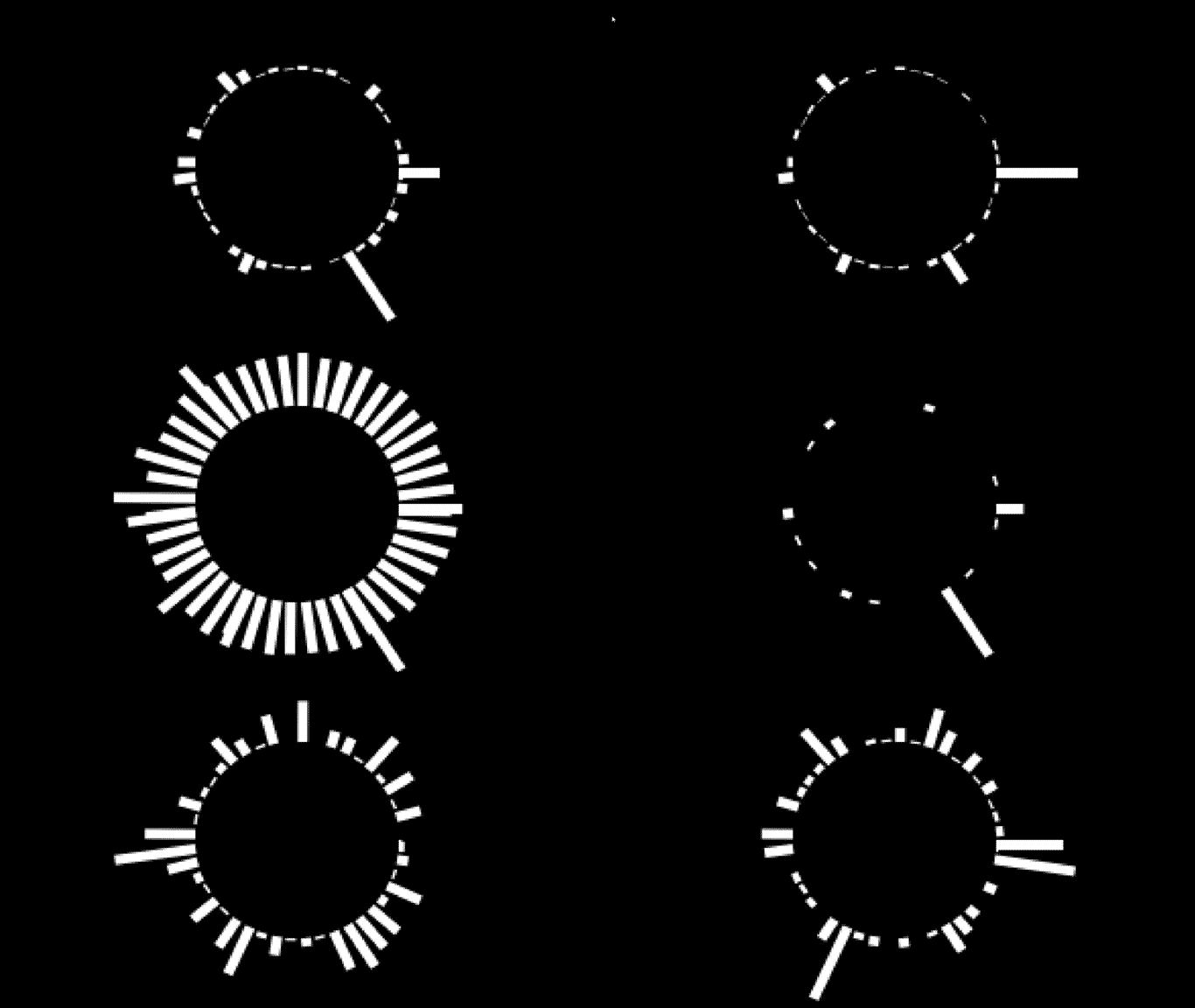
Gustina
Section titled “Gustina”Gustina je jednostavna za korišćenje. Vraćena vrednost je broj između 0 i 1 koji predstavlja “čistoću” zvuka. Digitalni tonovi su bliži 0, analogni tonovi bliži 1. U ovom primeru koristim je za uređivanje boje soundbarova, što daje određenim tonovima u pesmi određene tonove boja.
function soundBars (x, y){
      this.x = x;      this.y = y;      this.rotate = 0;
      this.draw = function(){        //Hue is calculated each frame, the resulting amount will be a proper hue option for hsl        var hue = engine.audio.density * 360
        var max = Math.max(...reducedFreq)        var min = Math.min(...reducedFreq)        for(let i = 0; i < reducedFreq.length; i++){          ctx.save()          var x = this.x + Math.cos(i) * 50          var y = this.y + Math.sin(i) * 50          //Height slightly edited for visability          var height = ((Math.abs(reducedFreq[i])) - min) / (max - min) * -50 - 5          this.rotate = Math.atan2(y - this.y, x - this.x) + Math.PI / 2;          ctx.translate(x, y)          ctx.rotate(this.rotate)          ctx.translate(-x, -y)          //Insert the edited hue value each frame          DrawRect(x, y, 5, height, `hsl(${hue}, 100%, 50%)`)          this.rotate = 0;          ctx.restore()        }      }    }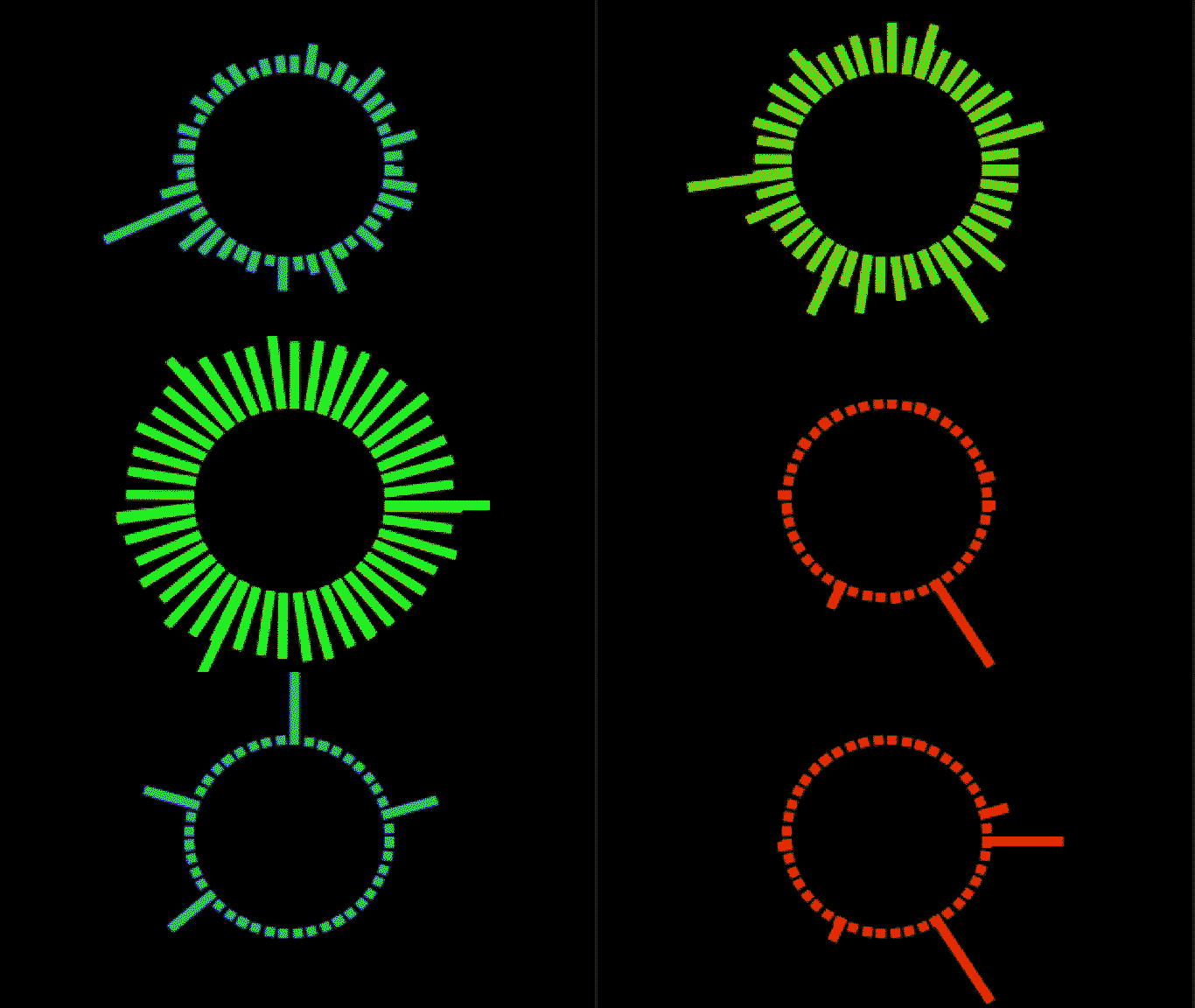
Ovo svojstvo jednostavno vraća glasnoću numere u decibelima, s tim što generiše brojeve između -100 i 0. -100 je veoma tiho i 0 je veoma glasno. Moramo malo obraditi ove podatke da bismo ih koristili po želji, a ovu formu crtam u funkciji update. Ovde nivo numere uređuje osvetljenost unutrašnjeg crnog kruga.
function update() {
        var frequency = new Int8Array(engine.audio.freq)        reducedFreq = frequency.filter((element, index) => {            return index % 4 === 0;        })
        if(effects.length < 1){            effects.push(new soundBars(160, 100))        }
        DrawRect(0, 0, 320, 200, "black")
        effects.forEach((ele, i) => {          ele.draw();          if (ele.lifetime <= 0) {            effects.splice(i, 1);          }        });
        // Hue calcualtion to match the rest of the visualizer        var hue = engine.audio.density * 360        //The level has been multiplied by 10, then added to 100. This is arbitrary, but some combination         of actions here will give you the result you want        DrawCircle(160, 100, 50, `hsl(${hue}, 100%, ${100 + engine.audio.level * 10}%)`)
      window.requestAnimationFrame(update);    }