Problemas com Fast Boot
Por padrão, o Windows 8 (e versões superiores) tem um recurso chamado Fast Boot ativado, que pode ser bastante problemático ao lidar com dispositivos RGB (pelo menos na configuração inicial).
Desativando o Fast Boot
Seção intitulada “Desativando o Fast Boot”Para desativar o Fast Boot, crie um novo arquivo chamado Disable-fastboot.bat e cole o seguinte código nele:
@echo offecho Enabling Fast Boot Feature for Full Restart / Shutdownif _%1_==_payload_  goto :payload
:getadminecho UAC Prompt must be accepted...set vbs=%temp%\getadmin.vbsecho Set UAC = CreateObject^("Shell.Application"^)                >> "%vbs%"echo UAC.ShellExecute "%~s0", "payload %~sdp0 %*", "", "runas", 1 >> "%vbs%""%temp%\getadmin.vbs"del "%temp%\getadmin.vbs"goto :eof
:payloadpowercfg /hibernate ongoto :eof
:eof
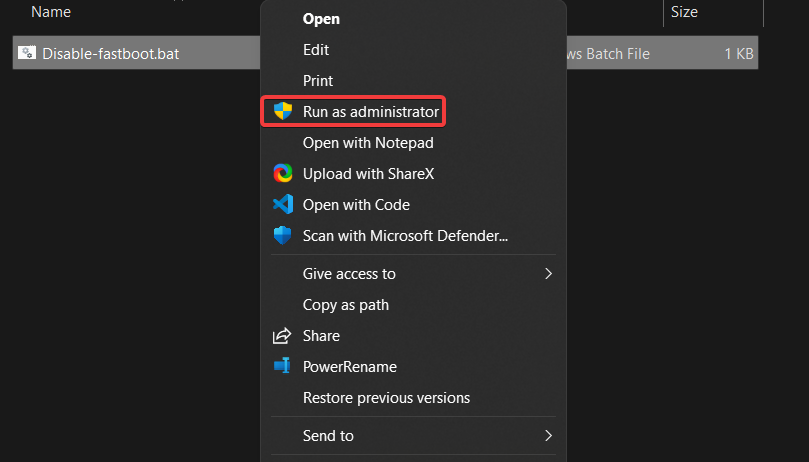
Clique com o botão direito no arquivo e selecione Executar como Administrador. O Fast Boot deverá estar desativado agora.
Ativando o Fast Boot
Seção intitulada “Ativando o Fast Boot”Se quiser reativar o Fast Boot, crie outro arquivo chamado Enable-fastboot.bat e cole este código nele:
@echo offecho Disabling Fast Boot Feature for Full Restart / Shutdownif _%1_==_payload_  goto :payload
:getadminecho UAC Prompt must be accepted...set vbs=%temp%\getadmin.vbsecho Set UAC = CreateObject^("Shell.Application"^)                >> "%vbs%"echo UAC.ShellExecute "%~s0", "payload %~sdp0 %*", "", "runas", 1 >> "%vbs%""%temp%\getadmin.vbs"del "%temp%\getadmin.vbs"goto :eof
:payloadpowercfg /hibernate offgoto :eof
:eof
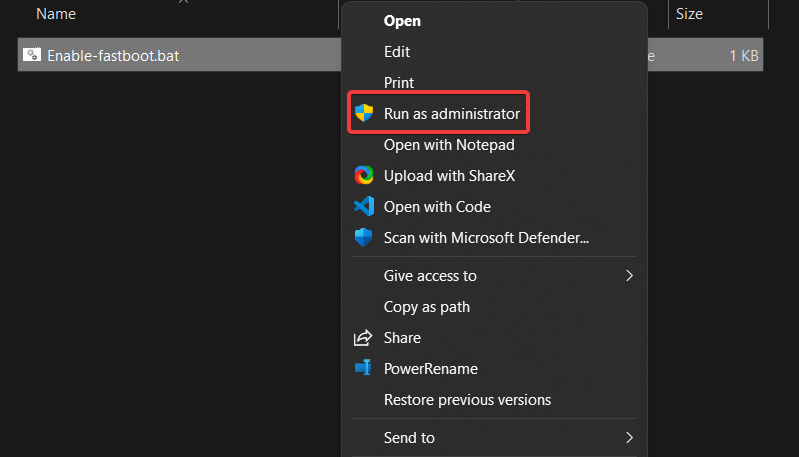
Clique com o botão direito no arquivo e selecione Executar como Administrador. O Fast Boot deverá estar ativado novamente.